
Appearance
Website pages & SEO
Website pages are your own pages on the public website: terms of service, privacy policy, refund and cookie policies, about us, landing pages. Each page has its own address, can be written in every language of the installation, can sit in the header or footer menu, and has its own search settings. Legal page drafts are one click away.
Available inSingle userSaaSWhere: Administration › Website pages (/site-pages), for installation administrators. New page: /site-pages/new; editing: /site-pages/{id}.
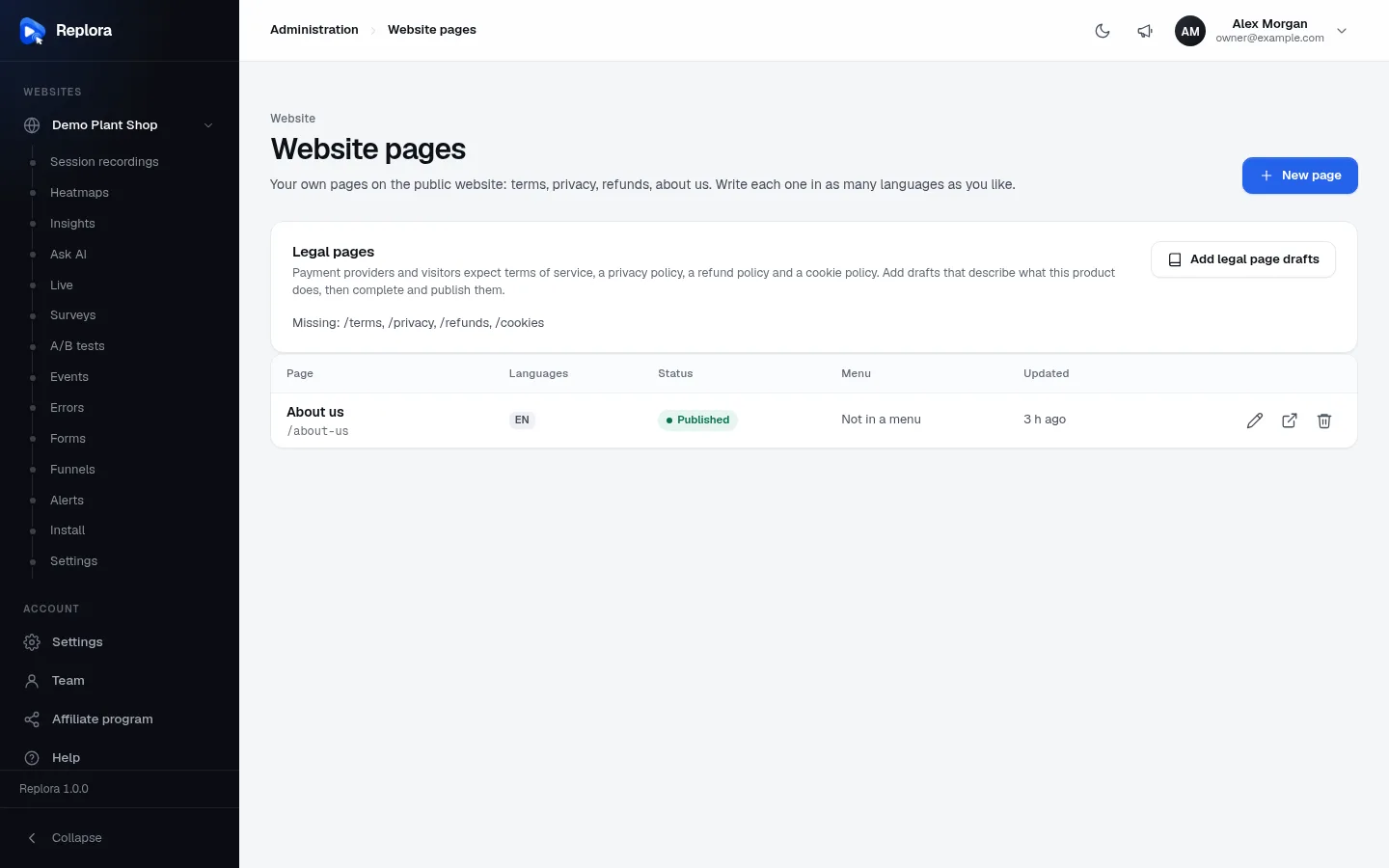
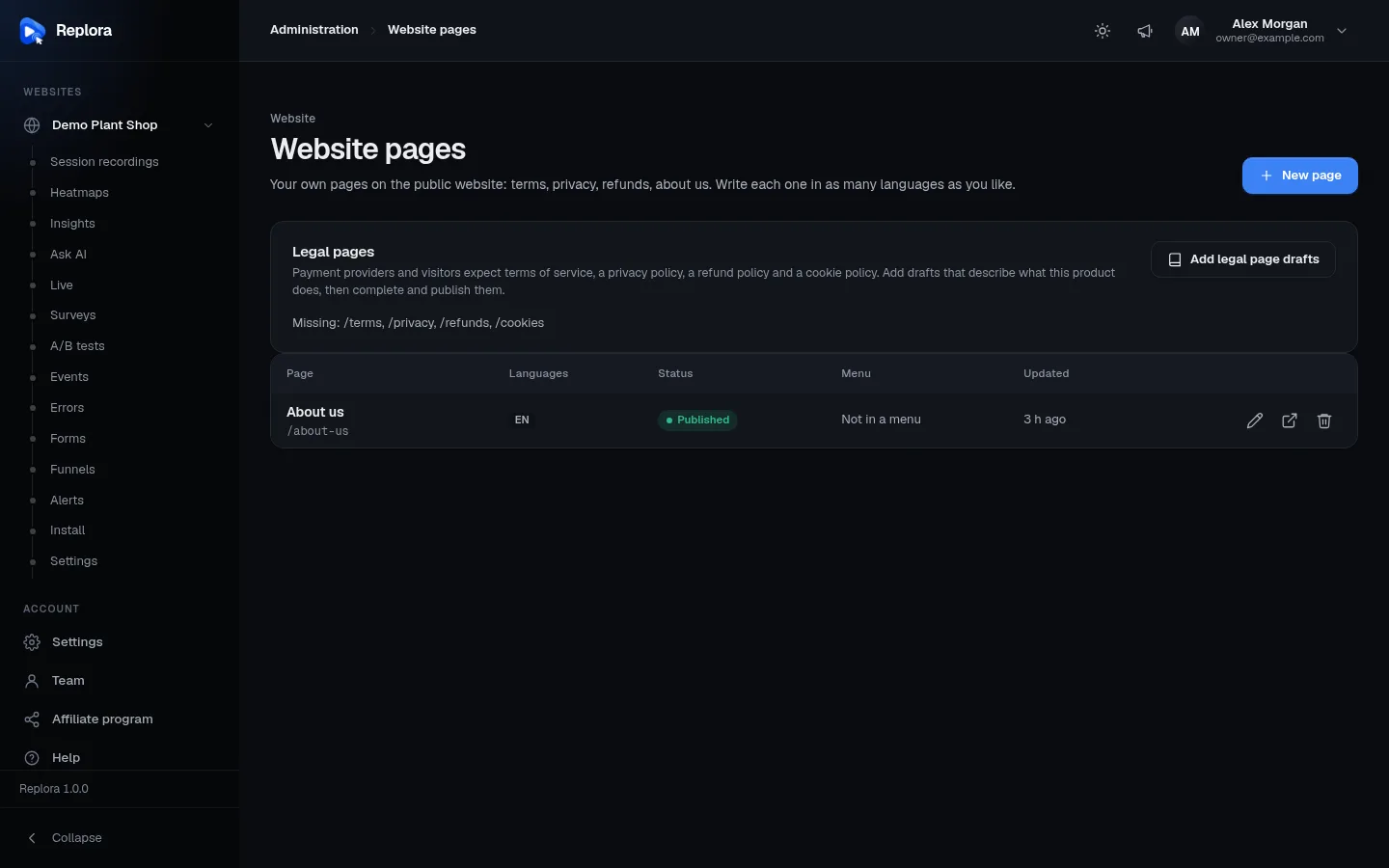
The list
| Part | What it does |
|---|---|
| New page | Opens an empty page |
| Legal pages card | Add legal page drafts adds the missing starter pages as drafts; Missing: lists which of /terms, /privacy, /refunds, /cookies don't exist yet. Hidden once they all exist. More below |
| Page | The title (in the default language) and the address |
| Languages | The languages the page is written in (EN, DE…) |
| Status | Published or Draft; Hidden from search when the page is kept out of search engines |
| Menu | Not in a menu, Header menu or Footer |
| Updated | When the page last changed |
| Actions | Edit, View on the website (published pages), Delete |
Pages are listed by their menu order, then by address. Delete asks first: the page is removed from the website and its menus in every language, and this can't be undone.
Editing a page
The editor has the page's text per language on the left and Publishing and Search on the right. The top bar says Not on the website yet: publish it when it is ready. for drafts, and offers All pages, Save draft / Publish (drafts) or Unpublish / Update (published pages).
Languages
The language tabs show every language the page is written in; the default language (the installation's, marked default) is always there and can't be removed. + Add a language adds another one as a copy of the default language's text, ready to be translated; Remove language removes it when you save.
Visitors get the page in their language (the website's language choice, then their account's and their browser's) when it is written in it, otherwise in the default language. A page written in several languages shows links to its other languages at the top and tells search engines about them.
Content
| Field | What it does | Rules |
|---|---|---|
| Title (language) | The page's heading and, unless a search title is set, its title in search results and browser tabs | Required for every language, up to 200 characters |
| Address | /{address}, the same in every language. Filled in from the default-language title until you change it | Required, up to 80 characters, lower-case letters, digits and hyphens (terms-of-service); must be unused |
| Format | Rich text / HTML or Markdown, per language | Default: Rich text / HTML |
| View | For Rich text / HTML: Visual (editor with a toolbar), HTML (the source) or Preview. For Markdown: Write or Preview | |
| Page text | The content | Up to 200,000 characters |
Addresses the app uses can't be taken ("This address is used by the app. Choose another one."): for example api, login, signup, sites, settings, plan, plans, billing, pricing, features, contact, demo, admin, dashboard, stripe, paddle, robots.txt, sitemap.xml, and every address a module registers on the server (affiliate-program…).
Switching Markdown → Rich text converts the text on the server, so nothing is lost. Switching back keeps the HTML as it is (Markdown may contain HTML).
Toolbar of the visual editor: Paragraph, Heading 2, Heading 3, Bold, Italic, Underline, Bulleted list, Numbered list, Quote, Link (asks for https://…, /page or mailto:), Choose an uploaded file, Table, Divider, Undo, Redo, Clear formatting; then Picture, Attach a document and Choose existing.
Pictures and documents
| Kind | Types | Largest |
|---|---|---|
| Pictures | PNG, JPEG, GIF, WebP (GIFs become PNG; made at most 2400 px wide) | 10 MB |
| Documents | PDF, Word (doc, docx), Excel (xls, xlsx), PowerPoint (ppt, pptx), OpenDocument (odt, ods, odp), text, CSV, ZIP | 20 MB |
Add them with the buttons, by dragging them into the text or by pasting; they go where the cursor is (a picture as an image, a document as a link). Choose existing opens the library of everything uploaded for the website's pages (filter Pictures / Documents, search by name). Files are served from /page-files/… under long random names. Documents are also checked by the installation's upload checks (and the virus scanner when one is set up, see Security & privacy).
Safe HTML
Whatever you write is cleaned on the server before the website shows it, so a page can never harm visitors:
- scripts, styles, frames, embedded objects, forms and buttons, SVG, audio, video and canvas are removed with their content; inline styles and event handlers are dropped;
- allowed: headings, paragraphs, text formatting, lists, quotes, code, tables, figures, pictures, links,
div/span,section/article/aside,details/summary, and theclass,id,title,dir,langattributes; - links may only be
http(s),mailto:,tel:, site paths (/pricing) or#anchors; pictures onlyhttpsor site paths; links that open a new tab getrel="noopener noreferrer".
Preview shows the cleaned result exactly as the website will. For tracking codes and widgets use Code before </head> in Website and SEO.
Publishing
| Setting | What it does | Default |
|---|---|---|
| Show in menu | Not in a menu, Header menu (between Pricing and Live demo) or Footer (in the column with Pricing and Contact) | Not in a menu |
| Order in the menu | Lower numbers come first | 0; 0 to 9999 |
| Hide from search engines | The page stays reachable by its address but is left out of search results (noindex) and the sitemap | Off |
Menu entries use the page's title in the visitor's language (else the default language). Only published pages appear on the website and in menus; a draft's address shows the dashboard's "not found" instead.
Search (per language)
| Field | What it does | Limit |
|---|---|---|
| Search title | What search engines show as the title. Empty = the page title | 200 characters |
| Search description | The text under the title in results. Empty = the start of the page text (160 characters) | 400 characters |
| Search result preview | Shows how the result will look |
The website's sharing picture, site name and verification codes come from Website and SEO. Published pages that aren't hidden are added to /sitemap.xml (with their language versions) automatically.
Legal pages
Add legal page drafts creates, in the default language and as drafts in the Footer menu, each of these that doesn't exist yet:
| Address | Title |
|---|---|
/terms | Terms of service |
/privacy | Privacy policy |
/refunds | Refund policy |
/cookies | Cookie policy |
/dpa | Data Processing Agreement |
The drafts are written in Markdown for what Replora does, and filled in from Settings › Installation › Company details: product name, company name, country, contact email and refund window (days). Missing details stay as [your company], [your country], [your contact email]. The DPA's list of subprocessors names your hosting provider (to complete), Anthropic when AI features are set up, and your SMTP email service when one is set.
Have them checked
The drafts are a starting point, not legal advice. Complete the [bracketed] details, have them checked for your business and country, then publish them. Payment providers (Stripe, Paddle) usually require terms, privacy and refund pages before they approve your account.
The sign-up form links to /terms and /privacy, and the website's cookie banner links to your cookie (else privacy) page when it is published in the Footer menu, so publish those before you open sign-up.
The Data Processing Agreement
While a page at /dpa is published, every account sees a Data Processing Agreement card in Settings › General: Accepted or Not accepted, Read the Data Processing Agreement, and for the account's managers I accept the agreement for this account (other members see "A manager of the account can accept it."). Each acceptance is stored with the person's name, email and the date. When you change the DPA, accounts are asked to accept the new version ("The agreement has changed since it was accepted.").
Tasks
Write an "About us" page
- Administration › Website pages › New page.
- Type the title About us: the address becomes
about-us. - Write the text in the Visual view; add a picture with Picture.
- Under Publishing choose Footer and an order.
- Fill in Search title and Search description, check the preview.
- Publish, then View on the website.
Translate a page
- Open the page and choose a language in + Add a language: the default text is copied.
- Translate the title, text and search fields.
- Update. Visitors using that language now get the translation; the address stays the same.
Publish the legal pages
- Fill in Settings › Installation › Company details.
- On Website pages click Add legal page drafts.
- Open each draft, complete the
[bracketed]parts and have the text reviewed. - Publish each page.
Who can do this
Only installation administrators see Website pages and can use its API (/api/v1/site-pages). Account managers accept the DPA; other members can only read it.
Related
- Public website: the website's texts, menus and Website and SEO settings
- Sign-up & accounts: links to
/termsand/privacy - Languages & translations
- Installation settings: company details
- Security & privacy