
Appearance
Administrator tour
Administrators run the installation itself: who can sign in, which version runs, how emails go out, what the dashboard looks like and which texts it shows. Everything they need is in the Administration section of the sidebar and on the Installation tab of Settings. Everything else in the dashboard (websites, recordings, heatmaps…) works for them exactly as it does for everybody else.
Who is an administrator
- The first account of an installation is an administrator: the web installer creates it, or
php artisan replora:adminon the command line (Command-line install). - Any administrator can make another user an administrator on Users (or invite someone as one).
- Being an administrator is separate from the role a person has inside their own account (manager, member, viewer). An administrator also has their own account with websites like everybody else. See Security & privacy for the difference.
People who are not administrators never see the Administration section, the Installation tab of Settings or the update notice; the server refuses the administrators' API routes for them (403).
The Administration section
The sidebar shows these entries to administrators, in this order. Modules add their own entries after the core's, so a page appears only when its module is installed.
| Entry | Address | Edition | What you do there |
|---|---|---|---|
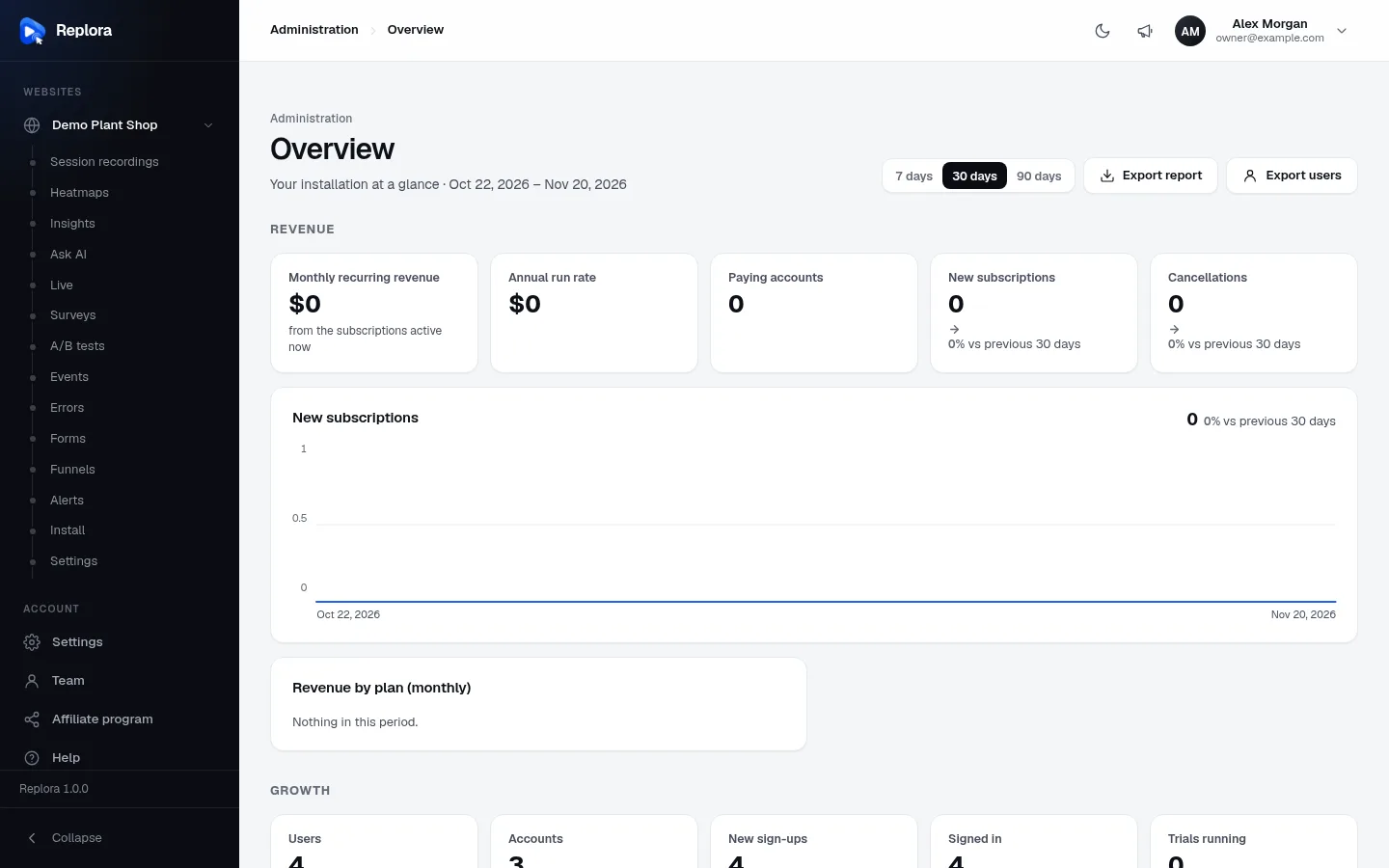
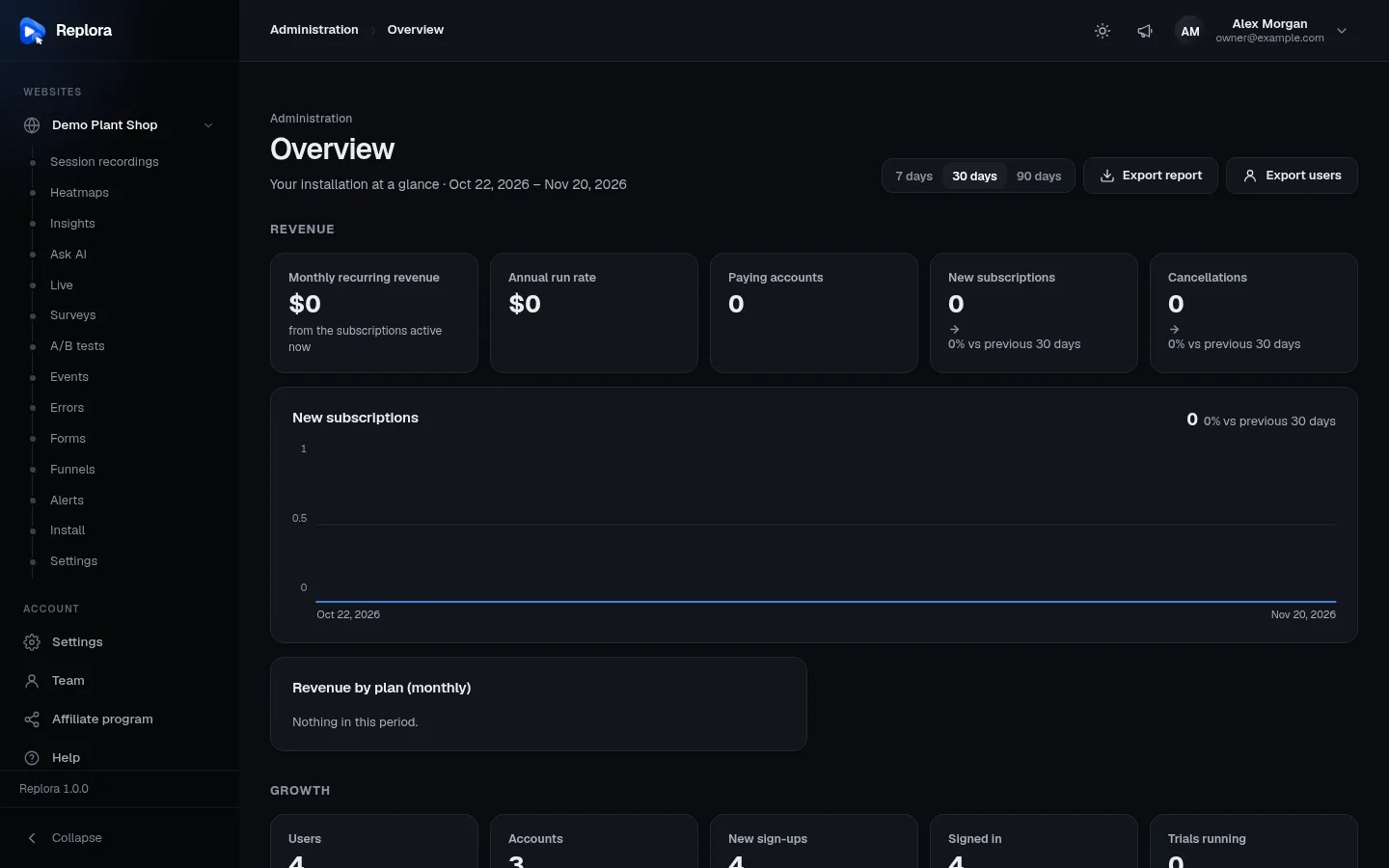
| Overview | /admin | Both | The installation at a glance for 7, 30 or 90 days: revenue (SaaS), growth, usage, AI; CSV exports. Overview & reports |
| Users | /users | Both | Everyone who can sign in: search, filters, invitations, administrator role, suspension, removal, two-factor reset. Users |
| System | /system | Both | Version, one-click updates and rollback, purchase code, service status, maintenance mode. System, Service status & maintenance |
| Translations | /translations | Both | Your own wording for any text, in any of the 13 languages. Languages & translations |
| Plans | /plans | SaaS | Plans, prices and limits. Plans & limits |
| Website pages | /site-pages | SaaS | Your own pages on the public website. Website pages & SEO |
| Affiliates | /affiliates | SaaS | Affiliates, their commissions and payouts. Affiliate program |
| Support desk | /desk | SaaS | Customers' tickets. Support desk |
| Announcements | /announcements | Both | "What's new" posts behind the megaphone, optionally emailed. Announcements |
| Help center | /help-center | Both | The help articles behind the help button, which the AI chat answers from. Help center |
Two more places belong to administrators:
- Settings › Installation (
/settings#installation): logo and favicon, company details, the dashboard design and every installation setting (email, AI, sign-in with Google, reCAPTCHA, virus scanning, recordings, payments…). Installation settings - The footer of the sidebar shows the running version ("Replora 1.0.0") to administrators only.
The update notice
When a newer release is out, or new files were uploaded and the update still has to be finished, administrators see a blue notice at the top of every dashboard page (except System) with a button that leads to System. See System › Updates.
Your first hour
- Settings › Installation › Email delivery: connect a mail service and press Send a test email. Invitations, password resets, alerts and health warnings depend on it. Email delivery
- Add the scheduler cron entry, then open System and check that Service status shows no failing service. Service status
- System › License: enter your purchase code so updates can bring new modules. System
- Settings › Installation › General: the product name and default language; then Logo and favicon and Dashboard design. Appearance & branding
- Optional: the Anthropic API key for the AI features (AI features), Sign in with Google and reCAPTCHA (Security & privacy).
- Users › Invite your team (Single user edition), or set up plans and payments (SaaS).
- Look through Help center and Announcements: a new installation starts with a set of help articles you can adapt.
What administrators can't see
Administrators manage accounts, not other people's work. The Users page shows each account's counts (sites, recordings, plan), never its recordings; to watch another account's recordings you need to be invited into that account like anyone else. There is no "sign in as" (impersonation) feature.
Related
Overview & reportsRevenue, growth and usage at a glance.OpenUsersInvite, suspend, remove, make administrator.OpenSystemVersion, updates, license.OpenService statusHealth checks and maintenance mode.OpenInstallation settingsEvery setting, instead of .env.OpenSecurity & privacyRoles, privacy, rate limits, 2FA.Open