
Appearance
Sign-up & accounts
In the SaaS edition anyone can create their own Replora account at /signup: they get a new account (an organization) with themselves as its manager, confirm their email address, and start on your free plan or a free trial. This page explains the sign-up form, the switches that control it, and how invitations and suspensions fit in.
Where: the form is at https://YOUR-SITE/signup (every Start free button on the public website leads there). Its switches are in Settings › Installation (administrators): the Sign-up, Sign in with Google, Spam protection (reCAPTCHA) and Free trial groups.
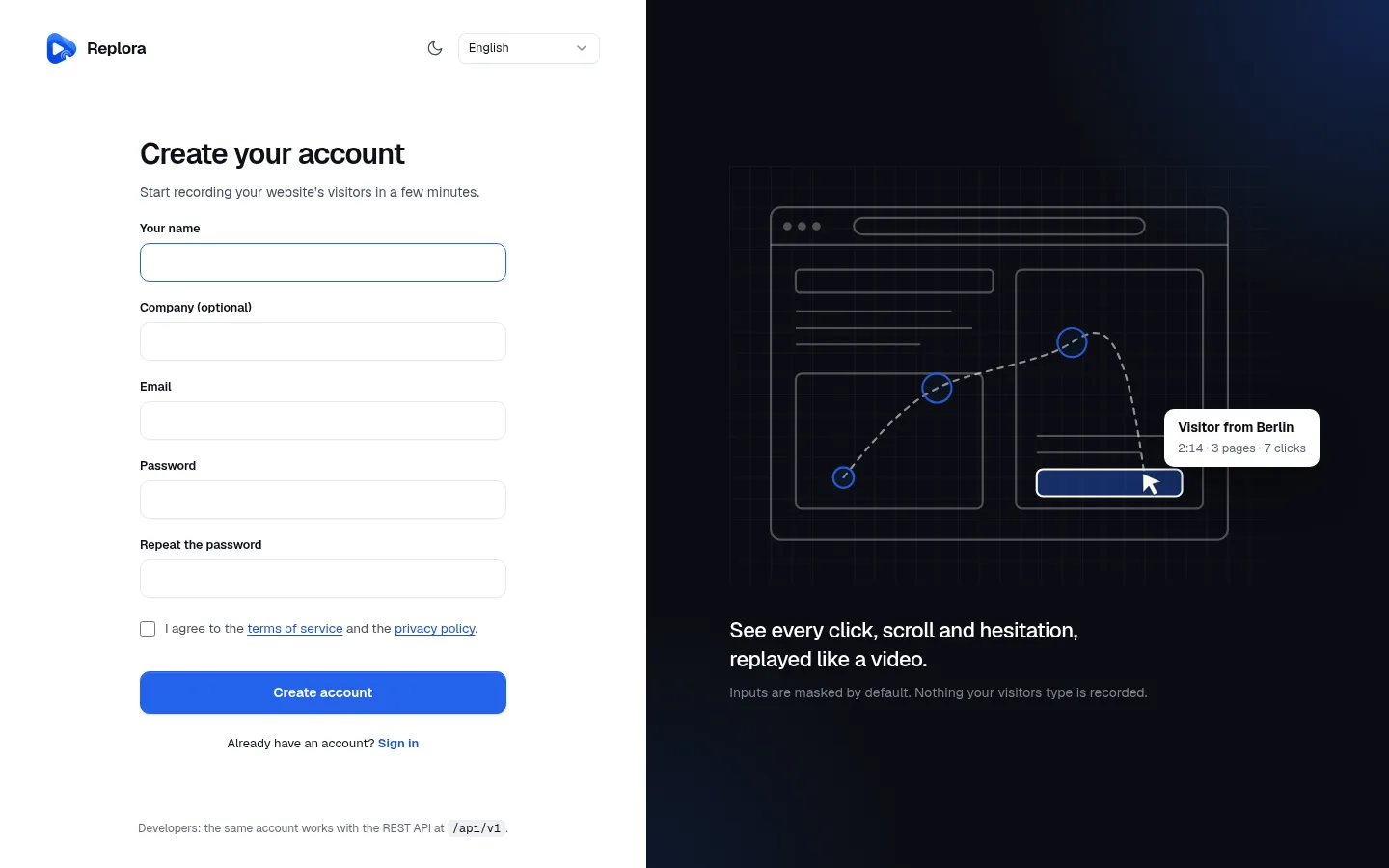
The sign-up form
| Field | What it does | Rules |
|---|---|---|
| Your name | The person's name, shown in the dashboard and in team lists | Required, up to 255 characters |
| Company (optional) | The new account's name (as in Account settings). Empty = "Name’s workspace" | Up to 120 characters |
| The address they sign in with. Lower-cased before it is sent | Required, a valid address, up to 255 characters, not used by another account ("The email has already been taken.") | |
| Password, Repeat the password | The sign-in password | Required, 10 to 200 characters, both the same |
| I agree to the terms of service and the privacy policy | Links to your /terms and /privacy pages (open in a new tab). The moment it was ticked is stored with the user | Must be ticked: "Please accept the terms of service and the privacy policy." |
| Continue with Google | Shown above the form while Sign in with Google is active; a note says that continuing means accepting the terms and the privacy policy | |
| Create account | Creates the account and signs the person in | Limited to 5 tries a minute per address and network, 20 a minute per address |
| Already have an account? Sign in | Opens /login |
A small reCAPTCHA notice appears under the form while reCAPTCHA is switched on.
Write your terms and privacy policy first
The checkbox links to /terms and /privacy. Create those pages before you open sign-up: on Website pages, the Add legal page drafts button adds them as drafts. See Website pages & SEO.
What happens on sign-up
- The form creates, in one step, a new account (organization) and its first user, who manages it. The user's language is the one the sign-up page was shown in; their emails use it.
- The person is signed in at once and lands in the dashboard.
- Replora emails a confirmation link ("Confirm your email address for Replora"). The link works for 3 days and only for the address it was sent to.
- Until the address is confirmed, a banner above every dashboard page says Please confirm your email address: we sent a link to …, with Send the link again. They can look around, but can't add a website yet.
- Opening the link confirms the address (Thank you, your email address is confirmed.) and sends the welcome email: three steps to the first recording (add the website, paste the tracking code, visit the site) and an Add your website button. When a contact email is set in Settings › Installation › Company details, the welcome email's replies go there ("Questions? Just reply to this email.").
- If a free trial is offered, the new account starts it; otherwise it is on the default plan.
Email must work
Sign-up never fails because of email: if the confirmation can't be sent, the account is still created and the person can press Send the link again later. But without working email nobody can confirm, so nobody can add a website. Set up Email delivery before you open sign-up.
| Situation | What the person sees |
|---|---|
| Link opened, address confirmed | Dashboard with Thank you, your email address is confirmed. |
| Link for an address that was changed since | That link no longer fits your email address. Ask for a new one. |
| Link older than 3 days | The link is refused; they ask for a new one with Send the link again |
| Send the link again pressed | Sent: check your inbox. (at most 6 times a minute) |
| Already confirmed | The button is not shown; the server answers "Your email address is confirmed already." |
Changing the email address later (Settings › Account) makes it unconfirmed again and sends a new link to the new address, so nobody can confirm one address and then switch to someone else's.
Sign-up settings
Settings › Installation › Sign-up:
| Setting | What it does | Default |
|---|---|---|
| Let people create their own account | On: /signup and the sign-up API are open. Off: accounts are created by invitation only. /signup then shows the sign-in page, which no longer offers a sign-up link, and POST /api/v1/auth/signup answers 403 | On |
The same switch can be preset on the server with REPLORA_SIGNUP=false in .env (see Environment). Sign-up is never open in the Single user edition, whatever this setting says.
The website's buttons
The public website's Start free and plan buttons always point to /signup. While sign-up is closed, visitors who click them land on the sign-in page: change the texts on your pages (or keep sign-up open) if you run invitation-only.
Continue with Google
Settings › Installation › Sign in with Google:
| Setting | What it does | Default |
|---|---|---|
| Show "Continue with Google" | Shows the Google button on the sign-in and sign-up pages. Works only when both the client ID and the secret are filled in | Off |
| Client ID | From your Google Cloud OAuth client (type Web application); ends with .apps.googleusercontent.com. Up to 200 characters | Empty |
| Client secret | The OAuth client's secret, stored encrypted | Empty |
| Let Google create new accounts | While sign-up is open, a Google account without a Replora account gets a new one. Off: only people who already have an account can use Google | On |
Set it up
- In the Google Cloud console open APIs & Services › Credentials and create an OAuth client ID of type Web application.
- Add the authorized redirect URI shown in the setting's description:
https://YOUR-SITE/auth/google/callback(it is built fromAPP_URL, so check thatAPP_URLis your public https address). - Copy the client ID and secret into the settings, switch Show "Continue with Google" on and save.
- Sign out and try Continue with Google on
/signup.
Who gets in with Google
| Case | Result |
|---|---|
| The Google account is already linked to a Replora account | Signed in |
| Google says the address is verified, and a Replora account with that address exists and has confirmed it | The Google account is linked to it and the person is signed in |
| An account with that address exists but has not confirmed it | Refused, so nobody can take over an address they signed up with but don't own |
| No account with that address, sign-up open and Let Google create new accounts on | A new account is created, already confirmed (Google vouched for the address); the welcome email is sent at once. The name comes from Google (else the part of the address before @) |
| No account, and sign-up closed or Google may not create accounts | Refused: no account |
| Google doesn't vouch for the address | Refused |
| The account is suspended | Refused |
| The account uses two-factor sign-in | The sign-in page asks for the code next |
People can also link a Google account to an existing account in Settings › Account (Google account › Connect Google account).
reCAPTCHA
Settings › Installation › Spam protection (reCAPTCHA) protects the sign-up, sign-in, forgot-password and contact forms with Google reCAPTCHA v3 (invisible, no puzzles):
| Setting | What it does | Default |
|---|---|---|
| Check that visitors are people | Switches the check on. Works only with both keys | Off |
| Site key | From google.com/recaptcha/admin, keys of type Score based (v3) for your domain. Up to 100 characters | Empty |
| Secret key | The matching secret, stored encrypted | Empty |
| Strictness | Google scores each visit from 0 (a bot) to 1 (a person): Relaxed (0.3), Balanced (0.5, recommended), Strict (0.7) | Balanced (0.5) |
Locked out by a wrong key?
If a wrong key stops everyone from signing in, run php artisan replora:recaptcha off on the server, or set RECAPTCHA_OFF=true in .env, then fix the keys. See Security & privacy.
Free trial
Settings › Installation › Free trial lets every new self-service account (sign-up form or Google) try a paid plan for free, once:
| Setting | What it does | Default / limits |
|---|---|---|
| Offer a free trial | Switches trials on for accounts created from now on | Off |
| Trial length (days) | How long the trial lasts | 14; 1 to 90 |
| Plan tried | The plan new accounts try. Only paid plans are listed | None chosen (no trials) |
- A running trial shows on the pricing page as "N-day free trial" and the plan button reads Try Plan free.
- Three days before the end, the account's managers get a reminder email (sent daily at 09:00 by the scheduler).
- When the trial ends the account moves to the free plan unless it subscribed. Without a free plan its websites stop recording until it chooses a plan.
- A paid subscription or a plan an administrator assigns always wins over a trial. Changing the settings doesn't change trials that are already running.
- People who join by invitation don't get a trial.
More in Plans & limits.
Invitations
Invitations work in both editions and also while sign-up is closed:
- Team invitations: an account's manager invites people to their own account from Team (as manager, member or viewer, optionally limited to some websites). See the user guide: Team & roles.
- Administrator invitations: an installation administrator invites people from Users; without an account to join, the invited person gets a new account of their own, which they manage.
An invitation link works once and for 7 days. The invited person chooses a name and password; their address counts as confirmed (the link came to it), and they accept no separate terms checkbox. An address that already has an account can't accept an invitation ("An account with this address already exists. Sign in instead.").
Suspending an account
On Users an administrator can suspend a person (and reinstate them later):
- they are signed out everywhere at once and can't sign in again, with a password or with Google ("This account is suspended. Contact the site administrator."); the message appears only after the right password, so it reveals nothing to someone guessing;
- their data stays as it is;
- nobody can suspend themselves or change their own administrator role.
Tasks
Open sign-up for the public
- Set up email delivery and send a test email.
- Write and publish your
/termsand/privacypages (Website pages). - Create your plans, including a free default plan or a trial (Plans & limits).
- Optional: switch on reCAPTCHA and Continue with Google.
- Check that Settings › Installation › Sign-up › Let people create their own account is on.
- In a private browser window, sign up with a test address, confirm it from the email and add a website.
Run invitation-only (a closed beta)
- Switch Let people create their own account off (or set
REPLORA_SIGNUP=false). - Invite people from Users. Each invitation creates their own account when accepted.
- Open sign-up later with the same switch: existing accounts are not affected.
Related
- Plans & limits: the default plan, trials and what new accounts can do
- Public website: where the Start free buttons are
- Website pages & SEO: terms of service and privacy policy
- Users: suspend, reinstate, invite
- Email delivery
- Security & privacy
- User guide: Account settings · Team & roles