
Appearance
Languages & translations
Replora speaks 13 languages in the dashboard, the emails and server messages, and the public website. Each person picks their own; the installation has a default. On the Translations page administrators can replace any text, in any language, with their own wording — a product term, a friendlier sentence, a fix — and the change shows for everyone at once.
Where: sidebar › Administration › Translations (/translations).
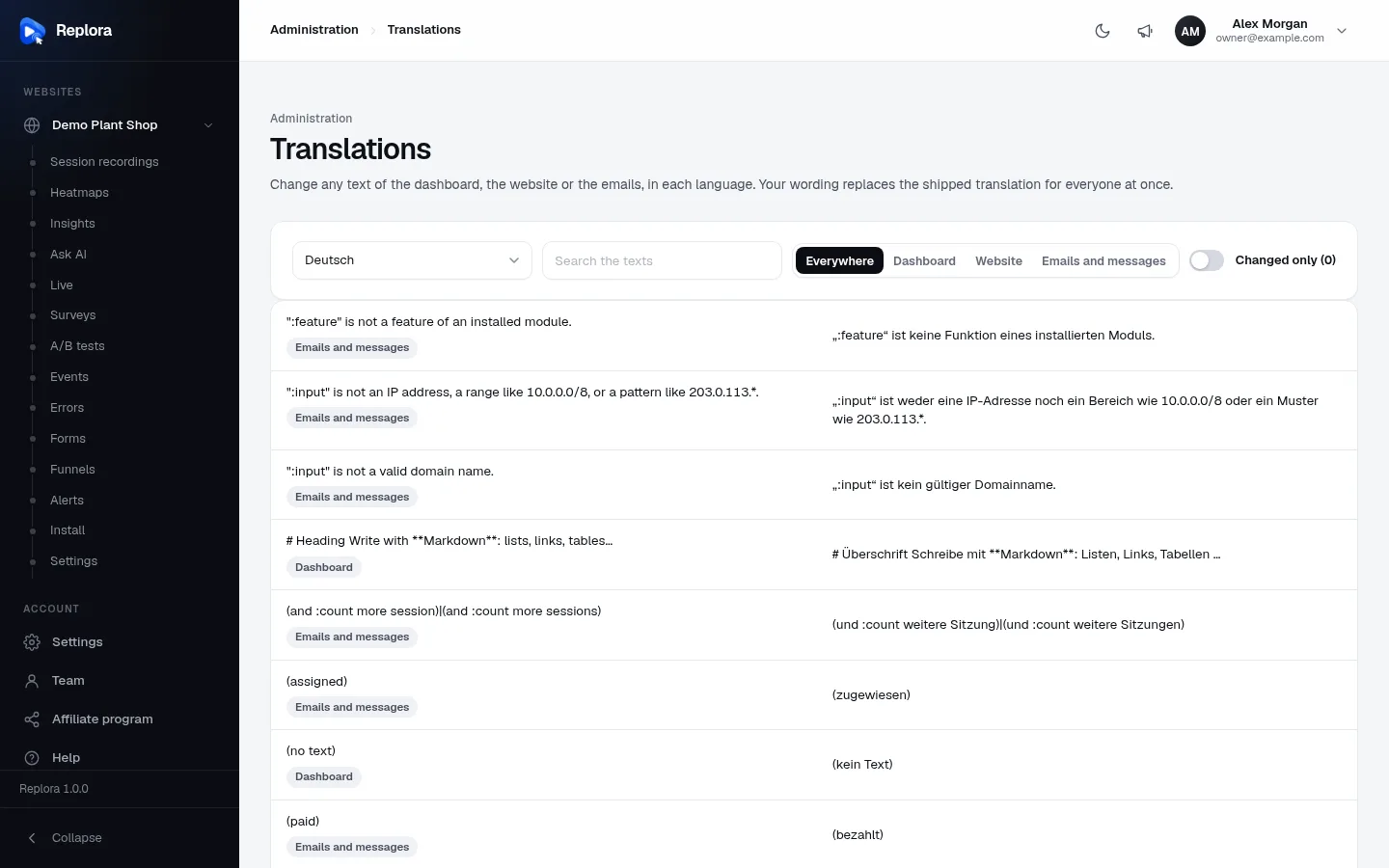
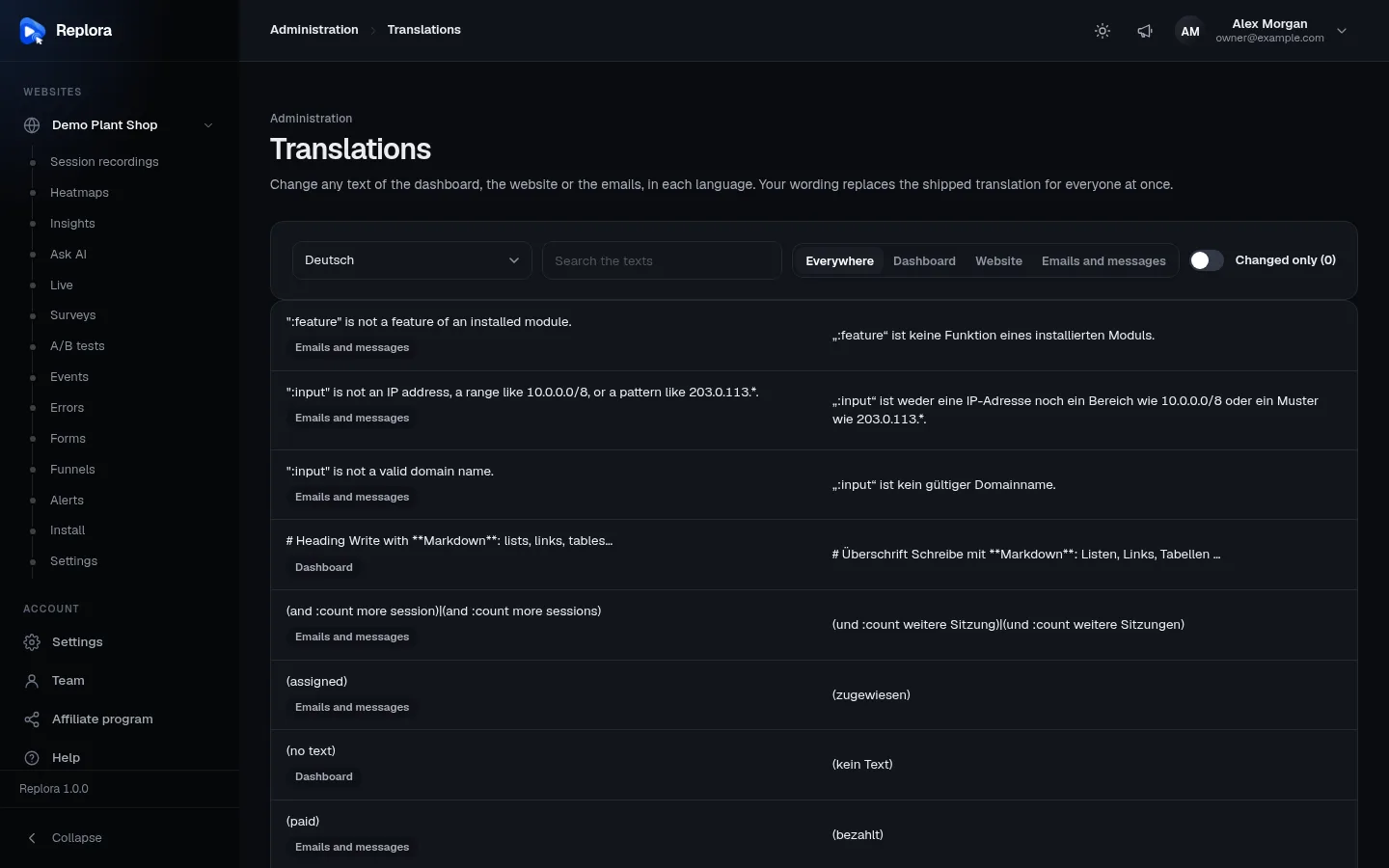
1. LanguageThe language whose texts you see and change.
The languages
| Code | Language | Code | Language |
|---|---|---|---|
en | English | ru | Русский |
es | Español | zh | 中文 (Simplified Chinese) |
fr | Français | ja | 日本語 |
de | Deutsch | ko | 한국어 |
pt | Português | tr | Türkçe |
it | Italiano | id | Bahasa Indonesia |
ar | العربية (right to left) |
- Each person chooses theirs under Settings › General › Language; it applies to the dashboard, server messages and the emails they get, on every device.
- Default language (Settings › Installation › General, default English): for emails to people who haven't chosen one, and for anyone who hasn't chosen yet. See Installation settings.
- Arabic is shown right to left in the dashboard and in emails.
The Translations page
| Control | What it does |
|---|---|
| Language | The language to edit. It opens on your own language (or German when yours is English). |
| Search the texts | Finds texts whose English source, shipped translation or your wording contains the words (up to 200 characters). |
| Where | Everywhere, Dashboard (the dashboard and its modules), Website (the SaaS public website, including your own website texts), Emails and messages (emails and the server's messages, e.g. validation errors). |
| Changed only (N) | Only the texts you changed in this language; N is how many. |
The list shows 50 texts a page (Previous / Next and Page X of Y · N texts below it). Each row has the English source text on the left with pills for its areas (and Changed once you changed it), and the text in the chosen language on the right. Your language, search and filters are kept while the dashboard stays open.
Change a text
- Choose the Language.
- Find the text: search for a word you see in the dashboard, or narrow it with Where.
- Click the text on the right. It becomes an editing box (right to left for Arabic).
- Write your wording and press Save (Text saved). Cancel leaves it as it was.
The change shows at once, for everyone using that language — in the dashboard, new emails and the website. Your text is kept in the database, so updates never overwrite it.
Back to the shipped translation
Open a changed text: under the box you see Shipped: … and Use the shipped translation. Press it (Back to the shipped translation). An empty text can't be saved.
Keep the placeholders
Texts can contain placeholders that are filled in when shown: {name}, {n}, {app} in the dashboard and website, :name, :count, :app in emails and messages. Some have two forms for singular and plural separated by |. Keep them exactly as in the source text, or the value won't appear.
English too
English can be changed the same way: choose English to reword the original texts (for example to use your own product terms).
Your own website texts SaaS
The public website's headline, introduction, footer, copyright line and enterprise texts you write under Settings › Installation › Website texts are written in one language. They appear on the Translations page in the Website area, so you can give them a wording in each other language. Until you do, every language shows them as written.
Add a language
The list of languages is part of the product: adding one means adding its language files (for the dashboard, each module, the UI kit, the website and the server) and registering the code. That is a developer task — see Building from source. The Translations page then lists it automatically. To change wording in an existing language, no files are needed: use this page.
Related
- Installation settings — the default language
- Email delivery — the emails whose texts you can change
- Public website — the website's texts (SaaS)