
Appearance
Plans & limits
Plans decide what each customer account may use: how many websites, how many sessions are counted and replayed per month, how long recordings are kept, how many people are on the team, and which features (heatmaps, A/B tests, AI…) are switched on. The same plans fill the pricing page of your public website and the customers’ Plan & billing page.
Available inSingle userSaaSThe Single user edition has no plans: everything is unlimited.Where: Administration › Plans (/plans). Only installation administrators see this page.
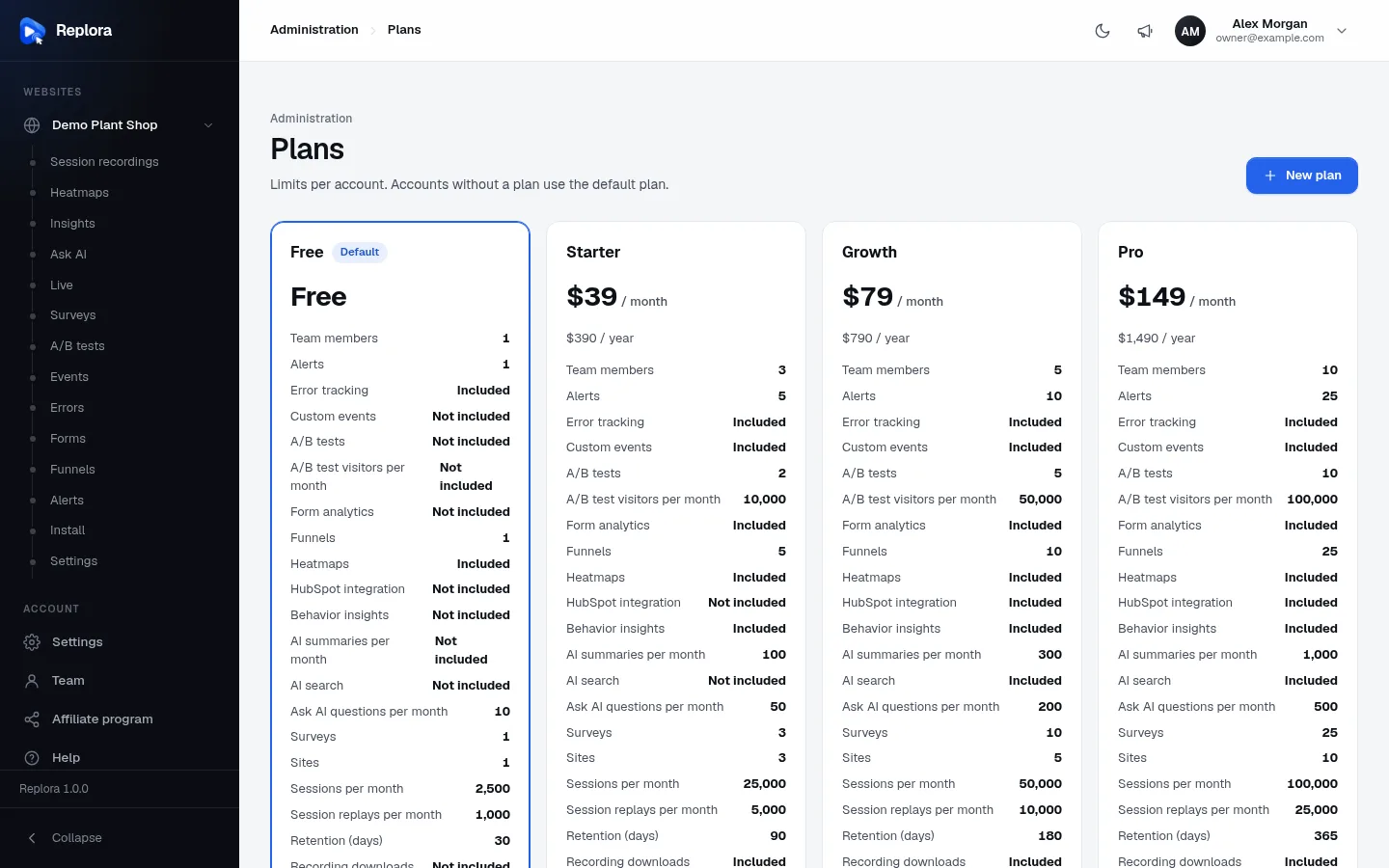
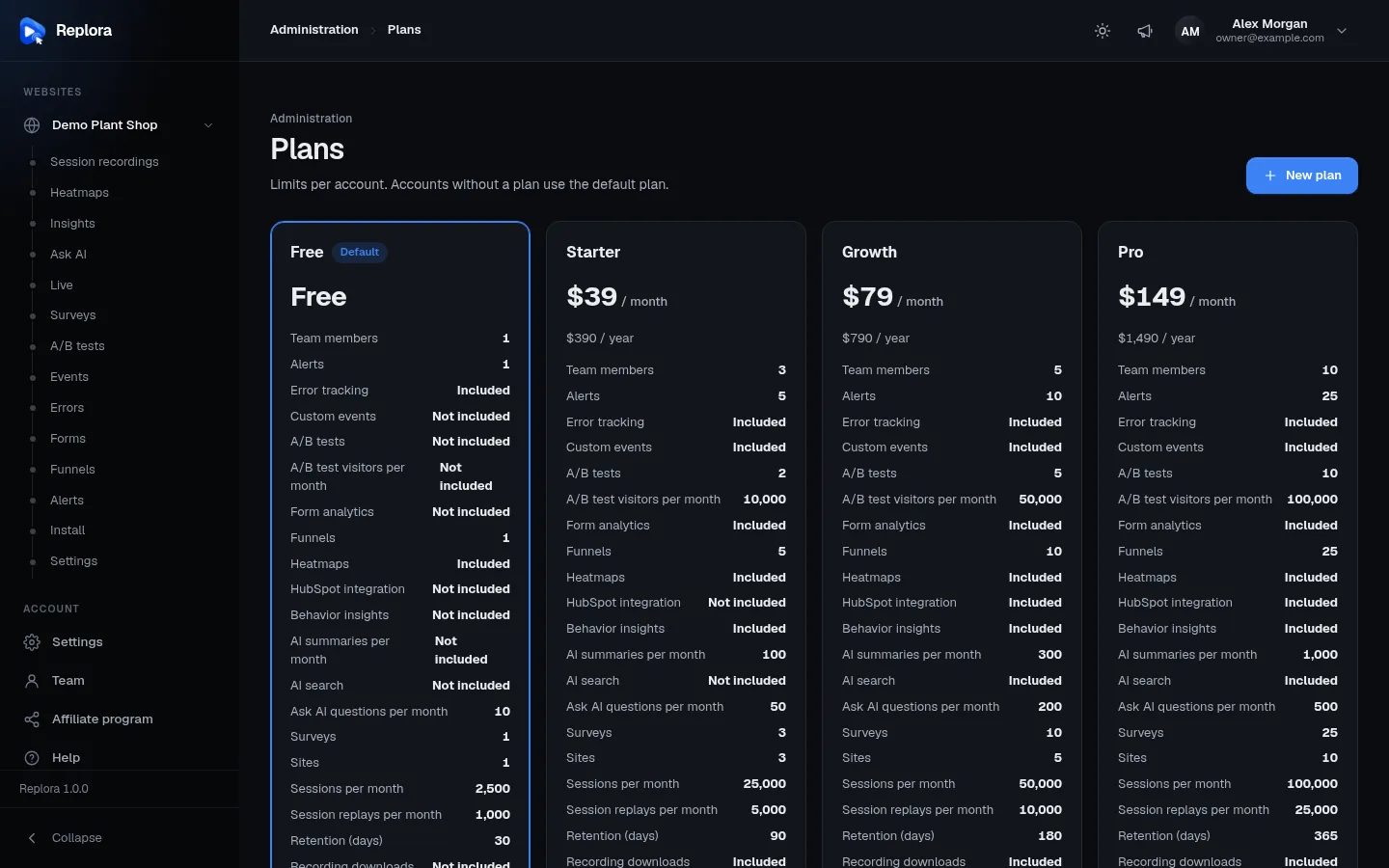
1. New planOpens the plan editor with an empty plan.
The plan cards
Each card shows one plan, in display order:
| Part of the card | What it shows |
|---|---|
| Name and badges | Default (the default plan), Enterprise (listed apart on the pricing page) |
| Price | Monthly price with / month, or Free when the monthly price is 0 |
| … / year | The yearly price, only when the plan has one |
| Limits | One row per plan-limited feature (see Limits): a number, Unlimited, Included, Not included, or Default when the plan does not mention the feature |
| Accounts | How many accounts an administrator has put on this plan (on the Users page). Paying subscribers are not counted here |
| Stripe, Paddle | How the plan can be bought online with each provider: Monthly, Yearly, Monthly and yearly, or — (not for sale there) |
| Edit | Opens the plan editor |
| Delete | Deletes the plan after a confirmation. Disabled for the default plan |
A fresh installation starts with two plans: Free (default, 1 website, 1,000 sessions a month, 30 days of retention) and Pro ($39 a month, 10 websites, 50,000 sessions a month, 365 days). Change or replace them before you open sign-up.
The plan editor
New plan or Edit opens the editor. Everything applies as soon as you click Save plan: account limits are cached for at most a minute and the cache is cleared on every save, so customers get the new limits on their next request.
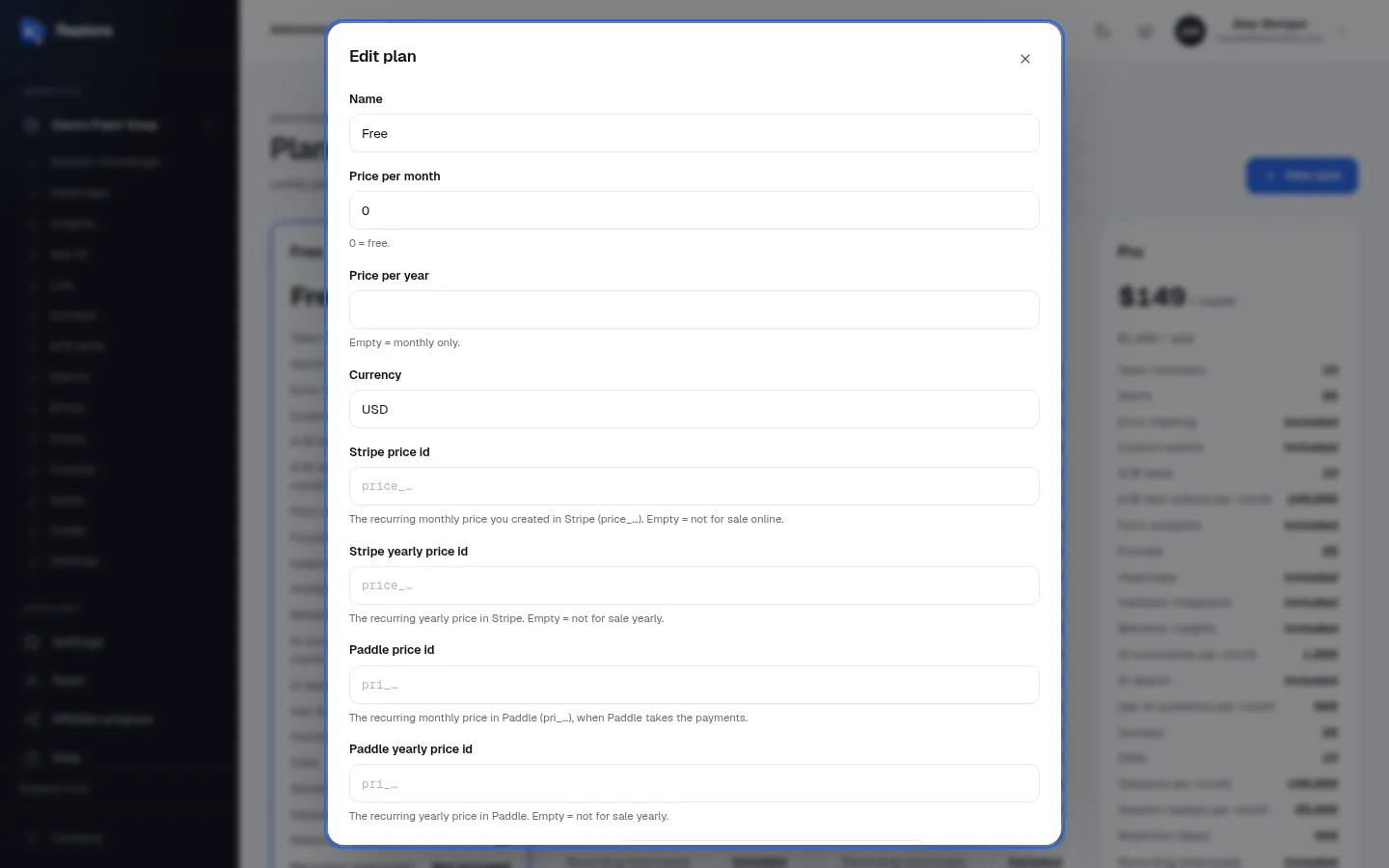
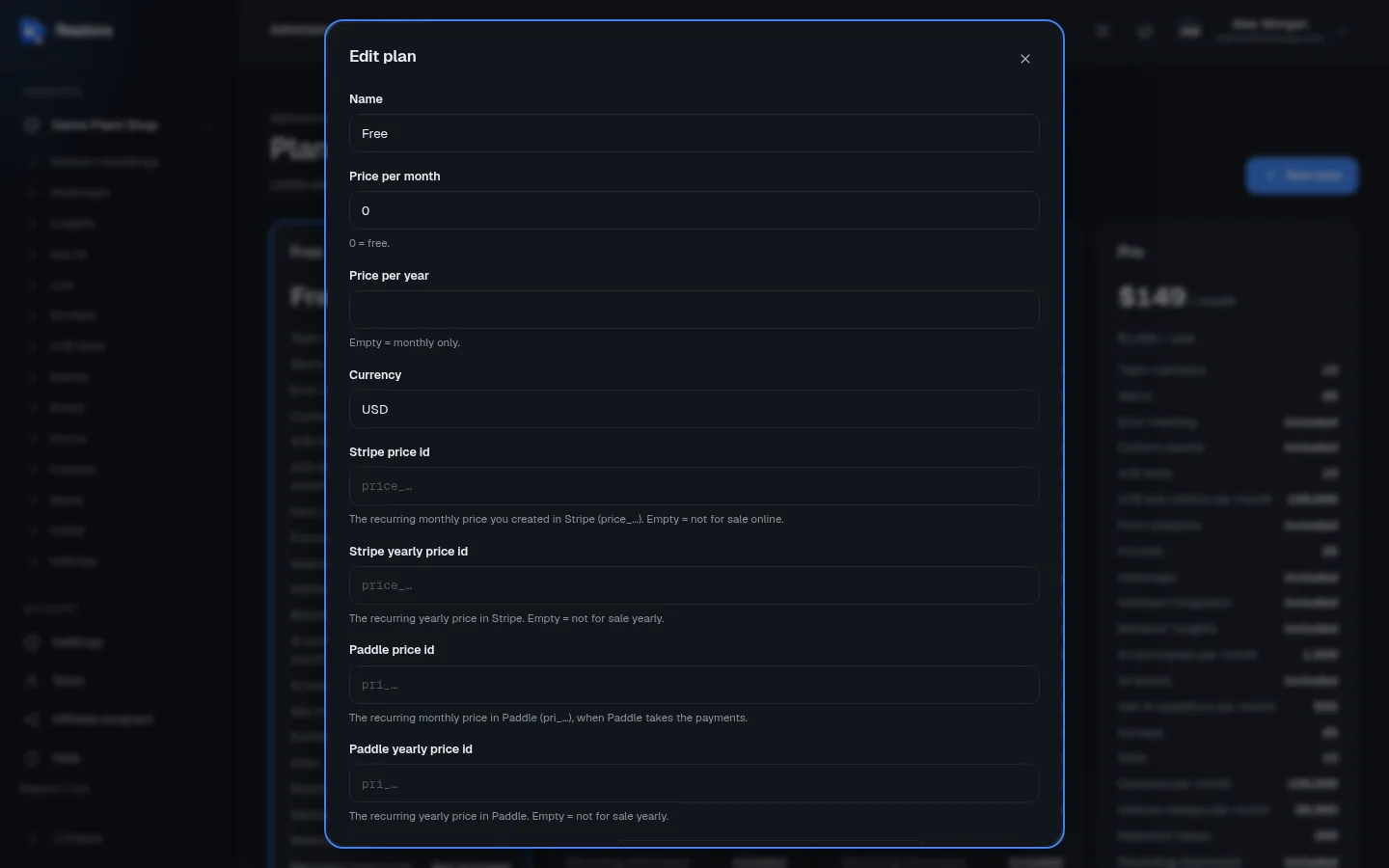
1. NameShown on the pricing page, in Plan & billing and in emails. Up to 80 characters.
Name, prices and currency
| Field | What it does | Allowed values / default |
|---|---|---|
| Name | The plan’s name everywhere customers see it | Required, up to 80 characters |
| Price per month | What the plan costs per month, in normal currency units (stored in cents). 0 = free | 0 to 1,000,000.00; default 0 |
| Price per year | The yearly price. The pricing page shows it per month (yearly ÷ 12) with the saving against twelve monthly payments (“save 17%”) | Empty = monthly only; 0 to 10,000,000.00 |
| Currency | The currency the prices are shown in | Exactly 3 letters (ISO code), saved in capitals; default USD |
The currency only labels the price
Customers are charged in the currency of the price in Stripe or Paddle, not of this field. Keep both the same, and keep the amounts the same too: the pricing page shows what you type here, the checkout charges what the provider’s price says.
Price ids (selling the plan online)
| Field | What it does |
|---|---|
| Stripe price id | The recurring monthly price in Stripe (price_…). Empty = not for sale monthly through Stripe |
| Stripe yearly price id | The recurring yearly price in Stripe. Empty = not for sale yearly through Stripe |
| Paddle price id | The recurring monthly price in Paddle (pri_…) |
| Paddle yearly price id | The recurring yearly price in Paddle. Empty = not for sale yearly through Paddle |
Each id may hold letters, digits and _, up to 120 characters. Only the ids of the active payment provider matter (see Billing: Stripe and Billing: Paddle); you can fill in both providers’ ids and switch later. A plan can be bought online for an interval only when it has both a price above 0 for that interval and a price id; otherwise Plan & billing shows it as Not for sale online and the administrator assigns it by hand.
When a payment provider reports a subscription, Replora finds the plan by the price id that was paid. That is how a subscription maps to a plan.
Don't change a price id while customers pay for it
The price id is how a running subscription finds its plan. If you replace the id (or delete the plan), the next renewal or change reported by the provider no longer matches any plan, and the account falls back to the default plan. To raise prices, create a new price in the provider, put the plan’s customers on it in the provider’s dashboard, then change the id here; or make a new plan and leave the old one in place for existing subscribers.
Limits
Below the price ids the editor lists every plan-limited feature of the modules that are installed and enabled (a removed module’s features disappear from the editor; plans keep their stored values). There are two kinds:
- Numbers (a text box): empty = Unlimited,
0= Not included (the feature is switched off), any other whole number = the limit. - On/off features (a switch, keys ending in
.enabled): Included or Not included.
| Limit | Kind | What happens at the limit |
|---|---|---|
| Sites | number | No more websites can be added (“Your plan allows N sites…”) |
| Sessions per month | number | New visits are not taken at all until the next month (see below) |
| Session replays per month | number | New visits are still counted in heatmaps, funnels and reports, but without a replay |
| Retention (days) | number | The longest time recordings are kept. Each website’s own retention setting is capped to it |
| Recording downloads | on/off | Downloading a replay as a file that plays offline |
| Team members | number | How many people the account may have, pending invitations included; further invitations are refused |
| Alerts | number | How many alerts the account may create |
| Error tracking | on/off | The JavaScript errors report |
| Custom events | on/off | The custom events report |
| A/B tests | number | How many A/B tests the account may have |
| A/B test visitors per month | number | Distinct visitors in tests per calendar month; tests pause for the rest of the month when it is reached |
| Form analytics | on/off | The forms report |
| Funnels | number | How many funnels the account may create |
| Heatmaps | on/off | Click, scroll and move heatmaps |
| HubSpot integration | on/off | Sending sessions to HubSpot |
| Behavior insights | on/off | The insights report |
| AI summaries per month | number | AI summaries of sessions written per month |
| AI search | on/off | Searching sessions in plain words |
| Ask AI questions per month | number | Questions to Ask AI (and the AI digest) per month |
| Surveys | number | How many surveys the account may have |
The labels above are what the editor shows; the order on your page follows the installed modules. A switched-off feature answers “Your plan doesn’t include … Upgrade the plan to use it.” in the dashboard and the API.
Not mentioned is not the same as unlimited
A feature the plan does not mention (shown as Default on the card, typically after you install a new module) gets the installation default, which is unlimited for every feature listed here. Open and save the plan once to give the new feature an explicit value.
Default plan and enterprise plan
| Switch | What it does |
|---|---|
| Default plan | Accounts without a plan of their own use it: new accounts, accounts whose subscription ended, accounts after an assignment ran out. Only one plan can be the default: turning it on turns it off on the previous one. A custom plan (one account’s own plan) can’t be the default |
| Enterprise plan | Lists the plan apart, at the bottom of the pricing page under Need more scale?, instead of with the regular plans. Enterprise plans still appear as extra columns in the Compare all features table |
Make the default plan a free plan (price 0). When a free trial ends, the account moves to the default plan if it is free, else to the first free plan; with no free plan at all, its websites stop recording until it chooses a plan.
Display order
Plans are shown in their sort order (0–1000), then by creation. The editor has no field for it: new plans get 0 and therefore come first. To reorder, send sort through the API:
bash
curl -X PATCH https://your-site.com/api/v1/plans/3 \
  -H "Authorization: Bearer $TOKEN" -H "Content-Type: application/json" \
  -d '{"sort": 30}'
The API (administrators only): GET /api/v1/plans (with meta.features, every feature key and label), POST /api/v1/plans, PATCH /api/v1/plans/{plan}, DELETE /api/v1/plans/{plan}. The fields are the same as in the editor: name, price_cents, yearly_price_cents, currency, price_ids (stripe, stripe_yearly, paddle, paddle_yearly), limits (feature key → whole number or null), is_default, is_enterprise, sort.
Sessions and replays
The two monthly session limits work together. Months are calendar months in UTC.
| Situation | What happens to a new visit |
|---|---|
| Under both limits | Recorded with its replay, and counted in every report |
| Session replays per month used up | Counted without a replay: page views, clicks and errors still feed heatmaps, funnels, forms and the other reports, but there is nothing to play back |
| Sessions per month used up | Not taken: neither recorded nor counted until the 1st of the next month |
A visit that already started keeps going as it began, even when a limit is reached in the meantime. Everything already recorded stays. Leave Session replays per month empty to replay every counted session; set it lower than Sessions per month for plans that should count more traffic than they replay (for example 50,000 sessions, 10,000 replays).
Spreading the quota over the month
Each website has the setting Spread the monthly quota over the month (in its settings, see Website settings in the user guide). With it on, the account may only have used the month’s elapsed share of its limits so far (by the hour), so a busy start does not leave the rest of the month unrecorded.
The limit-reached email
When a limit is reached, the account’s managers (not suspended) get an email, once per limit: once a month, or once a day when the quota is spread over the month. There are two emails:
- This month’s recording sessions are used up (or Today’s…): new visits aren’t recorded until the date given;
- This month’s session replays are used up (or Today’s…): visits are still counted but not replayed.
Both have a See plans button to Plan & billing (“A larger plan records more… right away”). Raising the plan takes effect immediately.
Free trials
Trials are set in Settings › Installation › Free trial (see Installation settings):
| Setting | What it does | Allowed / default |
|---|---|---|
| Offer a free trial | New accounts that sign up themselves try a paid plan for free, once, without a card | Off |
| Trial length (days) | How long the trial lasts | 1–90; default 14 |
| Plan tried | The plan of the trial. Only paid plans are listed | none = no trials |
During the trial the account is on the tried plan and a banner above every page counts the days left. Three days before the end (daily at 09:00, once per trial) the managers get a reminder email. A subscription or an administrator’s assignment wins over a trial. When the trial ends the account moves to the free plan; without a free plan its websites stop recording (“Your free trial has ended…”) until it chooses a plan. Changing these settings does not change trials already running. The pricing page shows N-day free trial on the tried plan and its button reads Try … free.
How an account gets its plan
An account’s plan is resolved in this order, and the first that applies wins:
- Assigned by an administrator (Users › Change plan), until its end date if it has one;
- A paid subscription that gives access now (the most expensive one if there are several);
- A running free trial;
- The default plan (after a trial: the free plan, or no plan at all).
A subscription gives access while it is active, while it is cancelled but paid until its end date, and while a payment has failed for up to PLANS_GRACE_DAYS days (default 7) while the provider retries. After that the account is back on the default plan.
Change one account's plan
- Open Administration › Users, find the person and choose Change plan in their row’s menu (see Users).
- Choose a Plan, or What they pay for (or the default plan) to remove an earlier assignment.
- Optionally set Until: after that day the account is back on what it pays for, its trial or the free plan. Empty = until you change it.
- Click Save plan.
An assigned plan applies whatever the account pays for, and is never billed.
Give one account its own limits
In the same dialog, Make a custom plan copies the account’s current plan into a plan that only this account is on (named Custom: account name, not for sale online). Change its limits and Price per month (what you charge this account, for your records) right there, or later in Administration › Plans. Moving the account to another plan deletes its custom plan.
Upgrades, downgrades and cancelling
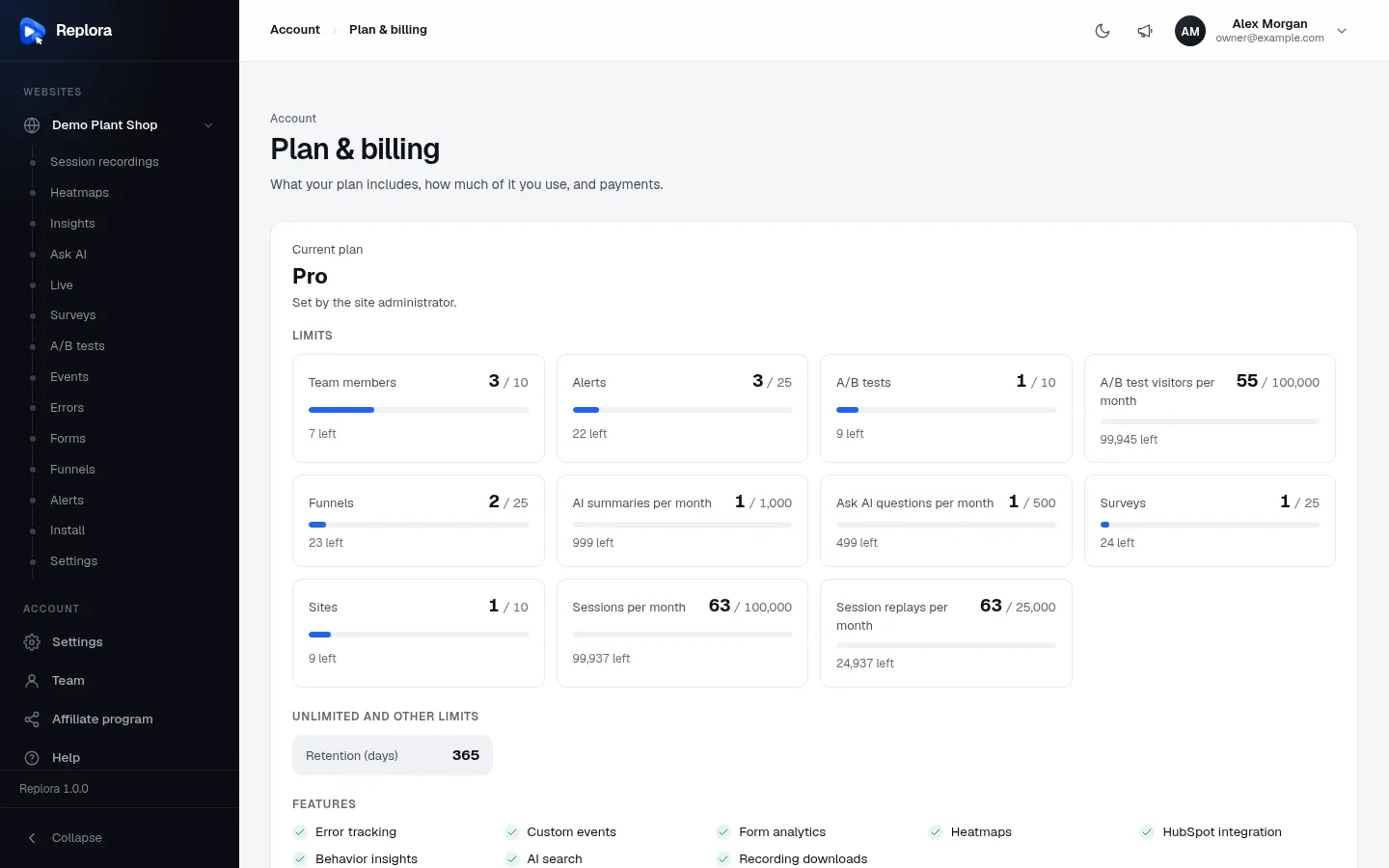
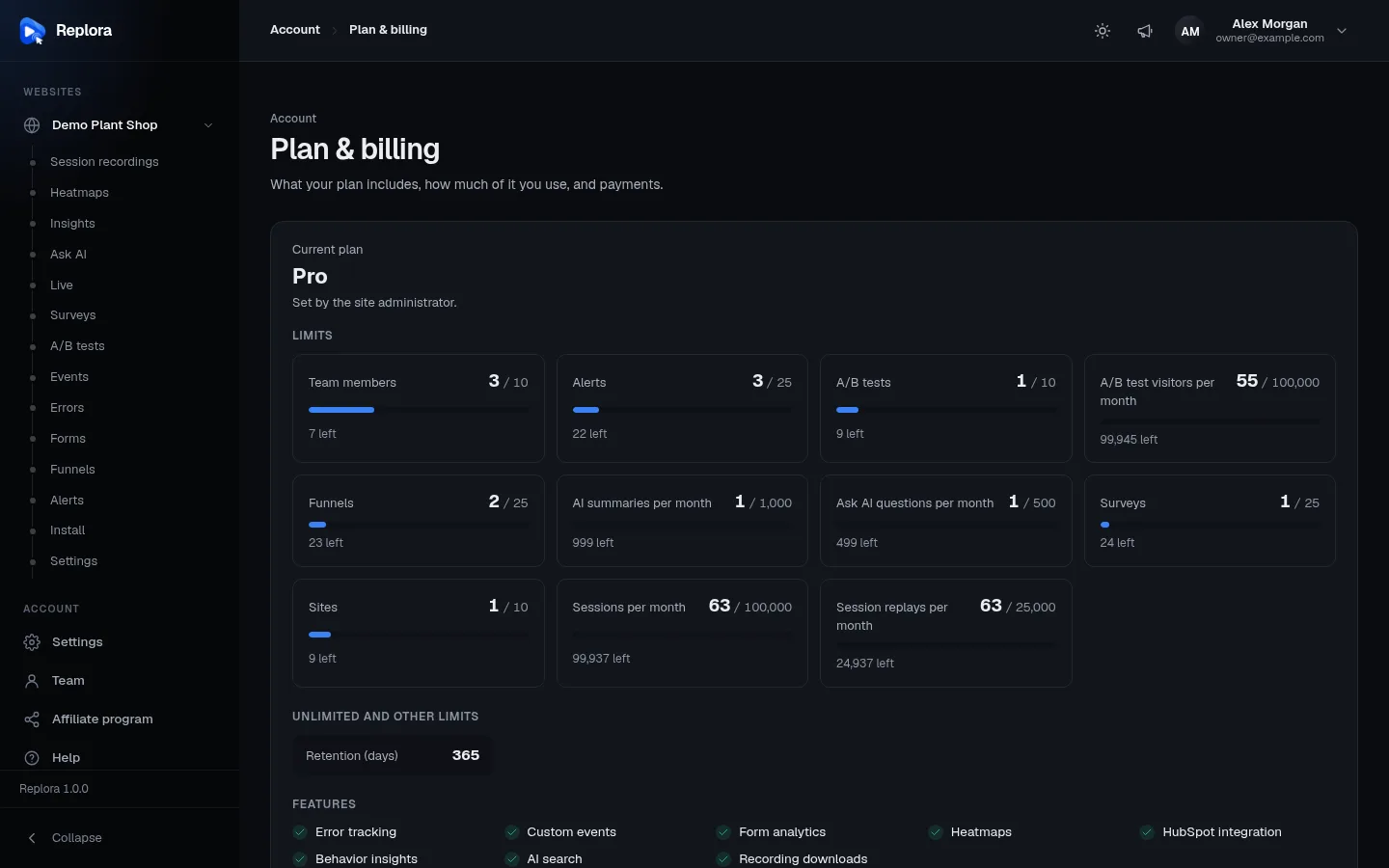
Customers change plans on Account › Plan & billing (/plan). Only the account’s managers see the buttons; others see Ask a manager to switch. The server enforces the same rule: a billing request from a member or viewer (for example through the API) is refused with 403 Only managers of the account can change its billing.
| Action | What happens |
|---|---|
| First purchase | Opens the provider’s checkout (Stripe Checkout or Paddle’s overlay). The plan changes only when the provider’s webhook confirms the payment, usually within seconds; the page checks again by itself |
| Upgrade / downgrade / Monthly ↔ Yearly | With a running subscription, the subscription is switched to the new price at once and the provider prorates the difference |
| Manage billing | Opens the provider’s portal (cards, invoices). Only after the account has paid once |
| Cancel subscription | Cancels at the end of the paid period; the plan stays until then, then the account moves to the free plan |
| Resume subscription | Undoes a cancellation while the paid period is still running |
Limits follow the plan on every request. After a downgrade nothing is deleted: existing websites, funnels, surveys and team members stay, but nothing new can be added above the new limit, switched-off features answer “Your plan doesn’t include…”, and recordings older than the new retention are removed by the next clean-up.
Delete a plan
- Make another plan the default first if this one is the default.
- Move every account an administrator assigned to it (the Accounts number) to another plan.
- Click Delete on the card and confirm.
Paying customers
Deleting checks only assigned accounts, not subscriptions. Customers who pay for the plan through Stripe or Paddle lose it (they fall back to the default plan) while the provider keeps charging them. Cancel or move those subscriptions in the provider’s dashboard first.
The pricing page
The public Pricing page (/pricing) is built from these plans; see Public website.
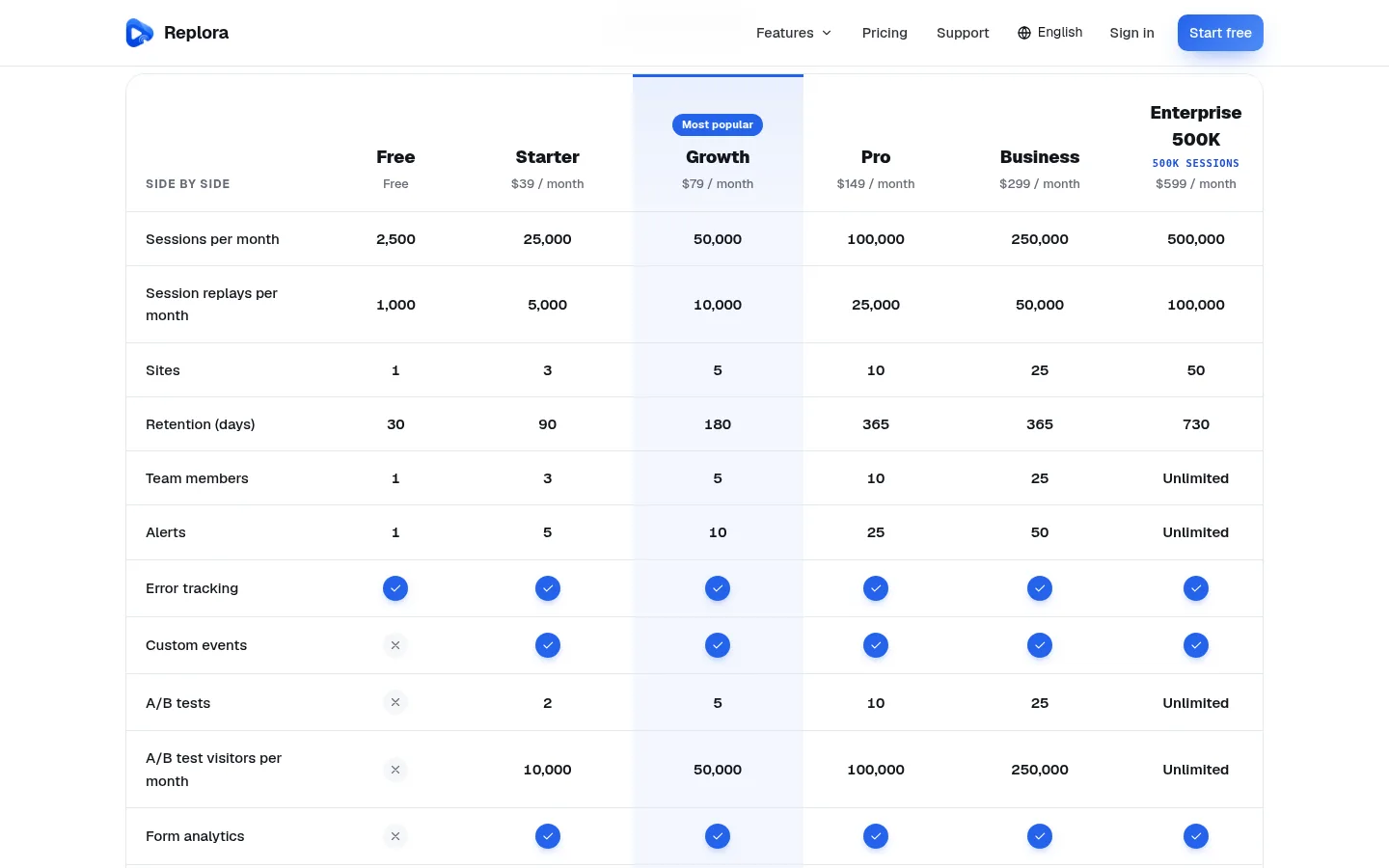
- Regular plans are cards in display order. Each card shows Sessions per month, Session replays per month, Sites, Retention and Team members (what the plan mentions), then All features included or N of M features.
- A Monthly / Yearly toggle appears when any plan has a yearly price, with save up to N%.
- The middle regular plan is highlighted as Most popular, unless it is the default plan.
- Enterprise plans are listed apart under Need more scale? with their sessions as the headline (e.g. 500K sessions); one with price 0 shows Custom pricing and Contact sales. Without enterprise plans the page shows Need more? with Talk to us.
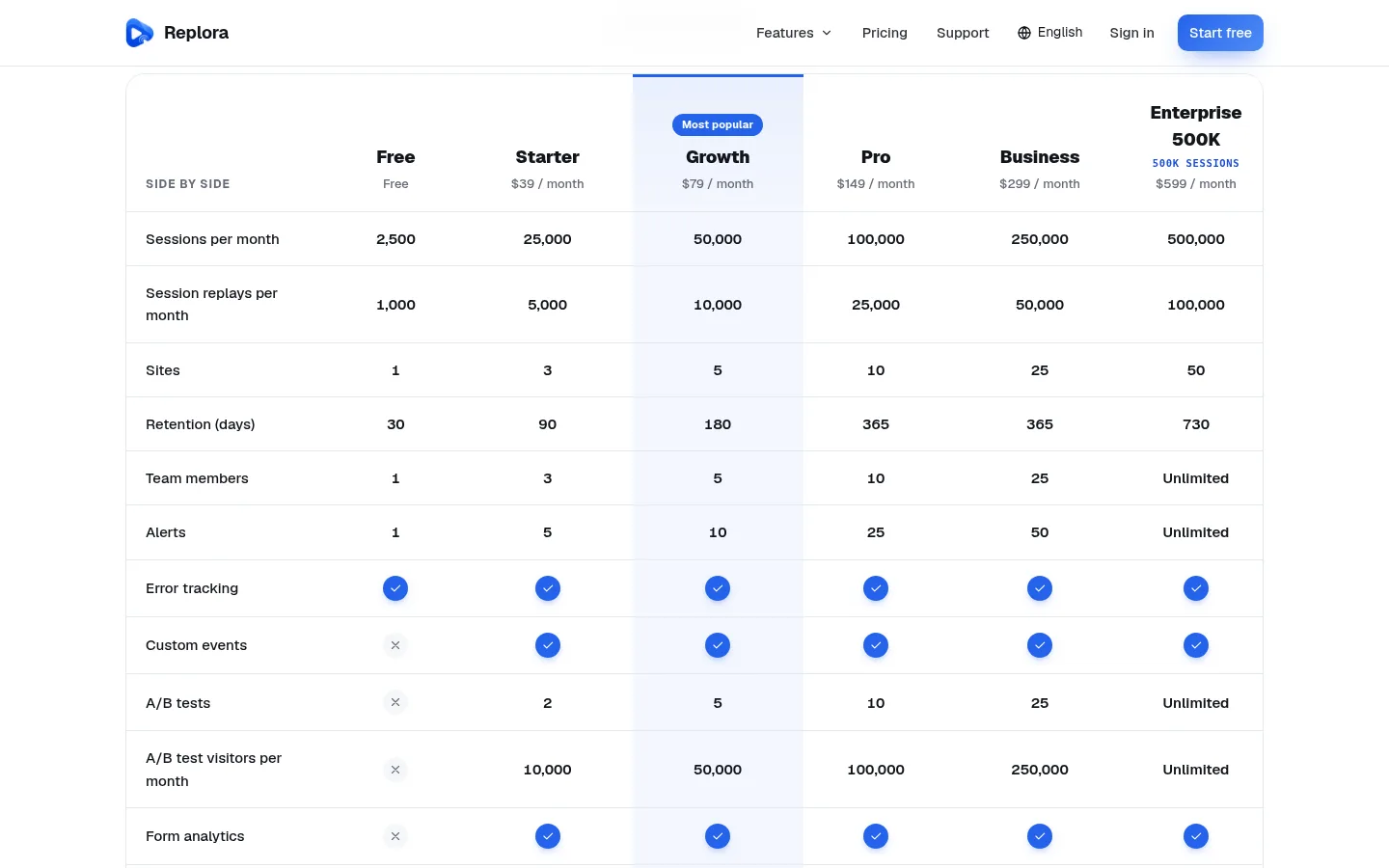
- Compare all features (with two plans or more) lists every feature a plan mentions; the key numbers come first.
- Custom plans never appear publicly.
.env
| Key | What it does | Default |
|---|---|---|
BILLING_PROVIDER | stripe, paddle or empty (no online payments; administrators assign plans). Can also be set in Settings › Installation › Payments | empty |
PLANS_GRACE_DAYS | Days a plan keeps working while the provider retries a failed payment | 7 |
Related
- Running a SaaS: the setup checklist
- Billing: Stripe · Billing: Paddle
- Sign-up & accounts: trials and the sign-up flow
- Public website: the pricing page
- Users: change plan, custom plans
- Plan limits & file types
- User guide: Plan & billing