
Appearance
Installation settings
The Installation tab of Settings holds everything about the installation as a whole: your logo and favicon, the company behind the service, the dashboard design, the product name and language, email delivery, sign-in with Google, spam protection, virus scanning, recordings, the replay player, the AI key, the help center and — on SaaS — sign-up, payments, trials, affiliates, support tickets and the public website's texts. Each card saves on its own, and what you save here wins over the server's .env file.
Where: user menu or sidebar › Settings, tab Installation (/settings#installation). The tab exists only for administrators. The other tabs, General (language, time zone, appearance) and Account (name, email, password, two-factor, data), are each person's own: see Account settings.
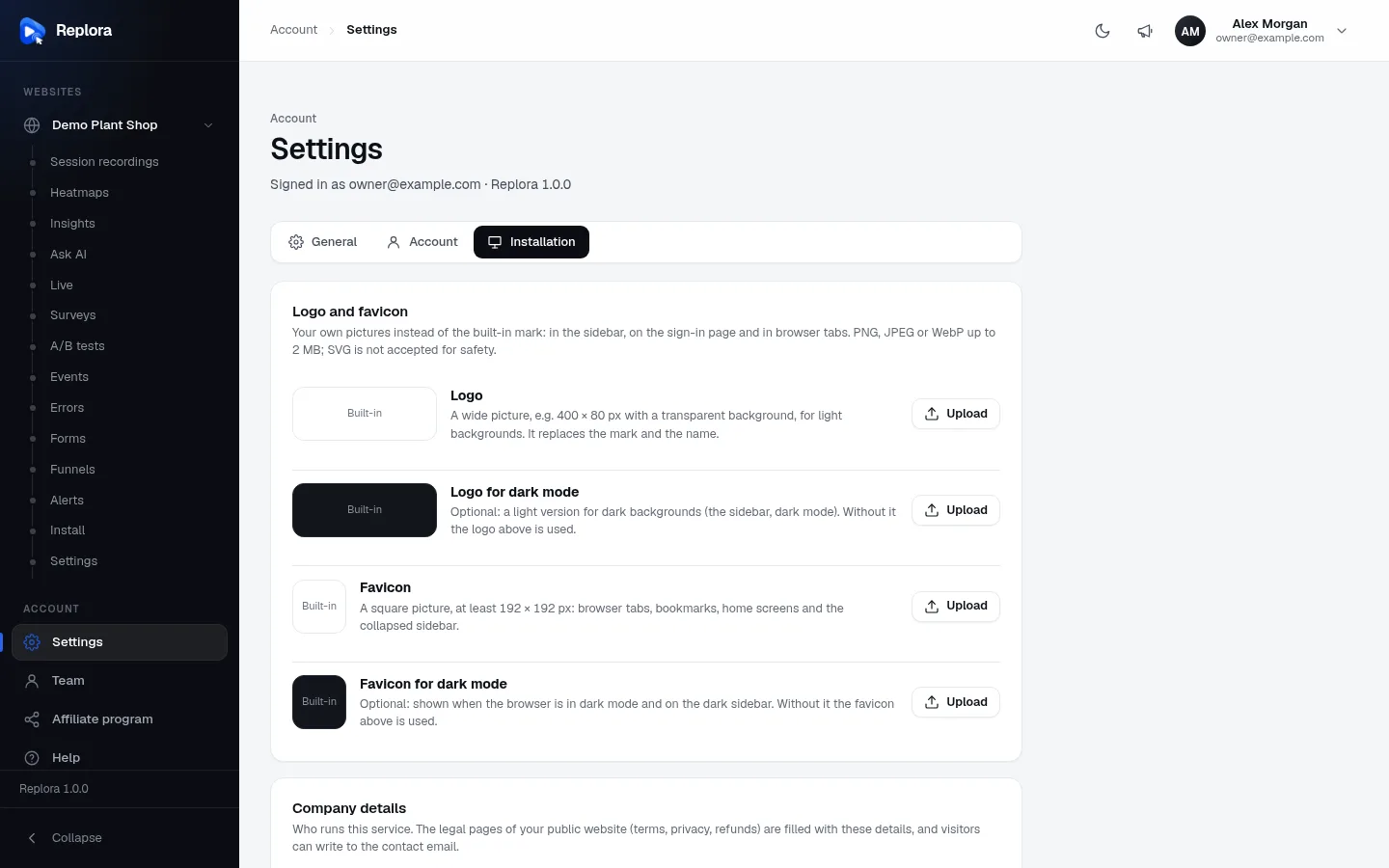
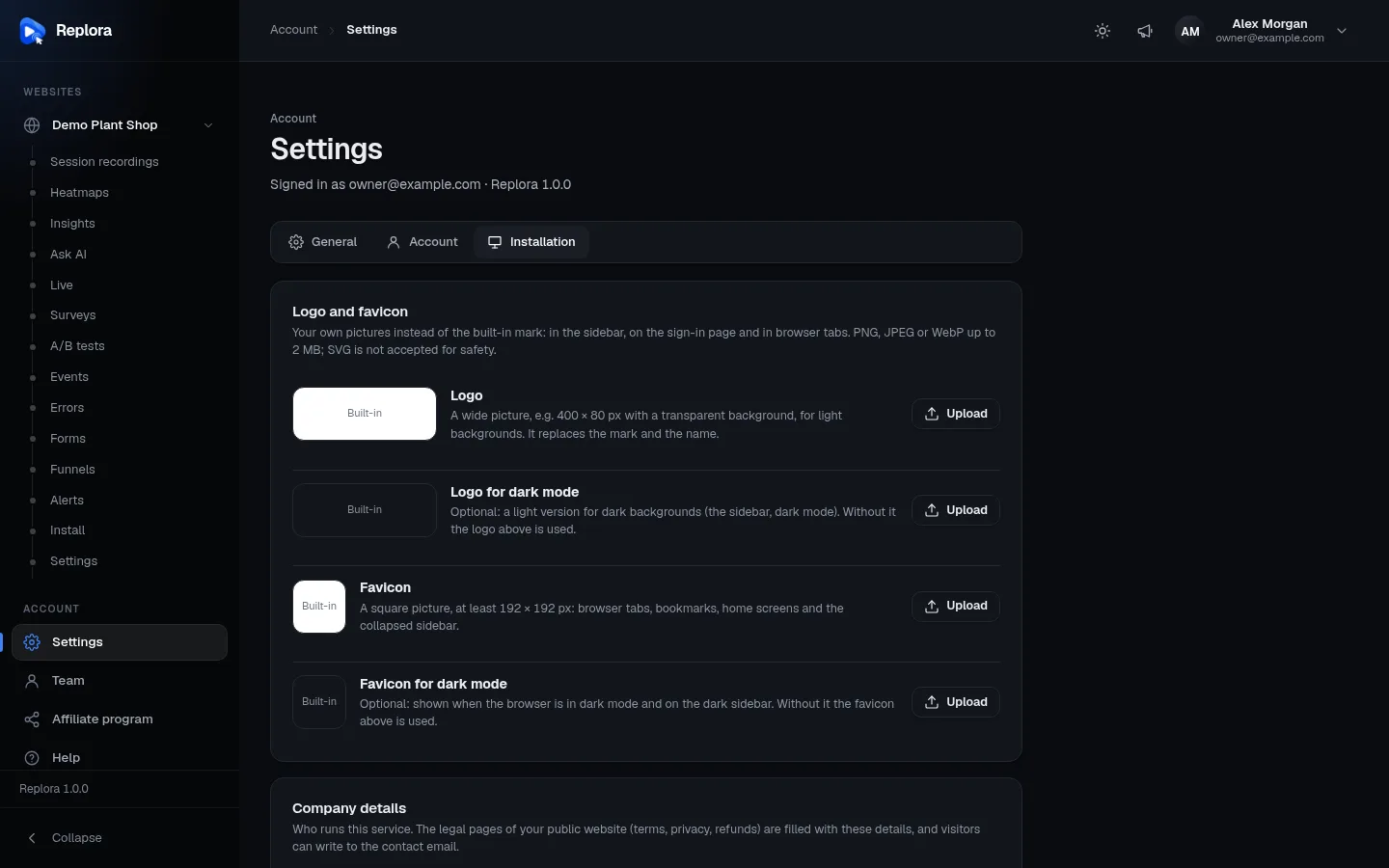
1. Installation tabOnly administrators have it. The address keeps the tab (#installation), so it survives a reload and can be linked.
How these settings work
- One card, one Save. Every card has its own Save button (the two design cards have Apply). A toast says Settings saved.
- Stored in the database, over
.env. Values are kept in the database and applied over the configuration when the app starts. The.envfile stays the fallback: a field you never saved shows the.envvalue (or the built-in default). - Secrets are never shown. Password and key fields show Saved when a value is stored, with
••••••••in the box. Leave it empty to keep the stored value, type to replace it, or press Remove (Removed when you save) to delete it. Secrets are encrypted with the app key. - Fields that depend on others appear only when needed (for example the SMTP fields only for SMTP server).
- Checked before saving. Numbers have a minimum and maximum, texts a maximum length (500 characters unless noted), and the server refuses anything else with a message on the field. Saving is limited to 20 times a minute.
The cards appear in the order below. Cards of modules you don't have aren't shown; SaaS-only cards are marked.
Logo and favicon
Your own pictures instead of the built-in mark: in the sidebar, on the sign-in page and in browser tabs. PNG, JPEG or WebP up to 2 MB; SVG is not accepted for safety.
| Picture | Use | Advice |
|---|---|---|
| Logo | Replaces the mark and the product name, on light backgrounds | Wide, e.g. 400 × 80 px, transparent background |
| Logo for dark mode | Optional: the dark sidebar (always dark) and dark mode; without it the logo above is used | A light version |
| Favicon | Browser tabs, bookmarks, home screens, the collapsed sidebar | Square, at least 192 × 192 px |
| Favicon for dark mode | Optional: browsers in dark mode and the dark sidebar; without it the favicon above is used |
Each row shows a preview on the background it's for (Built-in when none), Upload and, once uploaded, a remove button. Pictures must be 16 to 4000 px on each side; the server draws them again (which drops anything but the picture) and refuses SVG, which can carry scripts. The page reloads after a change so every place shows it. More in Appearance & branding.
Company details
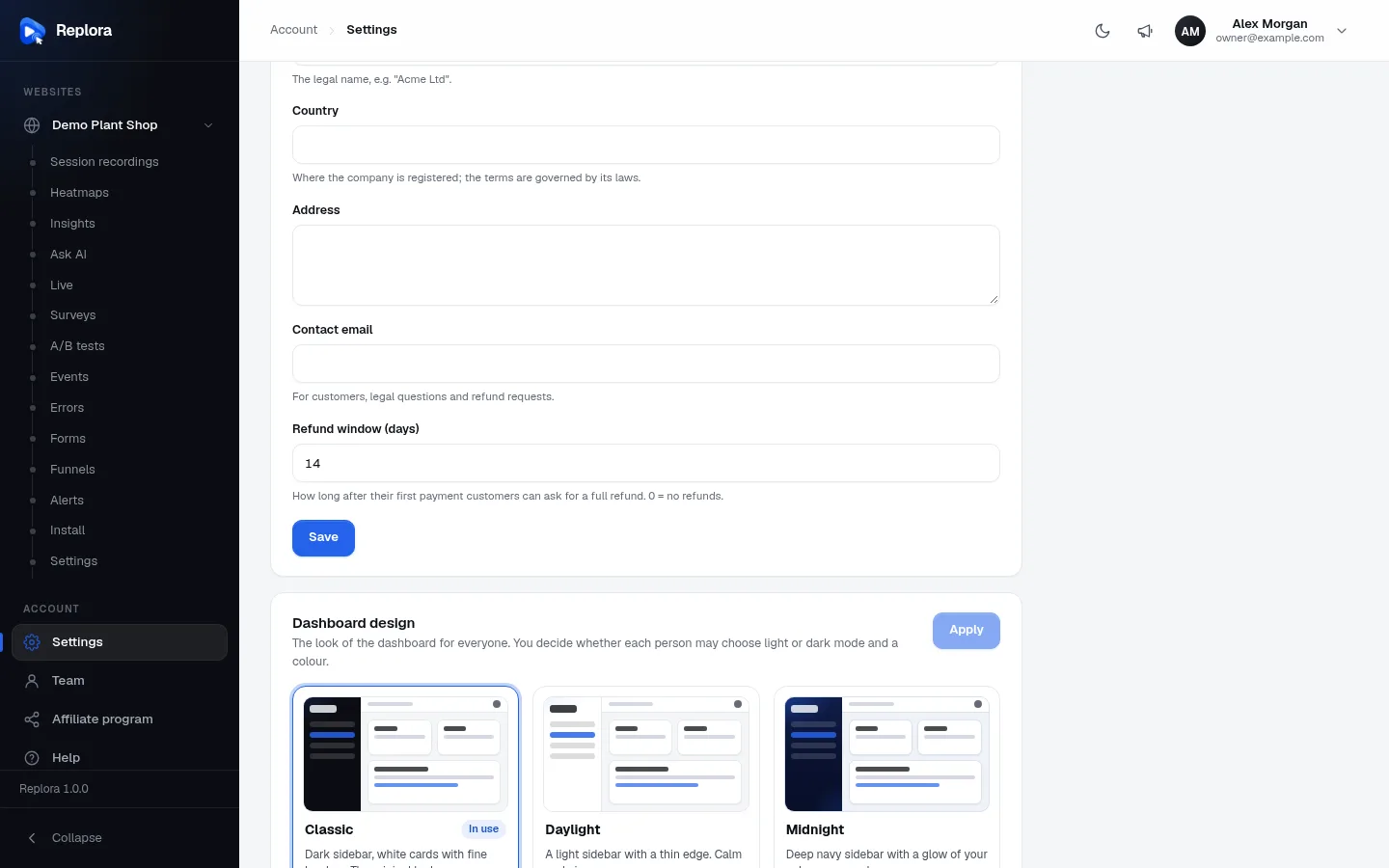
Who runs this service. The legal pages of your public website (terms, privacy, refunds) are filled with these details, and visitors can write to the contact email.
| Field | Limits | Default | Use |
|---|---|---|---|
| Company name | 200 characters, one line | empty | The legal name, e.g. "Acme Ltd". |
| Country | 100 characters, one line | empty | Where the company is registered; the terms are governed by its laws. |
| Address | 400 characters, several lines | empty | |
| Contact email | a valid email, 255 characters | empty | For customers, legal questions and refund requests; the pricing page's "Talk to us" writes here. |
| Refund window (days) | 0–365 | 14 | How long after their first payment customers can ask for a full refund. 0 = no refunds. |
These details matter mostly for the SaaS edition's public website (Website pages & SEO).
Dashboard design
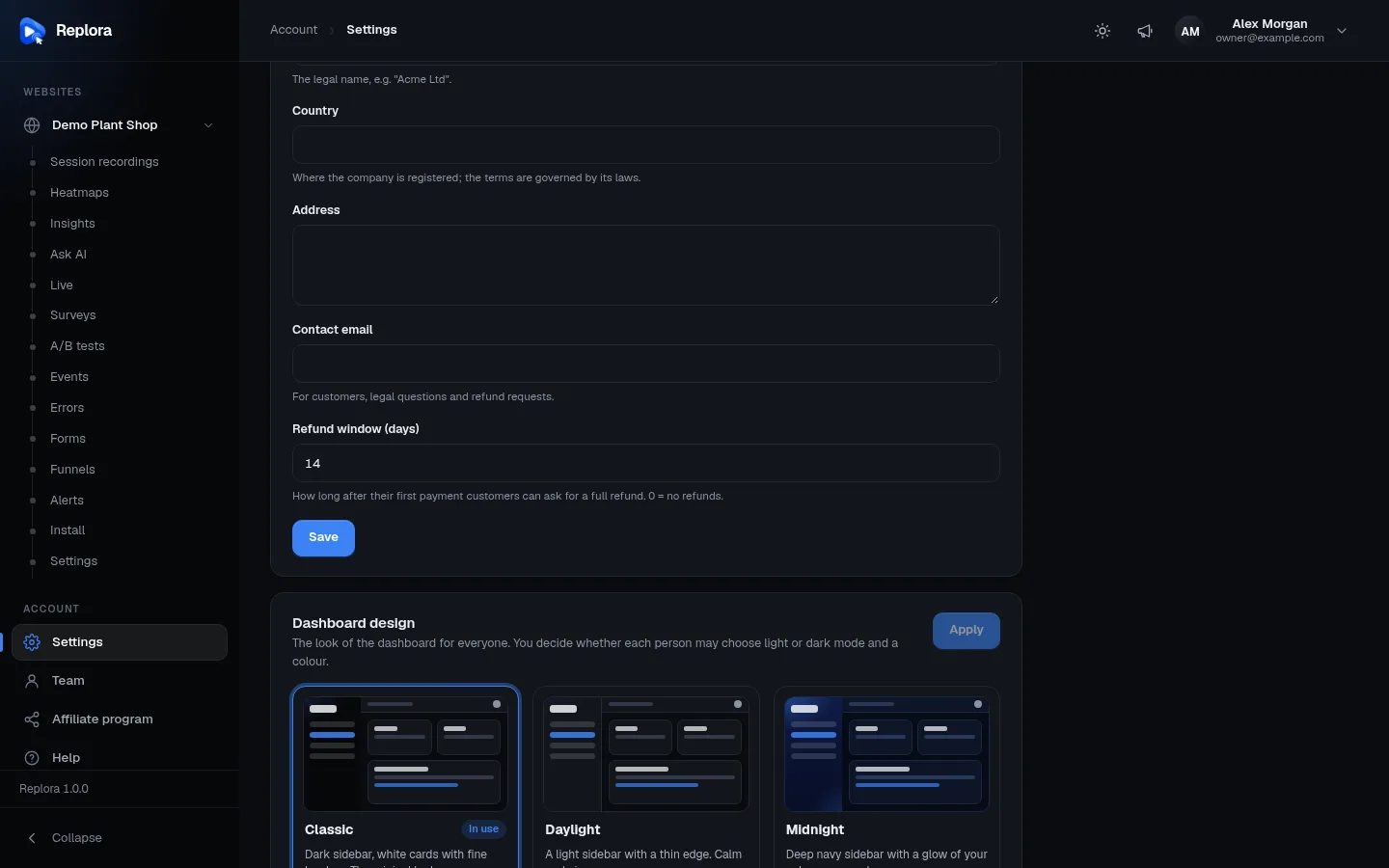
The look of the dashboard for everyone. You decide whether each person may choose light or dark mode and a colour.
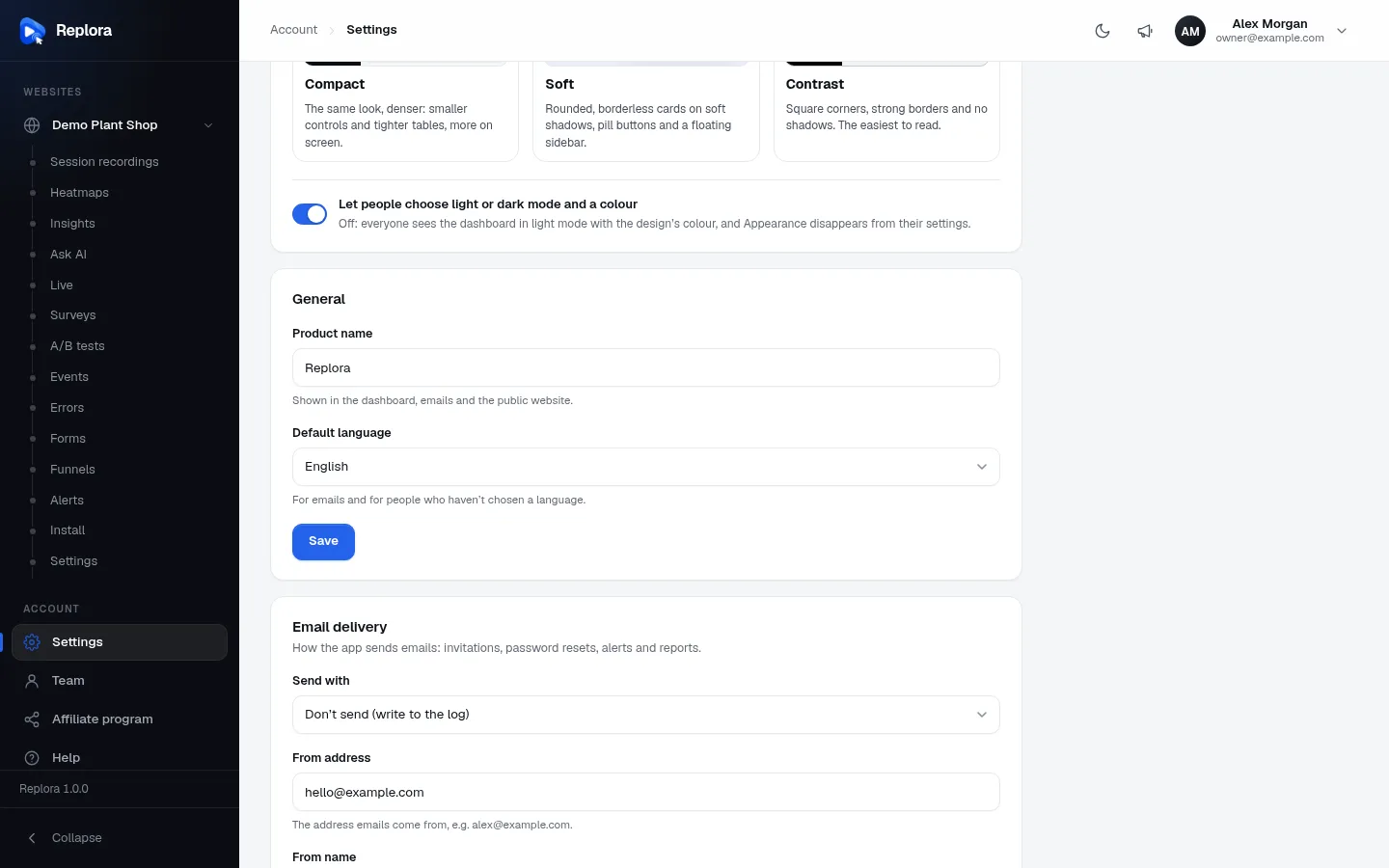
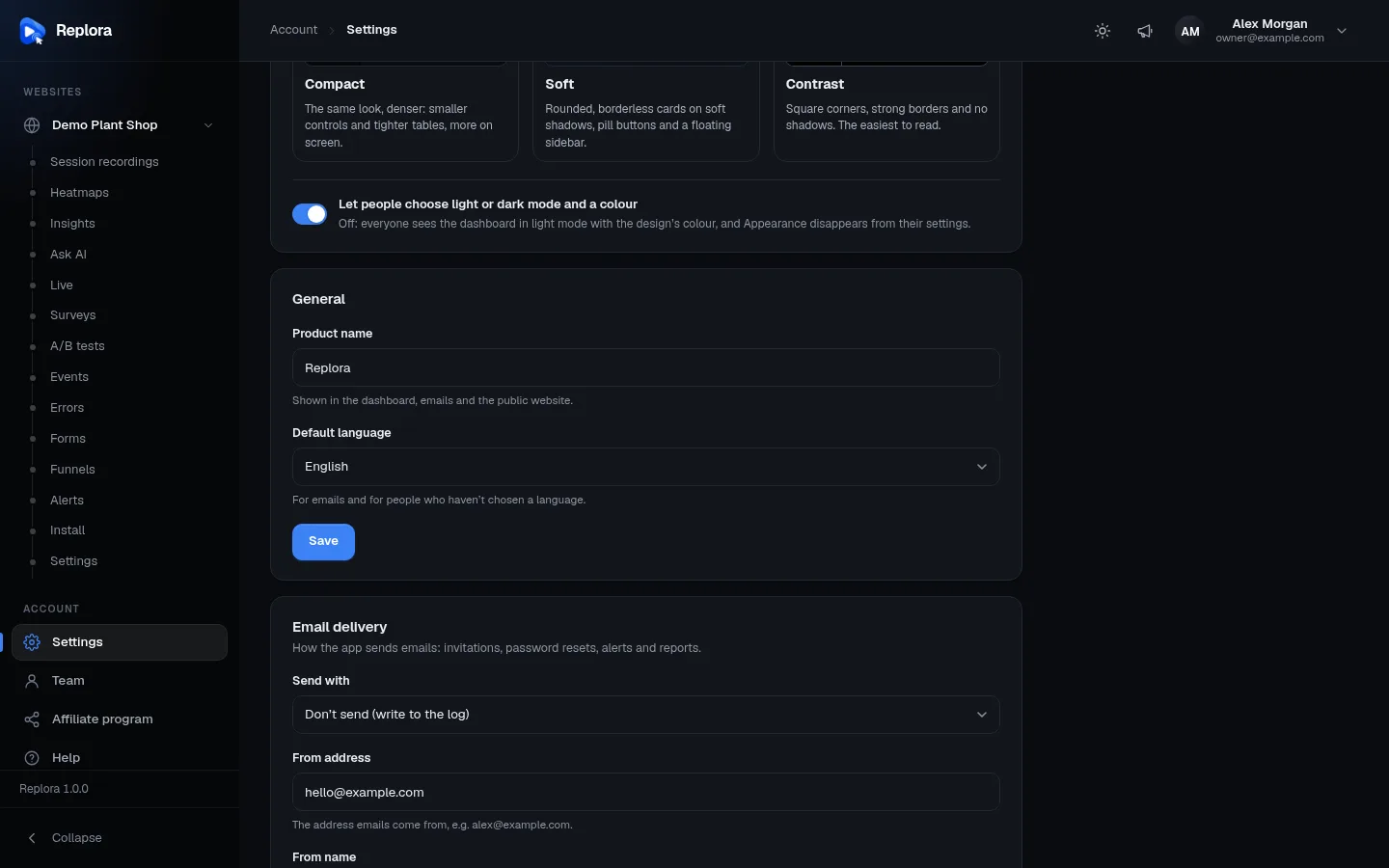
Six designs, each shown as a live preview in your own mode and colour: Classic (default), Daylight, Midnight, Compact, Soft, Contrast. Click one and press Apply; it applies to everyone at once (Design applied for everyone.). The one in use is marked In use.
Under the previews, the switch Let people choose light or dark mode and a colour (default on) saves at once. Off: everyone sees the dashboard in light mode with the design's colour, and Appearance disappears from their settings. Details of both: Appearance & branding.
General
| Field | Default | What it does |
|---|---|---|
| Product name | Replora (APP_NAME) | Shown in the dashboard, emails and the public website. Up to 60 characters. |
| Default language | English (APP_LOCALE) | For emails and for people who haven't chosen a language. One of the 13 languages: English, Español, Français, Deutsch, Português, Italiano, Русский, 中文, 日本語, 한국어, Türkçe, Bahasa Indonesia, العربية. |
Email delivery
How the app sends emails: invitations, password resets, alerts and reports. Fields: Send with (SMTP server, Mailgun, SendGrid, this server's sendmail, or Don't send (write to the log) — the default), then the fields of the chosen service, From address and From name, and the Send a test email button. Every field, its default and the emails Replora sends: Email delivery.
Sign in with Google
Lets people sign in with their Google account. Create an OAuth client (type "Web application") in the Google Cloud console under APIs & Services → Credentials, and add this authorized redirect URI: — the card shows your exact redirect address.
| Field | Default | What it does |
|---|---|---|
| Show "Continue with Google" | off | Shows the Google button on the sign-in page. Works only with both the client ID and the client secret. |
| Client ID | empty | Ends with .apps.googleusercontent.com. Up to 200 characters. |
| Client secret | — | Secret. |
| Let Google create new accounts | on | While sign-up is open. Off: only people who already have an account can use Google. |
Set it up:
- In the Google Cloud console, open APIs & Services › Credentials › Create credentials › OAuth client ID, type Web application.
- Add the redirect URI shown on the card under Authorized redirect URIs.
- Copy the Client ID and Client secret into the card, switch on Show "Continue with Google", Save.
People can also connect or disconnect Google under Settings › Account.
Spam protection (reCAPTCHA)
Google reCAPTCHA v3 checks invisibly that sign-ups, sign-ins, password resets and contact messages come from people. Create keys of type "Score based (v3)" at google.com/recaptcha/admin with this domain: {your host}.
| Field | Default | What it does |
|---|---|---|
| Check that visitors are people | off | Works only with both keys. |
| Site key | empty | Up to 100 characters. |
| Secret key | — | Secret. |
| Strictness | Balanced (0.5, recommended) | Google scores each visit from 0 (a bot) to 1 (a person). Stricter stops more bots but now and then a person too. Relaxed (0.3), Balanced (0.5, recommended), Strict (0.7). |
Locked out?
If a wrong key ever stops everyone signing in, run php artisan replora:recaptcha off on the server.
Virus scanning of uploads
Uploaded files are always checked for macros, scripts in PDFs and programs in archives. With a ClamAV scanner (install clamav-daemon on the server, or run its Docker image), every attachment, document and proof is also scanned for viruses; while the scanner can't be reached, uploads are refused.
| Field | Default | What it does |
|---|---|---|
| ClamAV address | empty (REPLORA_CLAMAV) | For example unix:///run/clamav/clamd.ctl or tcp://127.0.0.1:3310. Empty: no virus scanning. Up to 200 characters. |
See Security & privacy › Uploaded files.
Recordings
| Field | Default | Limits | What it does |
|---|---|---|---|
| Default retention (days) | 30 (RECORDINGS_DEFAULT_RETENTION_DAYS) | 1–3650 | How long new sites keep recordings unless a plan says otherwise. |
| Uploads per minute per visitor address | 600 (RECORDINGS_INGEST_PER_MINUTE) | 60–100 000 | Protects the server from floods; raise it behind a shared proxy. (Many visitors behind one company proxy share one address.) |
| Public demo: keep recordings (days) | 1 | 1–30, required | Demo visits are deleted every night once they are older than this. |
| Public demo: site number | empty | 1 or more | The site that records the /demo page (its domain must be this server). Empty = no demo page. With a demo site, a Try live demo button appears in the top bar. |
| Copy stylesheets from private addresses | Only in the single-user edition | Only for a site's own domains. Whether replays may copy CSS from private network addresses (e.g. an intranet): Only in the single-user edition, Allow, Never. |
Replay player
The look of the controls under every replay, for everyone (shared links too). Six styles shown as previews: Classic (default), Minimal, Cinema, Glass, Capsule, Studio. Pick one and press Apply (Player theme applied for everyone.).
AI (Claude)
Session summaries, questions, AI search, Ask AI and site summaries are answered by Claude. Each answer is billed to this key.
| Field | Default | What it does |
|---|---|---|
| Anthropic API key | — (ANTHROPIC_API_KEY) | From console.anthropic.com. Empty = the AI features are off. Secret. |
| Model | Claude Opus 5.5 | Claude Opus 5.5, Claude Sonnet 5.5 or Claude Haiku 5.5. |
| Effort for summaries | Low | Low / Medium / High. More effort: better answers, slower and dearer. Also used for session questions, AI search and the help chat. |
| Effort for Ask AI | Medium | Low / Medium / High. Also used for site summaries. |
What each feature does and sends: AI features (Claude).
Help center
The help button on every dashboard page: articles you write under Administration → Help center, and a chat.
| Field | Default | What it does |
|---|---|---|
| Answer questions with AI | on | Claude answers from your help articles. Needs the Anthropic API key (AI card). |
| "Contact us" link | empty | An address or mailto:… shown in the help widget. Empty hides it. Up to 300 characters. |
See Help center.
Slow requests
Calls of your sites to their servers (fetch and XHR) that take at least this long are listed under Errors › Slow requests, with the sessions to watch. Applies to calls recorded from now on.
| Field | Default | Limits |
|---|---|---|
| Slow from (milliseconds) | 3000 | 200–60 000, required |
Sign-up SaaS
| Field | Default | What it does |
|---|---|---|
| Let people create their own account | on (REPLORA_SIGNUP) | Off: accounts are created by invitation only. |
See Sign-up & accounts.
Payments, Stripe, Paddle and Free trial SaaS
| Card | Field | Default | Notes |
|---|---|---|---|
| Payments | Payment provider | None (plans are assigned by administrators) (BILLING_PROVIDER) | None, Stripe or Paddle. Takes effect for new requests right away; the provider's keys are set in its own card. |
| Stripe | Publishable key | empty | Starts with pk_. |
| Secret key | — | Starts with sk_. Secret. | |
| Webhook signing secret | — | Starts with whsec_. The card shows the webhook address (/stripe/webhook). | |
| Paddle | Sandbox (test payments) | off (PADDLE_SANDBOX) | Test payments in Paddle's sandbox. |
| API key | — | Secret. | |
| Client-side token | empty | ||
| Notification secret key | — | Secret. | |
| Free trial | Offer a free trial | off | New accounts that sign up themselves try a paid plan for free, once. |
| Trial length (days) | 14 | 1–90 | |
| Plan tried | Choose a plan | Only paid plans can be tried. |
Step by step: Billing: Stripe, Billing: Paddle, Plans & limits.
Affiliate program SaaS
| Field | Default | Limits |
|---|---|---|
| Open the affiliate program | off | |
| Commission (%) | 25 | 1–90 |
| Paid for (months) | 12 | 0–120; 0 = as long as the account pays |
| Link remembered for (days) | 60 | 1–365 |
| Holding period (days) | 30 | 0–120; commissions become due this long after the payment |
| Payout currency | USD | USD, EUR, GBP, CAD, AUD, CHF, JPY, INR, BRL |
| Smallest payout | 50 | 0–100 000 |
See Affiliate program.
Support tickets and Response times SaaS
| Card | Field | Default | Limits |
|---|---|---|---|
| Support tickets | Customers can open tickets | on | |
| Close answered tickets after (days) | 7 | 0–90; 0 = never | |
| Files per message | 5 | 1–10 | |
| Largest file (MB) | 10 | 1–50 | |
| Also email new tickets to | empty | addresses separated by commas, 500 characters | |
| Response times | Track response times | on | |
| Urgent / High / Normal / Low (hours) | 4 / 8 / 24 / 72 | 0–720 each | |
| Remind before the deadline (minutes) | 60 | 5–1440 | |
| Count business hours only | off | ||
| Working days | Monday to Friday | Monday to Friday, Monday to Saturday, Sunday to Thursday, Every day | |
| Opens at / Closes at | 09:00 / 18:00 | full hours | |
| Time zone | UTC | any time zone |
See Support desk.
Website texts and Social links SaaS
Website texts: Home page headline (120 characters), Home page introduction (400), Footer text (300), Copyright line (160, default © {year} {app}), Enterprise heading (pricing) (120), Enterprise introduction (pricing) (300). Empty fields use the built-in text, translated into every language; {app} is replaced by the product name and {year} by the current year. Your own texts can get a wording per language on Translations (area Website).
Social links: one web address each for X, Facebook, LinkedIn, Instagram, YouTube, GitHub, TikTok, Discord (300 characters). They appear as icons in the website's footer; empty hides a network.
See Public website.
Settings that stay in .env
Some settings are only in the server's .env file, because they are needed before the database or must not be changed from a browser: the database, APP_KEY, APP_URL, the edition (REPLORA_MODE), the queue and cache drivers, recording storage (S3/R2/MinIO), live updates (REPLORA_REALTIME), the release feed and key. See Environment (.env).