
Appearance
Users
The Users page lists everyone who can sign in to your installation, across all accounts. Administrators invite people here, give or take the administrator role, suspend and reinstate, turn off a lost two-factor sign-in and remove users — and, on SaaS, change an account's plan or a person's support desk role.
Where: sidebar › Administration › Users (/users). People who aren't administrators see Administrators only — Ask an administrator to manage users.
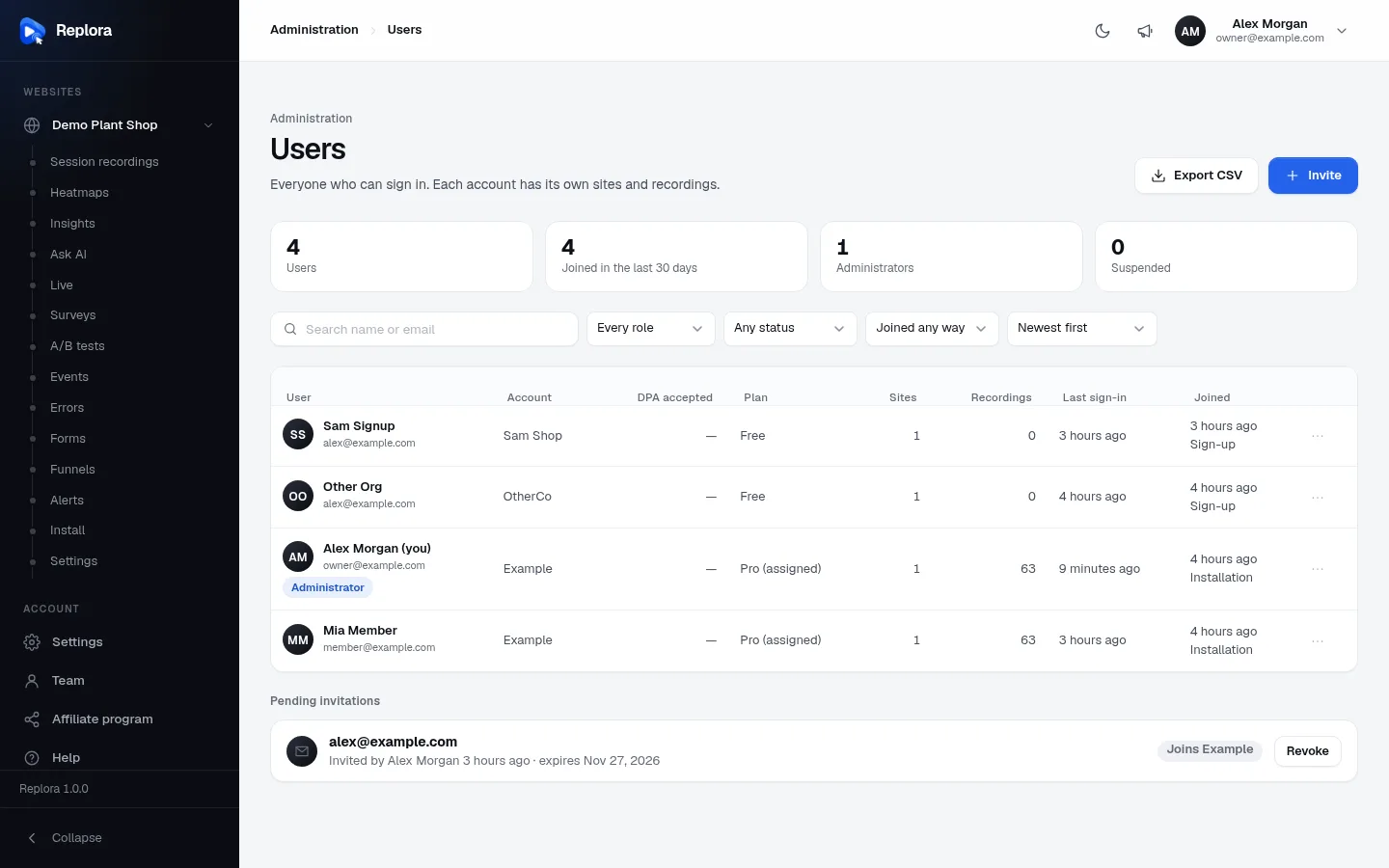
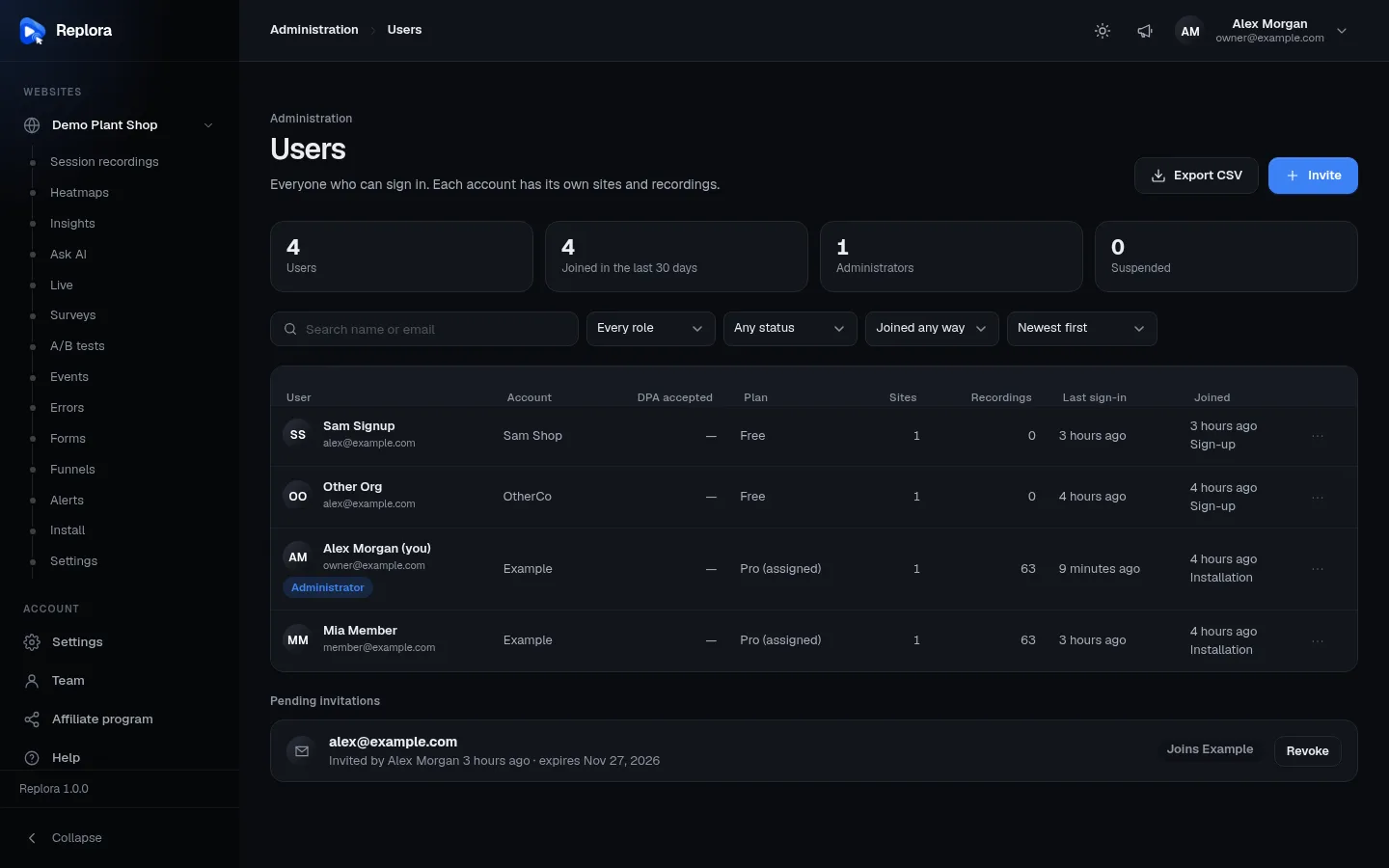
1. Export CSVEvery user that matches the filters (all pages), with the module columns.
Users and accounts
Each user is a person who signs in. Each user belongs to one account (an organization) that owns websites and recordings. An account can have several users (its team); see Team & roles in the user guide. The Users page shows people; the account is a column.
Totals
The four numbers above the list are for the whole installation and don't change with the filters:
| Total | Counts |
|---|---|
| Users | Everyone who can sign in |
| Joined in the last 30 days | Users created in the last 30 days |
| Administrators | Users with the administrator role |
| Suspended | Users who can't sign in now |
Search, filters and order
| Control | Options | Default |
|---|---|---|
| Search name or email | Any part of the name or the email (up to 120 characters) | empty |
| Role | Every role · Administrators · Users | Every role |
| Status | Any status · Active (not suspended) · Suspended · Never signed in | Any status |
| Joined via | Joined any way · Sign-up · Invitation · Installation | Joined any way |
| Sort | Newest first · Oldest first · Recently signed in · Name A–Z · Email A–Z | Newest first |
| Clear filters | Appears when anything differs from the defaults; resets them all | — |
The list shows 25 users a page with a pager below. Changing a filter goes back to page 1. A link such as /[email protected] (used by the Overview's Newest sign-ups) opens the page already searched.
Columns
| Column | Shows |
|---|---|
| User | Initials, name ((you) after your own) and email; pills Administrator and Suspended. Suspended rows are dimmed. Click to open the details. |
| Account | The account the person belongs to (— when none) |
| DPA accepted SaaS | When the account last accepted the Data Processing Agreement (Website pages module), — if never |
| Plan SaaS | The account's plan now, with how it got it: (assigned) by an administrator, (paid) subscription, (trial); the default plan has no suffix |
| Sites | The account's websites |
| Recordings | The account's recorded sessions |
| Last sign-in | How long ago (hover for the exact time); Never |
| Joined | How long ago, and how: Sign-up, Invitation or Installation (made by the installer or replora:admin) |
| ⋯ | The actions menu |
The columns between Account and Last sign-in come from the installed modules, so they change with your edition and modules. Account columns (plan, sites, recordings, DPA) are the same for every member of the account.
The details window
Click a user's name for a window with everything on the row: the role pill (Administrator or User), Two-factor sign-in when it is on, Suspended with since when, the account, Joined (date · how), Last sign-in, every module column, and the actions as buttons.
Actions
Open the ⋯ menu on a row (or use the buttons in the details window).
| Action | What happens |
|---|---|
| Make administrator | The person gets the administrator role: the Administration section, the Installation settings, all of this page. |
| Remove administrator role | Back to a regular user. Not for yourself. |
| Suspend account | The person can't sign in any more and is signed out everywhere at once: all their browser sessions end and all their API tokens are deleted. Their account, websites and recordings stay, and recording keeps working. Not for yourself. |
| Reinstate account | They can sign in again. Deleted API tokens don't come back: they create new ones. |
| Turn off two-factor sign-in | Only shown when the person has it on. For someone who lost their phone and their recovery codes: they sign in with the password alone, then can turn it on again. |
| Change plan SaaS | Puts the person's account (all its members) on any plan, until a date or until changed, or makes a custom plan for it. See Plans & limits. |
| Support role SaaS | Agent or manager on the support desk, or none. Administrators always have every right there. See Support desk. |
| Remove user | Deletes the sign-in (after a confirmation). See below. Not for yourself. |
Removing a user can delete an account
Remove user deletes the person's sign-in, browser sessions and API tokens. If they are the only member of their account, the account goes too — with all its websites, recordings and subscription data. This can't be undone. To stop someone signing in without losing data, suspend instead.
Nobody can change their own role, suspend themselves or remove themselves here, so an installation can't lose its last administrator by accident. (People delete their own account under Settings › Account › Delete account.)
Invite someone
Invitations create accounts in both editions, including the Single user edition where there is no sign-up form.
- Press Invite.
- Enter the Email (it must not have an account or a pending invitation yet).
- Choose the Account:
- Their own account (default): the person gets a new, empty account of their own.
- Join my account: the person joins your account as a team member.
- Switch on Administrator if they should manage the installation too.
- Press Send invitation.
The person gets an email You are invited to {product} with a link. The link works once and expires after 7 days; on it they choose their name and password (at least 10 characters). Email delivery must work: see Email delivery.
Members with a role
Join my account adds people to your account without choosing their team role. To invite someone into an account as a member or viewer, the account's manager uses Team › Invite instead (Team & roles).
Pending invitations
Below the list, Pending invitations shows every invitation not accepted yet (from this page and from Team pages): the address, Invited by X 3 hours ago · expires Nov 27, 2026, and a pill — Administrator, Joins {account} or New account. Revoke deletes it at once; the link stops working.
Export users as CSV
Export CSV downloads users-<date>.csv with every user that matches the current search and filters (not just the page you see), in the list's order. Columns: id, name, email, account, role (admin/user), status (active/suspended), signed_up_via, created_at, last_login_at (in your time zone), then one column per module column (Plan, Sites, Recordings…). Limited to 10 exports a minute.
Related
- Security & privacy — administrators vs. account roles, two-factor sign-in
- Plans & limits — Change plan and custom plans
- Sign-up & accounts — people creating their own accounts (SaaS)
- Email delivery — invitations need it