
Appearance
Announcements
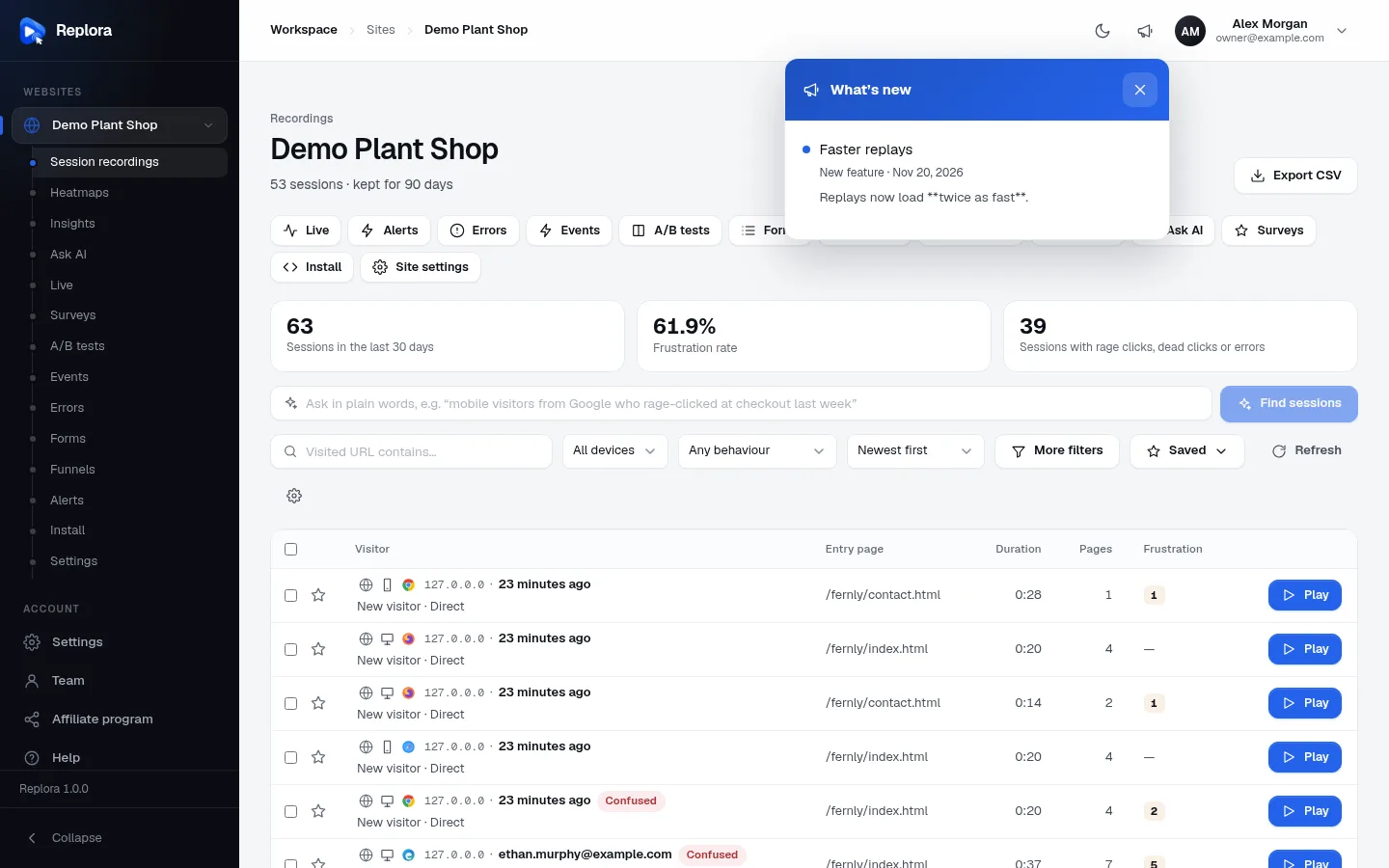
Announcements are your news for everyone who uses the dashboard — new features, improvements, fixes, anything else. Published ones appear in the What's new panel behind the megaphone in the top bar, with an unread badge, and you can email one to every user once when you publish it.
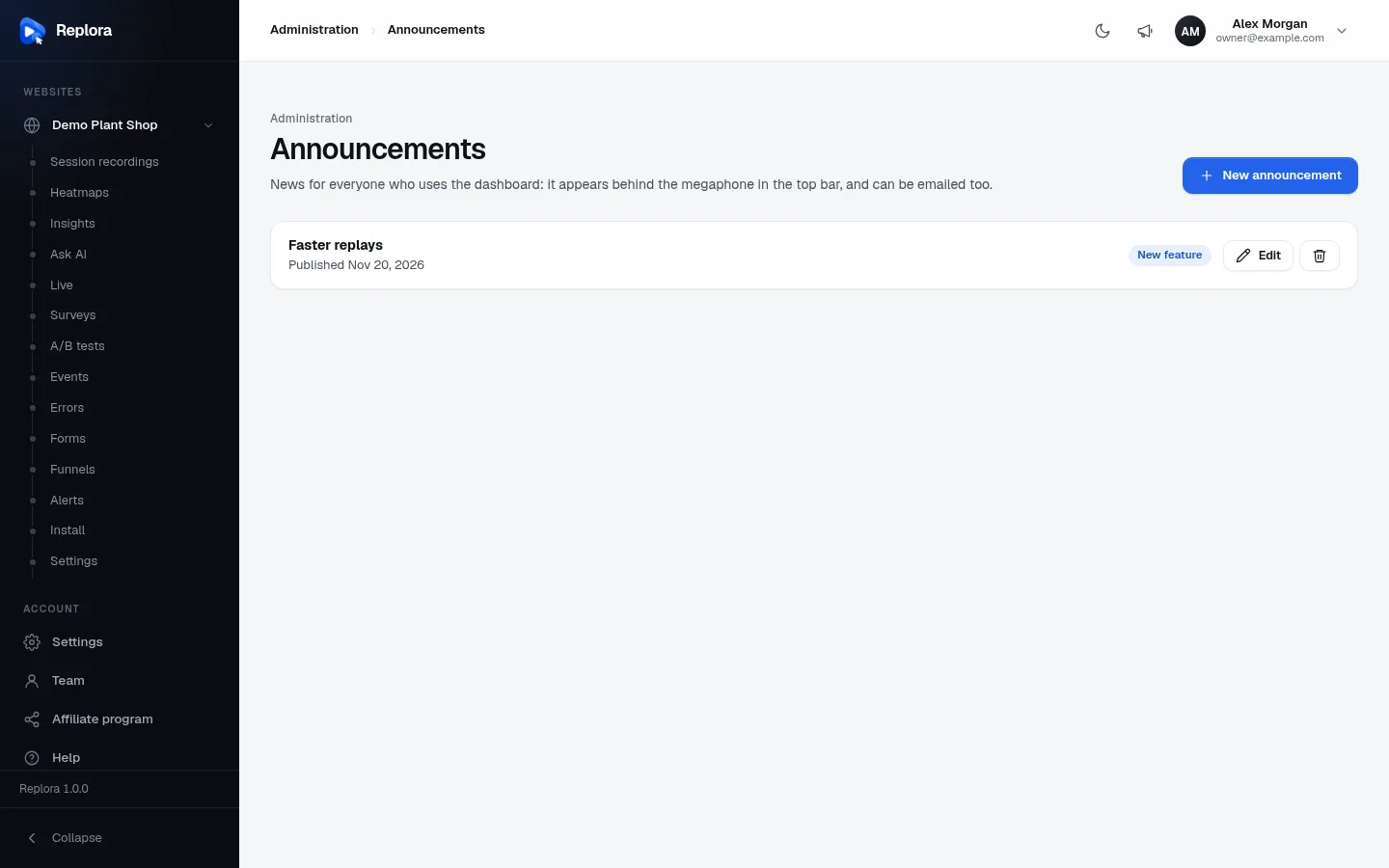
Where: sidebar › Administration › Announcements (/announcements). Readers find them behind the megaphone in the top bar of every dashboard page.
The list
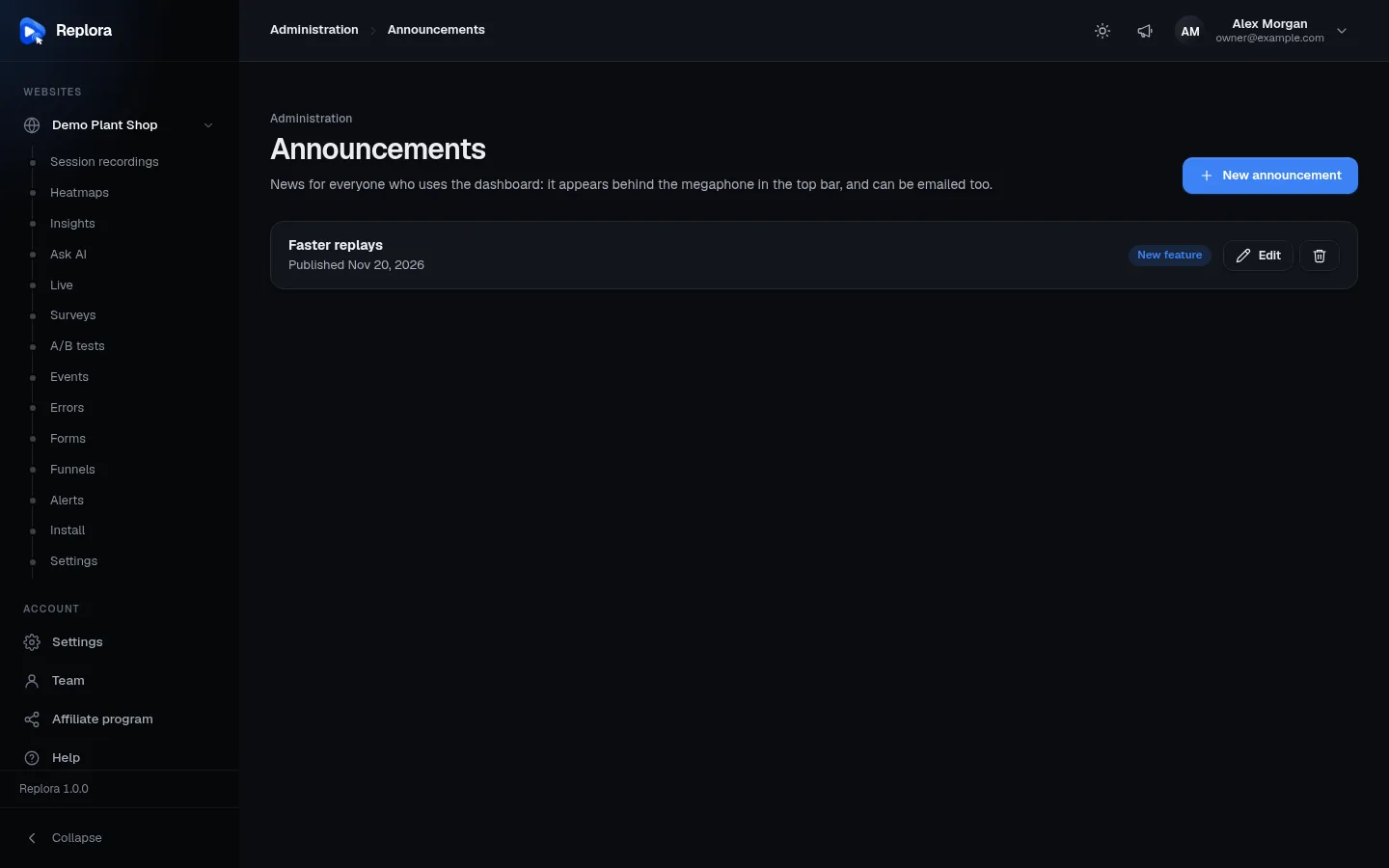
Every announcement, drafts first, then the newest, 20 a page:
- the title and Published {date} or Draft, plus · emailed when it was emailed;
- the kind as a coloured pill, and a Draft pill for drafts;
- Edit and the bin button (Delete).
With none yet: No announcements yet — Tell your users about new features, improvements and fixes.
The editor
New announcement (or Edit) opens the editor, with a Preview beside it exactly as readers will see it.
| Field | Limits | Default | What it does |
|---|---|---|---|
| Title | required, up to 150 characters | The headline, and the email's subject. Example: 5× smaller tracking script. | |
| Kind | New feature | New feature (blue), Improvement (green), Fix (amber), News (grey). Sets the pill and the dot colour. | |
| Text | required, up to 5000 characters | Plain text. Leave a blank line between paragraphs; web addresses become links. No Markdown: **bold** shows the asterisks. | |
| Image | optional; PNG, JPEG, GIF or WebP up to 5 MB | none | Shown under the text. It is redrawn as a JPEG at most 1600 px wide (transparent areas become white). Remove image takes it away. |
| Published | on | Off keeps it as a draft only administrators see. | |
| Email it to everyone | shown while Published is on and it was never emailed | off | Sent once to every user who can sign in. |
The button reads Publish (new, published), Save (already published) or Save draft (published off). It is enabled once the title and text are filled in. Toasts: Announcement published. / Draft saved.
Who sees it
- Audience: everyone. Every person who can sign in sees every published announcement, in every account. There is no targeting by account, plan or role.
- Unread badge: the megaphone shows how many announcements were published since the person last opened the panel (9+ above nine). People who joined later don't get older posts as unread. The count is refreshed every 10 minutes while the dashboard is open.
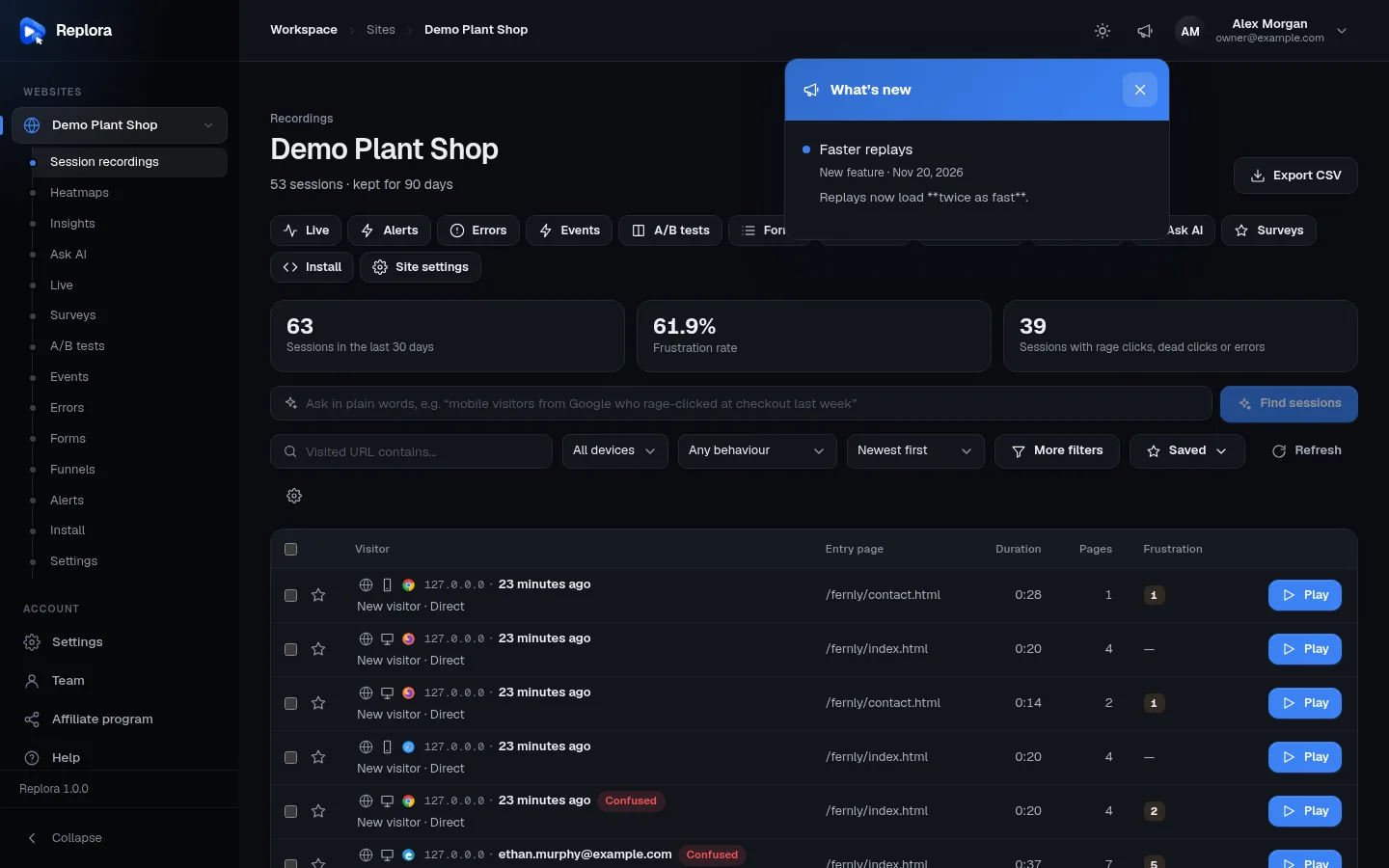
- Opening the panel shows What's new, newest first, 10 at a time (more on demand), and marks everything read. It closes with Escape or a click outside.
Publish an announcement
- Press New announcement.
- Write the Title, choose the Kind, write the Text (blank lines between paragraphs).
- Optionally add an Image.
- Leave Published on. Switch on Email it to everyone if it should also go by email.
- Check the Preview, then press Publish.
To prepare it first, switch Published off and Save draft; publish later with Edit › switch on › Save. Unpublishing a published announcement makes it a draft again; publishing it again keeps its first publication date.
Emailing
With Email it to everyone, the announcement goes to every user who isn't suspended, once: the title as subject and heading, each paragraph, the image, and an Open {product} button. It is emailed only the first time — afterwards the editor says Emailed to everyone on {date}. and the switch is gone. The emails are queued and sent by the background worker in batches of 500 users, with the button in each person's language; the title and text are sent as you wrote them.
Email needs a working setup
Check Email delivery and the background worker before emailing a large user base.
Delete an announcement
Press the bin button and confirm: "{title}" disappears from everyone's news. Emails already sent stay sent.
Related
- Email delivery
- Help center — lasting help articles, unlike news
- Administrator tour