
Appearance
Help center
The help center is the knowledge base inside your dashboard: categories of short articles that everyone finds on the Help page and behind the round help button in the corner of every page. You write and order them here. When the AI chat is on, Claude answers people's questions from your published articles and links the ones it used.
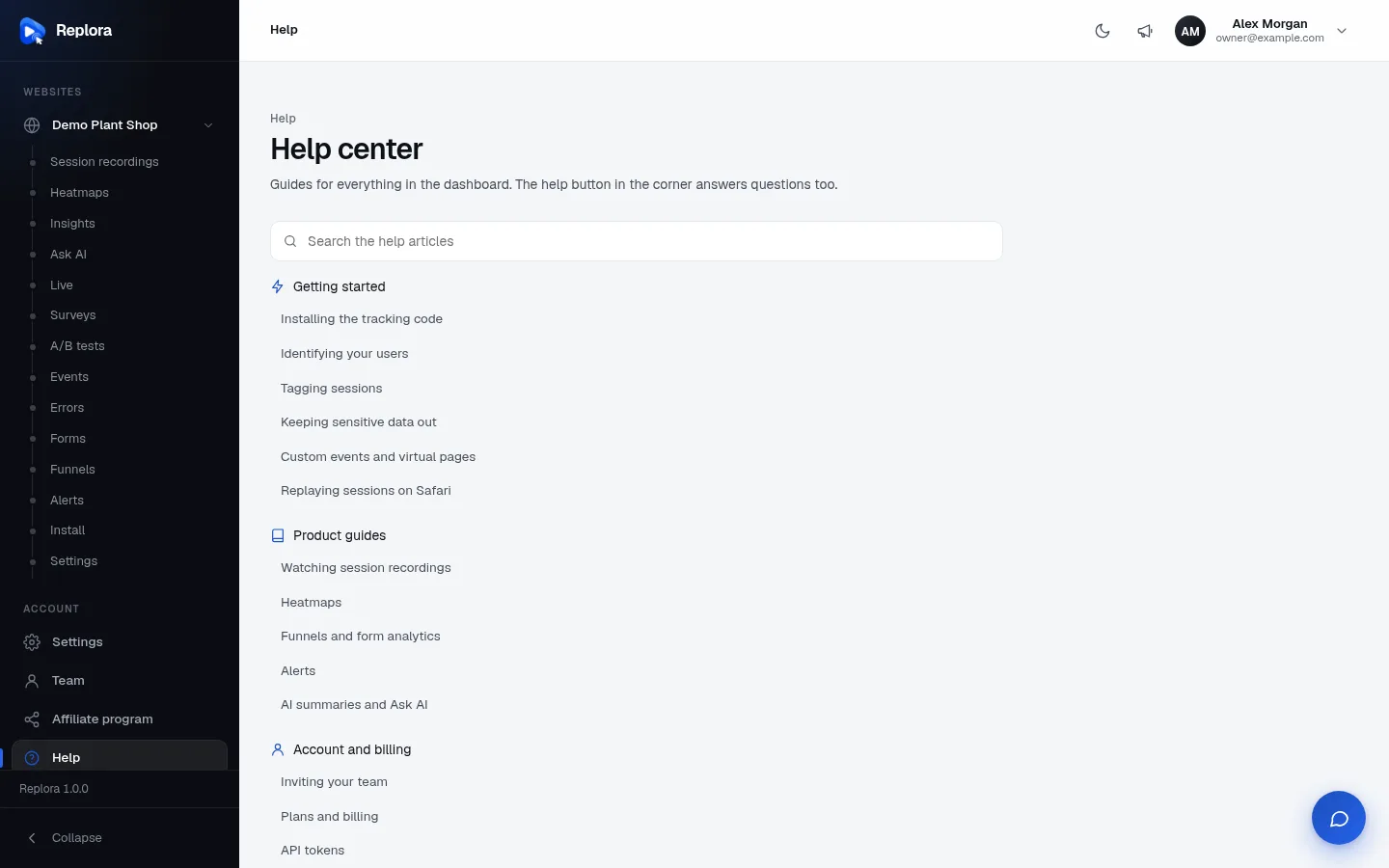
Where: sidebar › Administration › Help center (/help-center) to write; everyone reads them at Account › Help (/help) and in the help button at the bottom right.
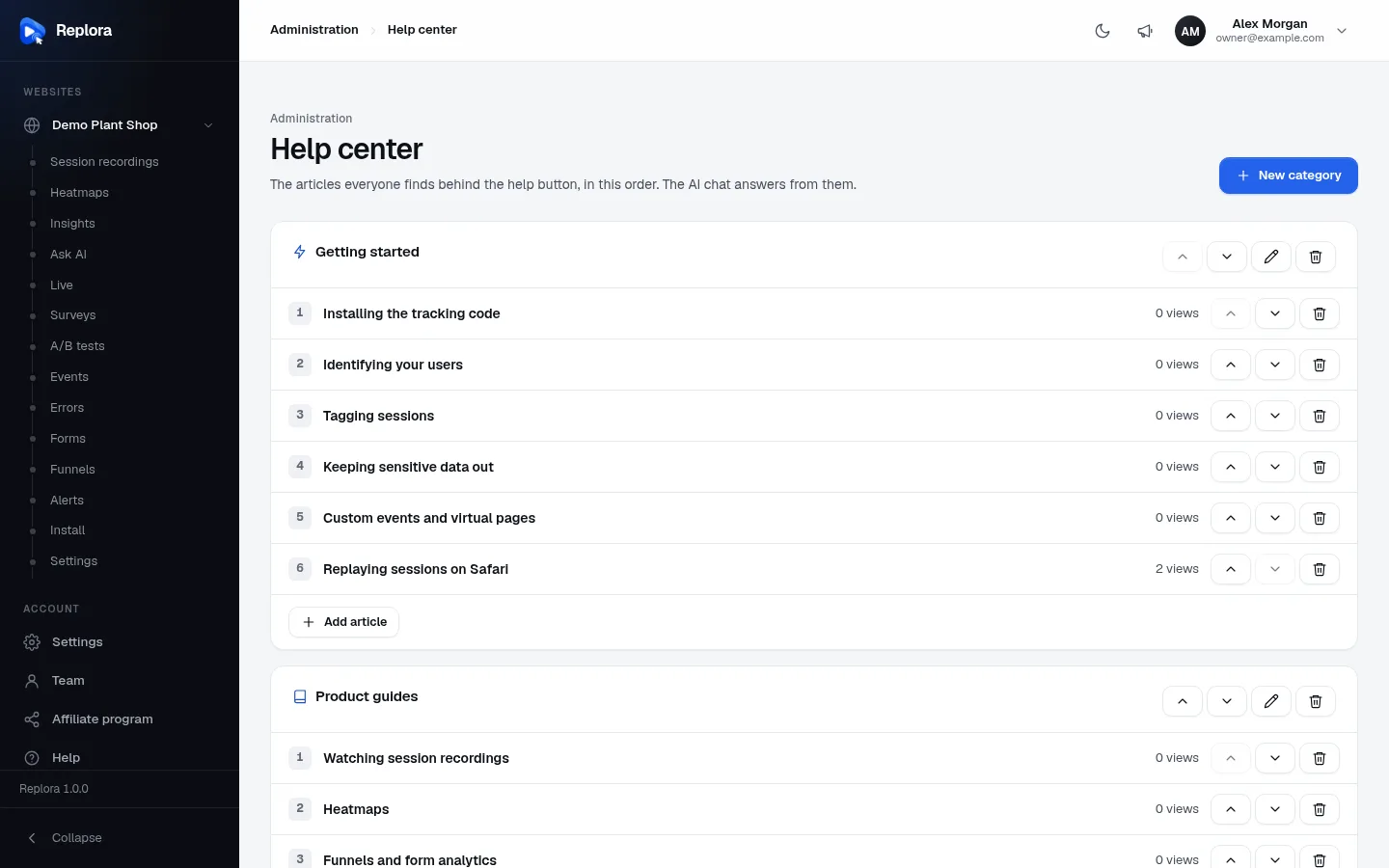
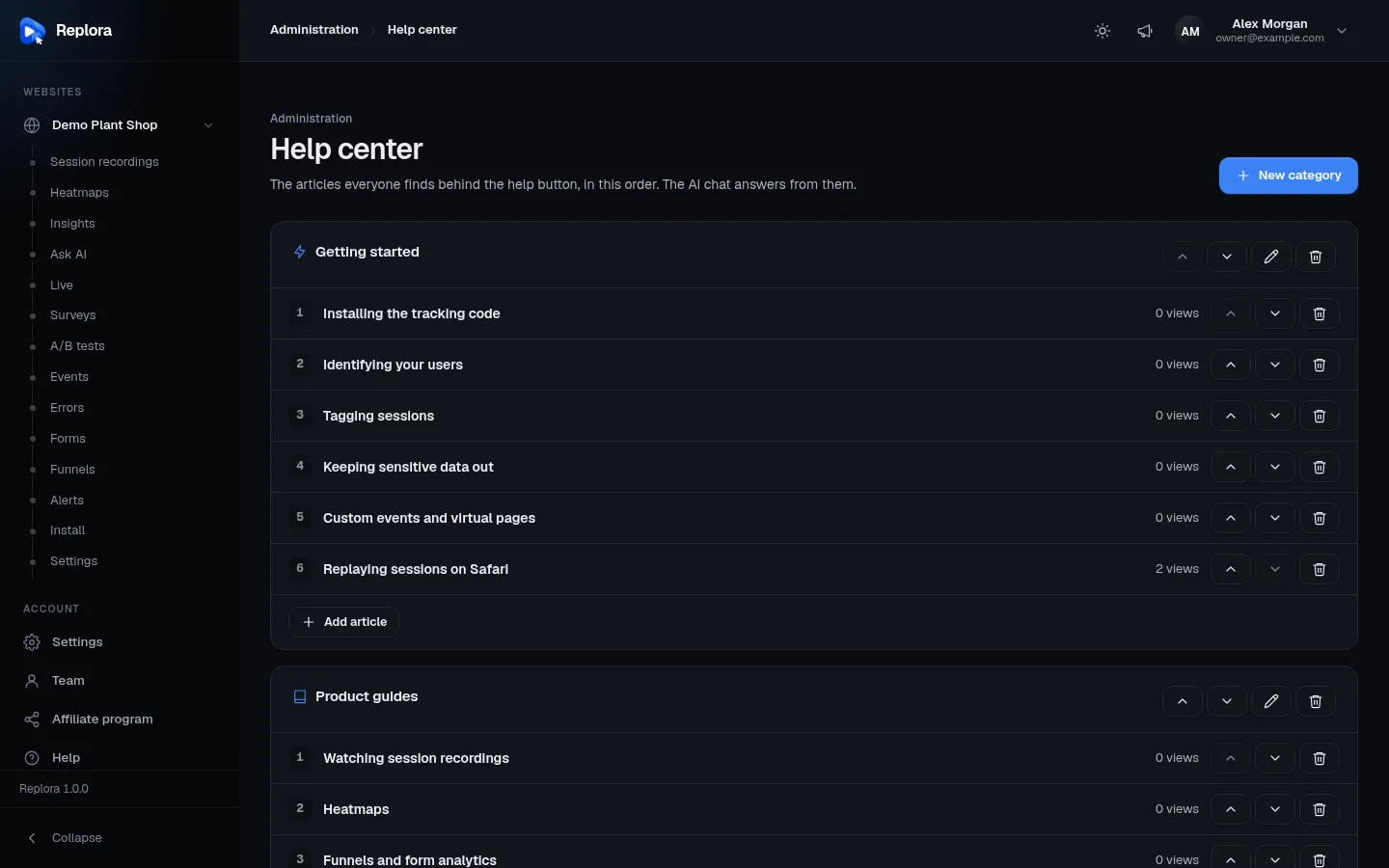
1. New categoryA name and an icon.
What readers see
- The Help page (
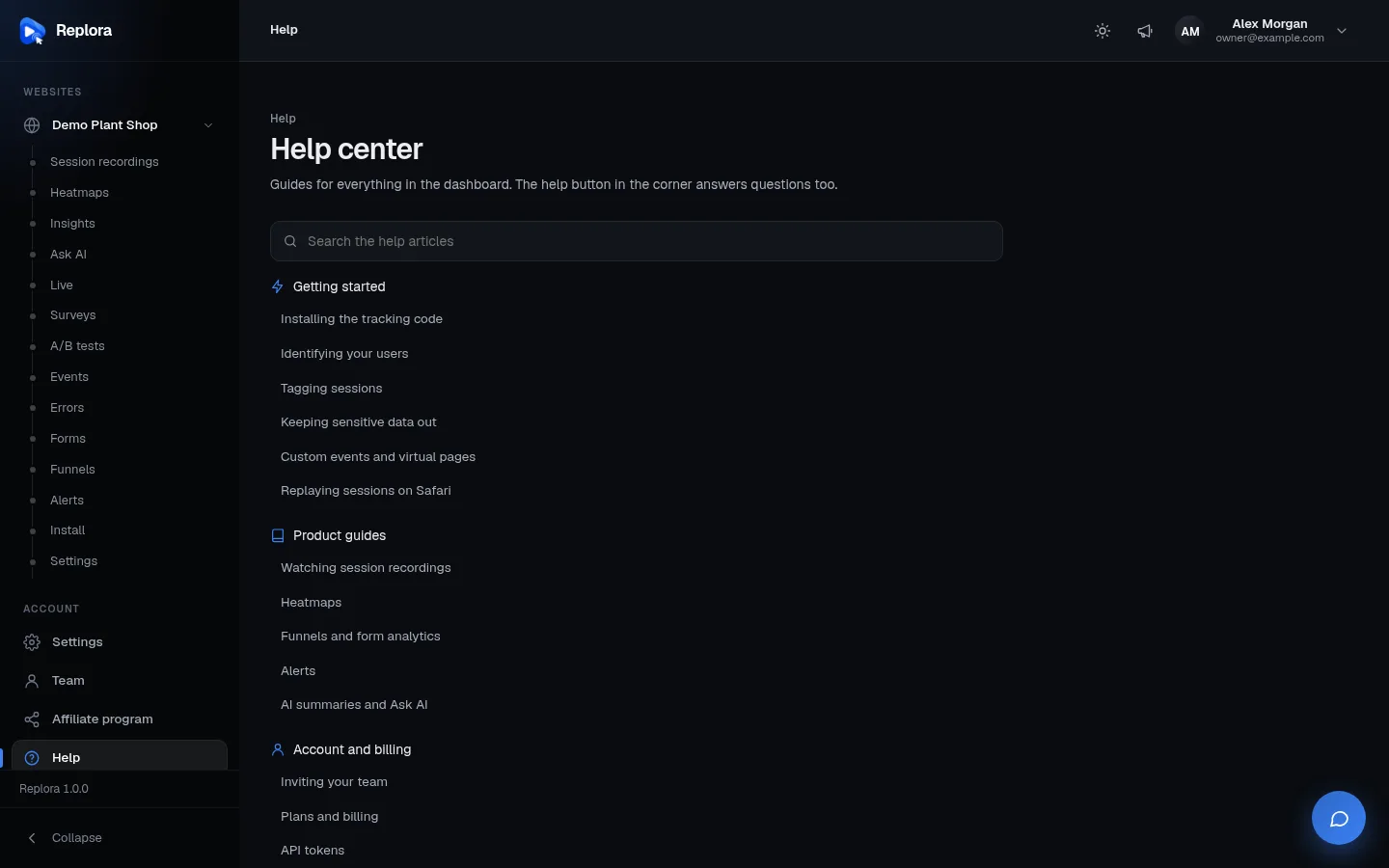
/help, Help center — Guides for everything in the dashboard): a search box and every category with its published articles, in your order. Categories without published articles are hidden. - The help button (bottom right, every page): a greeting, Chat with AI (when the chat is on), Help articles, Contact support (SaaS, when support tickets are open), up to four Suggested for you articles (the first article of each category, then the second…), a search, each article, and the chat. A Contact us link appears when you set one.
- Search finds published articles whose title or text contains all the words (up to 6 words), titles first, at most 20.
Categories
| Field | Limits | What it does |
|---|---|---|
| Name | required, up to 80 characters | E.g. Getting started. |
| Icon | one of 12 | book, bolt, user, card, settings, code, lock, play, target, activity, sparkle, help. Default: book. |
Buttons on each category: ↑ / ↓ (move; the change is saved at once), edit (pencil), delete (bin: "{name}" and its N articles are deleted.).
Articles
| Field | Limits | What it does |
|---|---|---|
| Title | required, up to 160 characters | |
| Category | Moves the article to another category. | |
| Text | required, up to 30 000 characters | Light markup: ## starts a heading, - or 1. a list item; **bold**, `code`, [link text](https://…); three backticks on their own lines fence a code block. A Preview beside the editor shows the result. |
| Published | default on | Off keeps it as a draft only administrators see (and the AI doesn't use). |
Each article row shows its number in the category, the title, Draft when unpublished, the view count (N views: how often it was opened), ↑ / ↓ and delete.
Write an article
- Press Add article under the category.
- Write the Title and the Text; check the Preview.
- Leave Published on (or off for a draft) and press Save (Article saved.).
- Move it with ↑ / ↓ to where it belongs: readers see the same order, and the first articles of each category are the suggested ones.
The starter articles
A new installation starts with three categories — Getting started, Product guides, Account and billing — and their articles (installing the tracking code, identifying users, tagging sessions, keeping sensitive data out, heatmaps, funnels, AI summaries, inviting your team, plans, API tokens…). Change them to match your installation: your product name, your plans, your support. Delete what doesn't apply (for example billing articles on the Single user edition).
The AI help chat
When Answer questions with AI is on and an Anthropic API key is set, the help button offers Chat with AI (Ask our AI anything about the dashboard, or browse the help articles below.).
How it answers:
- Claude gets your published articles (as many as fit in 60 000 characters) and the conversation (up to 20 turns of 2000 characters).
- It answers from those articles only, briefly, in the language of the question, quoting menu names as written in the articles. When the articles don't cover something it says so and suggests contacting support, without inventing features, prices or settings.
- Under the answer it links up to three articles it used. A note reminds people: AI answers can be wrong. The articles have the details.
- The conversation is kept in that browser tab only; nothing is stored on the server.
Limits: 50 questions a day per person, and 10 a minute. Over the day's limit: You asked a lot of questions today. Browse the articles, or try again tomorrow. With the chat off: The help chat is switched off. Browse the articles instead.
The chat is only as good as your articles: when people ask something it can't answer, write an article about it.
Settings
Settings › Installation › Help center (Installation settings):
| Field | Default | What it does |
|---|---|---|
| Answer questions with AI | on (REPLORA_HELP_AI) | Claude answers from your help articles. Needs the Anthropic API key (AI card). |
| "Contact us" link | empty (REPLORA_HELP_CONTACT_URL) | An address or mailto:… shown in the help widget. Empty hides it. Up to 300 characters. |
The model and effort are those of the AI (Claude) card (AI features); the help chat uses Effort for summaries.
Related
- AI features (Claude)
- Support desk — tickets after the articles (SaaS)
- Support & help — the user guide's view
- Announcements