
Appearance
Appearance & branding
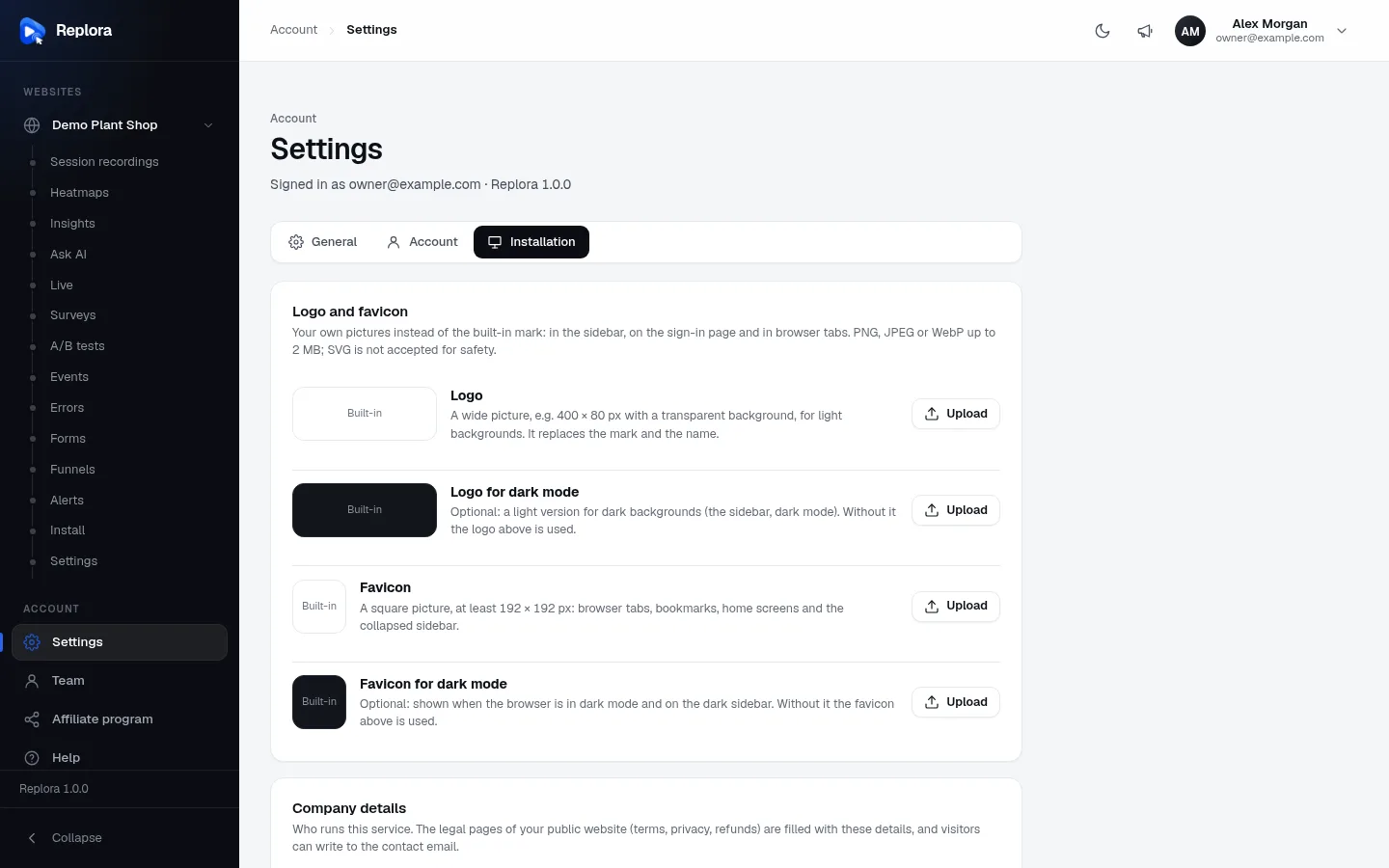
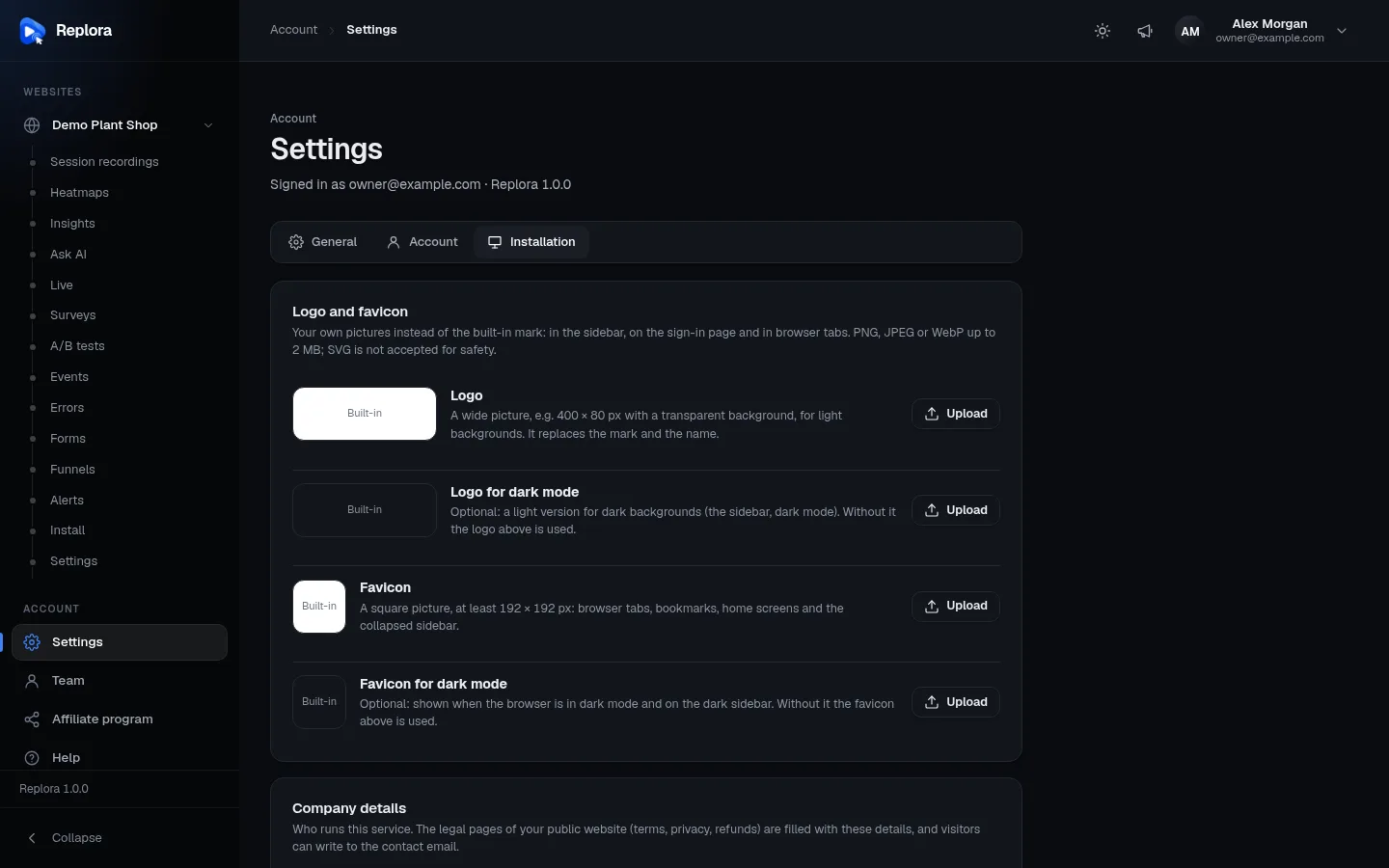
Replora can carry your brand: your product name everywhere (dashboard, emails, public website), your logo and favicon in the sidebar, on the sign-in page and in browser tabs, one of six dashboard designs and six replay-player styles for everyone — and you decide whether each person may switch to dark mode and pick their own accent colour.
Where: Settings › Installation (/settings#installation): the cards Logo and favicon, Dashboard design, General and Replay player. Administrators only.
Product name
Settings › Installation › General › Product name (default Replora, from APP_NAME; up to 60 characters). It appears in the sidebar (when no logo is set), the browser tab, the sign-in pages, the subject and header of every email (You are invited to {name}), the help chat and, on SaaS, the public website. Press Save.
Logo and favicon
| Picture | Where it shows | Without it |
|---|---|---|
| Logo | Sidebar, sign-in pages — on light backgrounds. Replaces the built-in mark and the product name. | The Replora mark with the product name |
| Logo for dark mode | The sidebar (always dark) and dark mode | The logo above |
| Favicon | Browser tabs, bookmarks, home screens, the collapsed sidebar | The built-in icon |
| Favicon for dark mode | Browsers in dark mode and the dark sidebar | The favicon above |
Rules: PNG, JPEG or WebP, up to 2 MB, 16 to 4000 px on each side. SVG is refused because it can carry scripts. The server re-encodes every picture before keeping it.
- Prepare a wide logo (e.g. 400 × 80 px, transparent background) and a light version of it for dark backgrounds.
- Prepare a square favicon of at least 192 × 192 px.
- Press Upload on each row and pick the file. The page reloads so every place shows it (Logo saved / Favicon saved).
- To go back to the built-in picture, press the bin button on the row.
The sidebar is always dark
Because the sidebar is dark in every design, it uses the dark versions first. If you upload only a dark-text logo, it may be hard to read there: add a Logo for dark mode.
Dashboard design
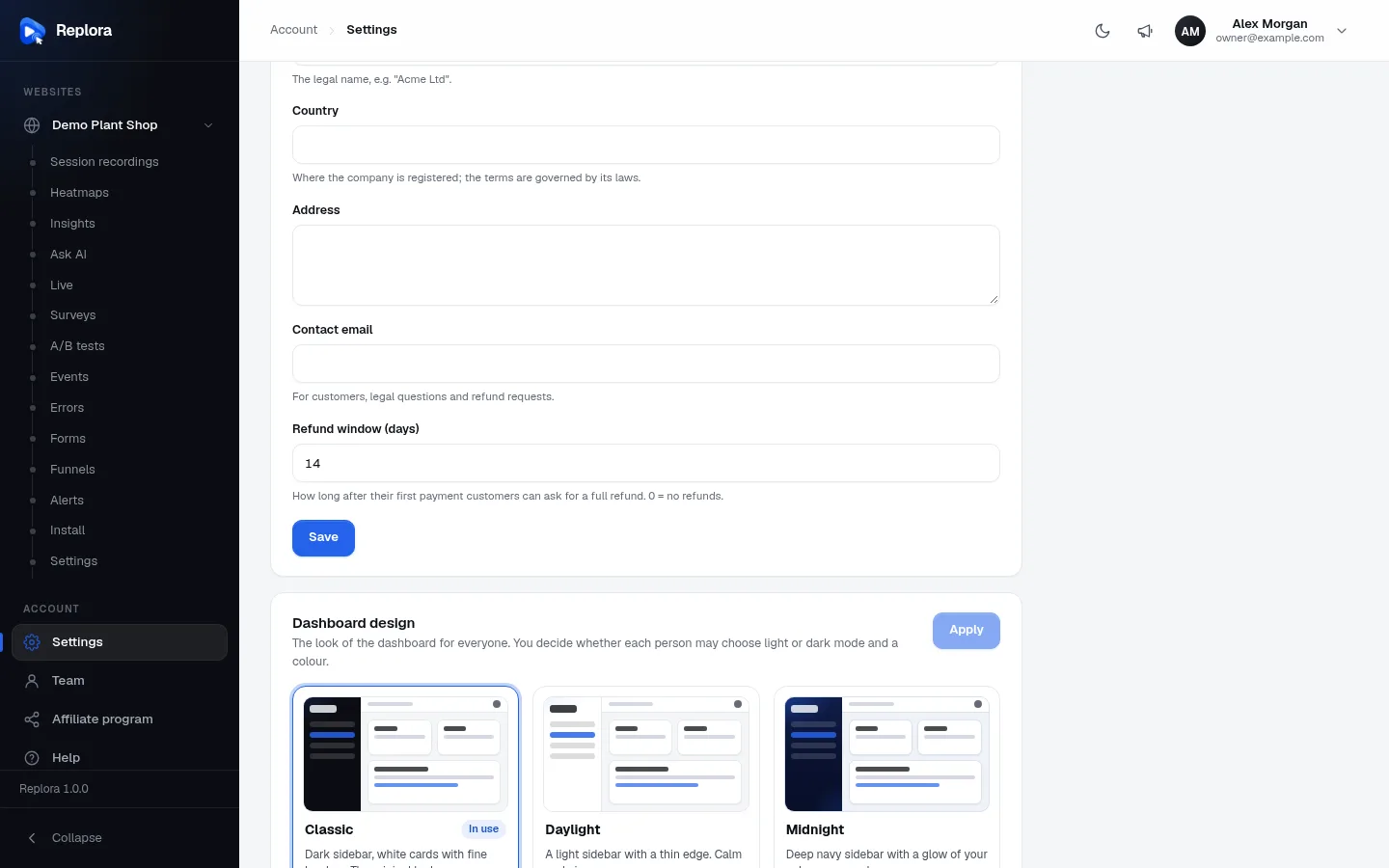
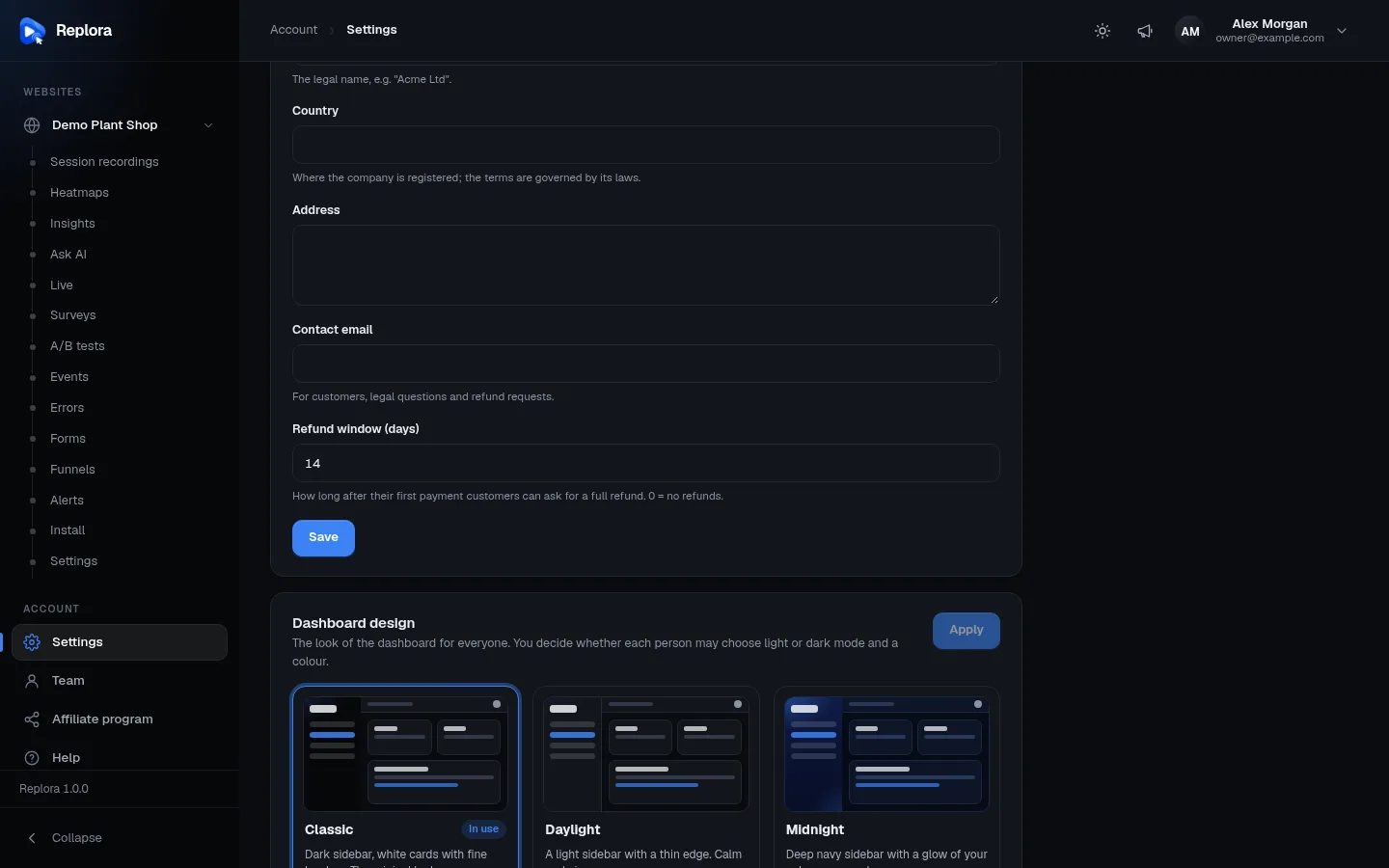
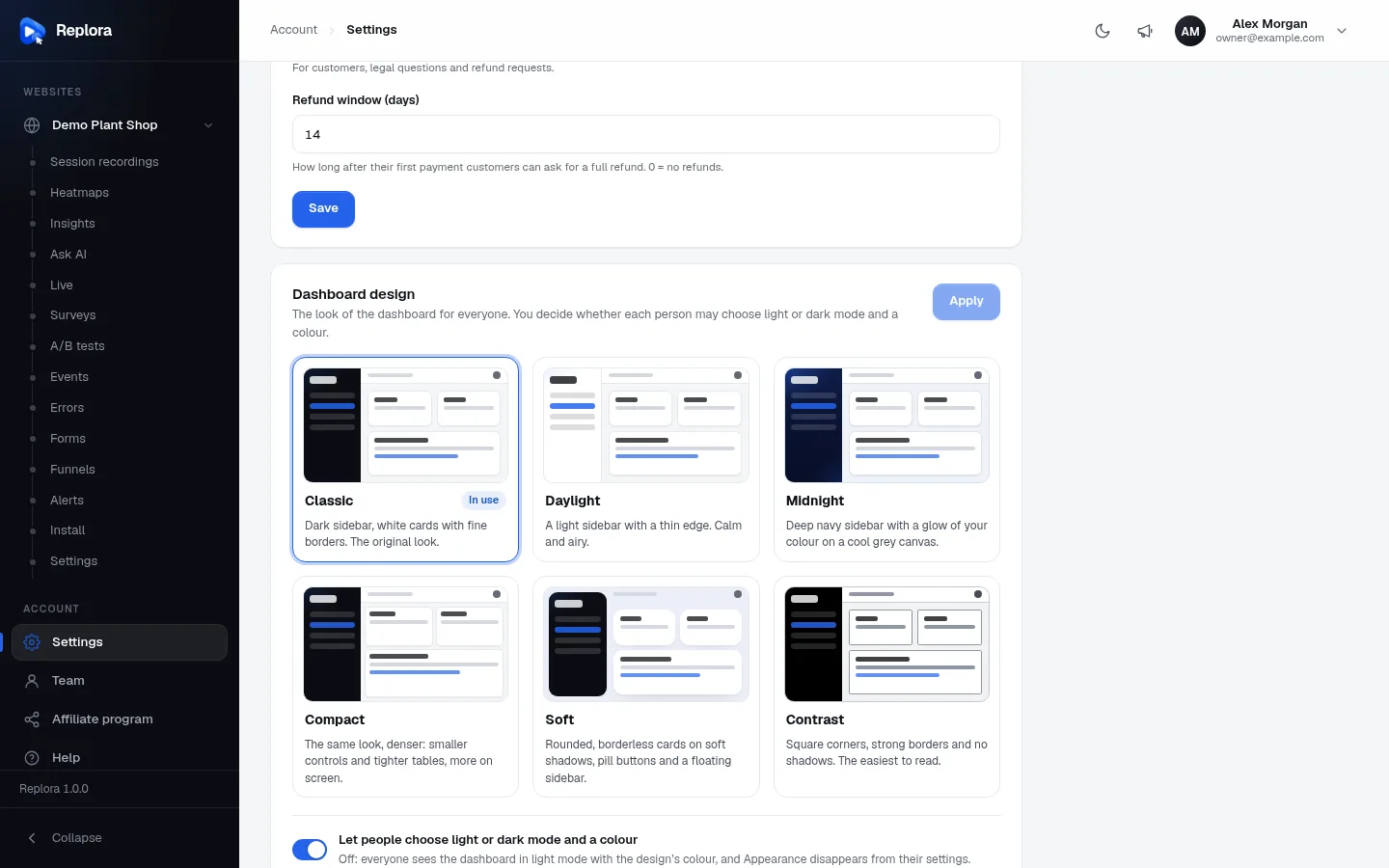
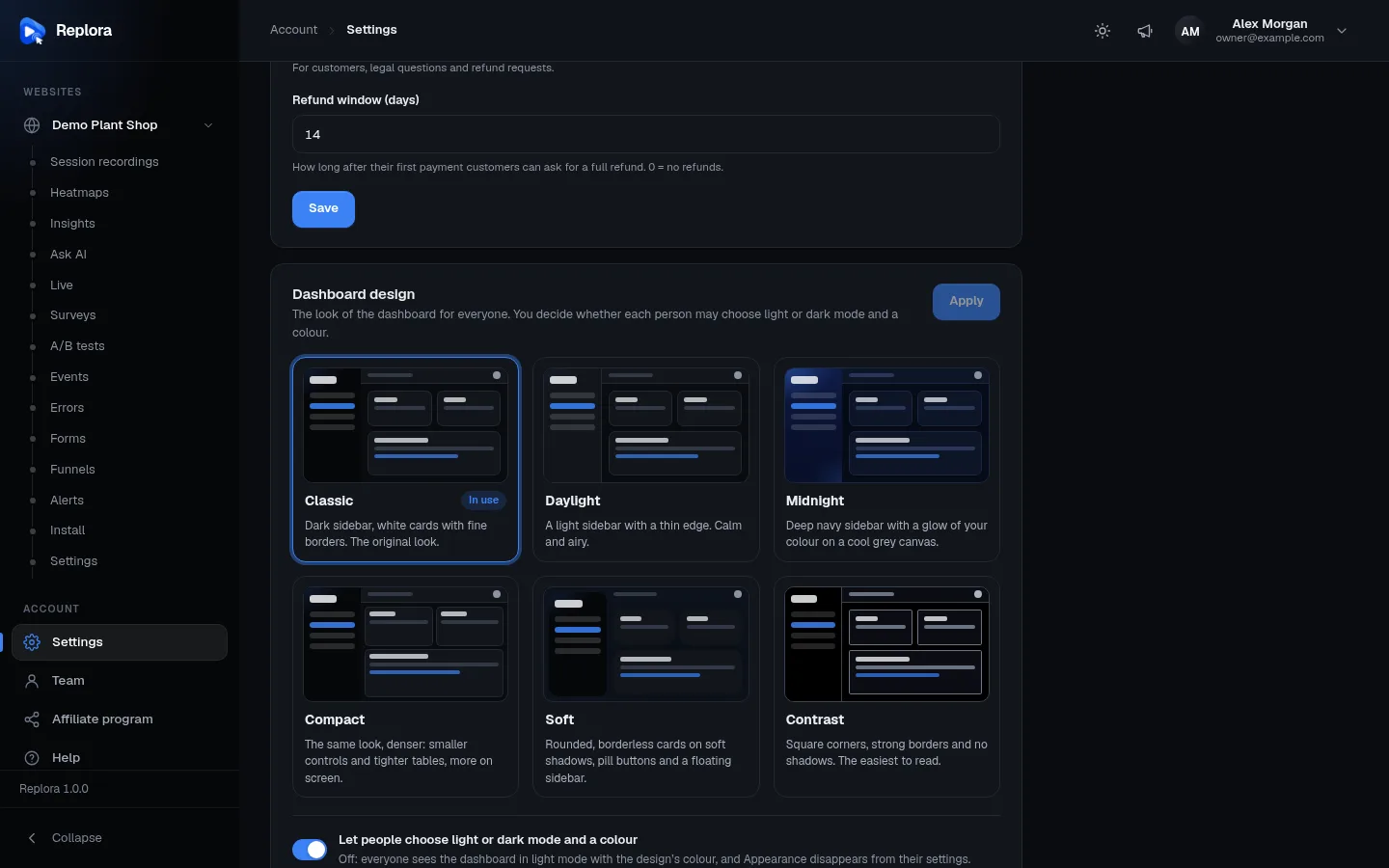
Six designs change the whole dashboard's look — sidebar, cards, controls, corners and shadows — for everyone:
| Design | Look |
|---|---|
| Classic (default) | Dark sidebar, white cards with fine borders. The original look. |
| Daylight | A light sidebar with a thin edge. Calm and airy. |
| Midnight | Deep navy sidebar with a glow of your colour on a cool grey canvas. |
| Compact | The same look, denser: smaller controls and tighter tables, more on screen. |
| Soft | Rounded, borderless cards on soft shadows, pill buttons and a floating sidebar. |
| Contrast | Square corners, strong borders and no shadows. The easiest to read. |
- Scroll to Dashboard design. Each design is shown as a live preview in your current mode and colour; the one in use says In use.
- Click a design, then Apply (enabled once you pick a different one).
- It applies at once, for everyone, also on the sign-in pages (Design applied for everyone.).
The design can also be preset in .env with REPLORA_DESIGN (classic, daylight, midnight, compact, soft, contrast).
Light/dark mode and accent colours
Each person can choose, for their own browser, under Settings › General › Appearance (Applies to the dashboard on this device):
- Colour mode: Light, Dark or System (follows the device). The moon/sun button in the top bar switches between light and dark too.
- Accent colour: one of seven palettes — Blue (default), Orange, Indigo, Emerald, Violet, Rose, Slate.
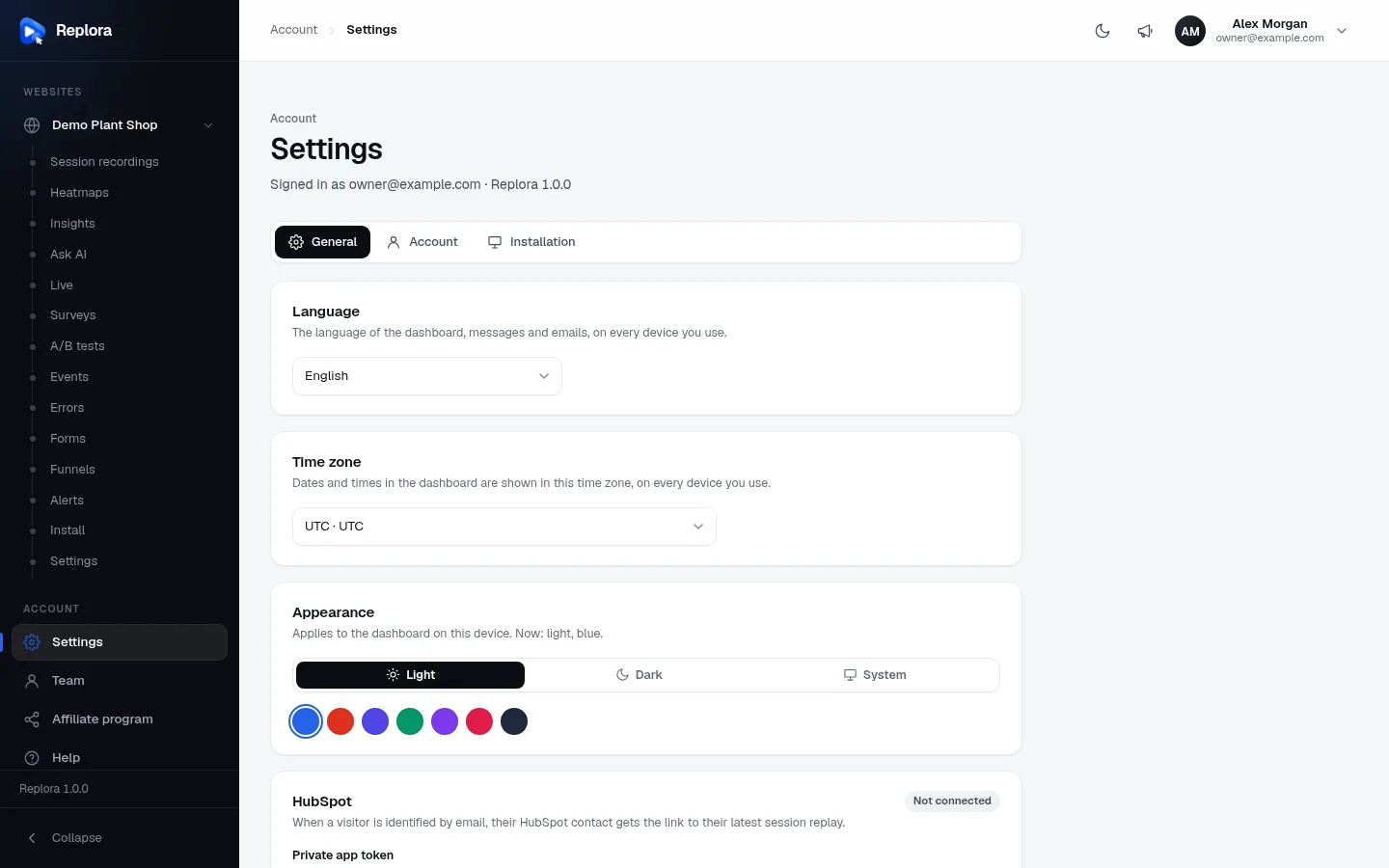
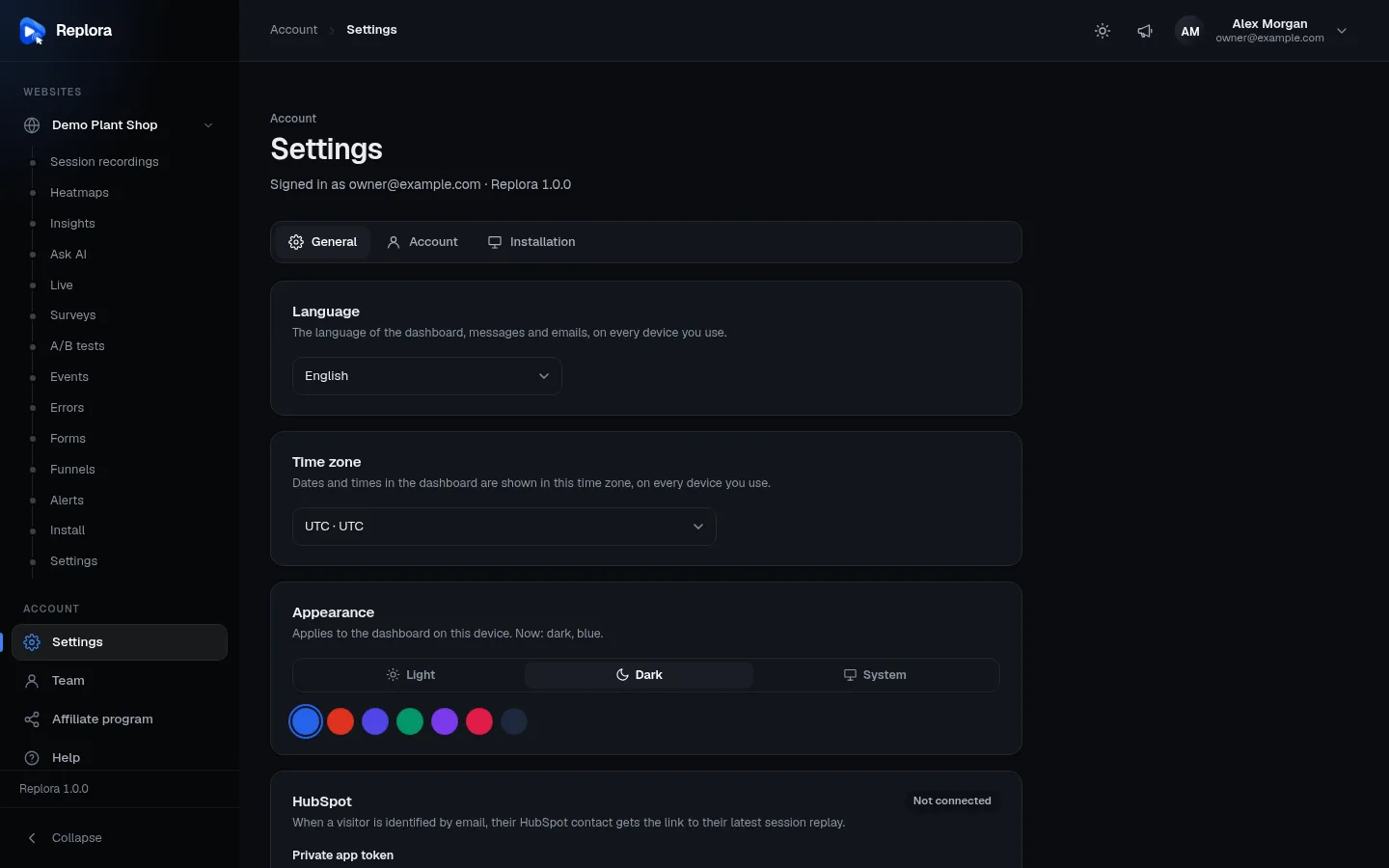
The choice is remembered in that browser only (another device starts with light mode and blue).
Let people choose, or not
Under the design previews on Settings › Installation › Dashboard design, the switch Let people choose light or dark mode and a colour (default on) saves at once and applies to everyone. Off:
- everyone sees the dashboard in light mode with the default blue accent, whatever they chose before;
- the Appearance card disappears from their settings and the light/dark button from the top bar.
Use it when the dashboard must always look the same, for example for screenshots or a strict brand.
The default colour
New visitors and everyone, while choosing is switched off, get the Blue palette. There is no setting for another default accent colour.
Replay player
Settings › Installation › Replay player: the look of the controls under every replay, for everyone — also on shared replay links. Six styles shown as previews: Classic (default), Minimal, Cinema, Glass, Capsule, Studio. Pick one and press Apply (Player theme applied for everyone.). Preset in .env with REPLORA_PLAYER_THEME.
Texts
Every text of the dashboard, the emails and the public website can get your own wording per language on Translations. On SaaS, the public website's headline, introduction, footer and social links are in Website texts and Social links (Installation settings).