
Appearance
After installing
Installation leaves you signed in to a working dashboard. Work through this list once to make it production-ready; each item links to its page. The System page tells you what is still missing.
Checklist
| Task | Where |
|---|---|
Use HTTPS, and make sure APP_URL in .env is the public https address | VPS: HTTPS |
| Start the background worker, or the cron fallback on shared hosting | Background worker & email |
Add the cron line (* * * * * php artisan schedule:run) | Scheduler |
| Set up email and send a test | Email delivery |
| Open Administration › System and make every service check green | Service status & maintenance |
| Make sure a purchase code is saved (License card) so updates can bring new modules | System |
| Choose where recordings live: the server's disk or S3 / R2 / MinIO | Recording storage |
| Upload your logo, favicon, pick the dashboard design and colours | Appearance & branding |
| Choose the languages people may use | Languages & translations |
| Optional: AI features with your Anthropic API key, Google sign-in, reCAPTCHA, virus scanning with ClamAV | Installation settings, AI features |
| Add your first website, paste its snippet and watch the first replay | User Guide |
| Invite your team | Users |
Schedule backups of the database, storage/ and .env | Backups |
| SaaS: plans, payment provider, sign-up, website pages | SaaS edition |
Busy sites: run php artisan replora:doctor | Scaling |
The System page
Administration › System shows the version and edition, the license, updates and Service status: every check with Working, Needs attention, Failing or Not checked, and a sentence saying what to do. The checks run every five minutes through the scheduler, and administrators get an email when a service starts failing and when it works again.
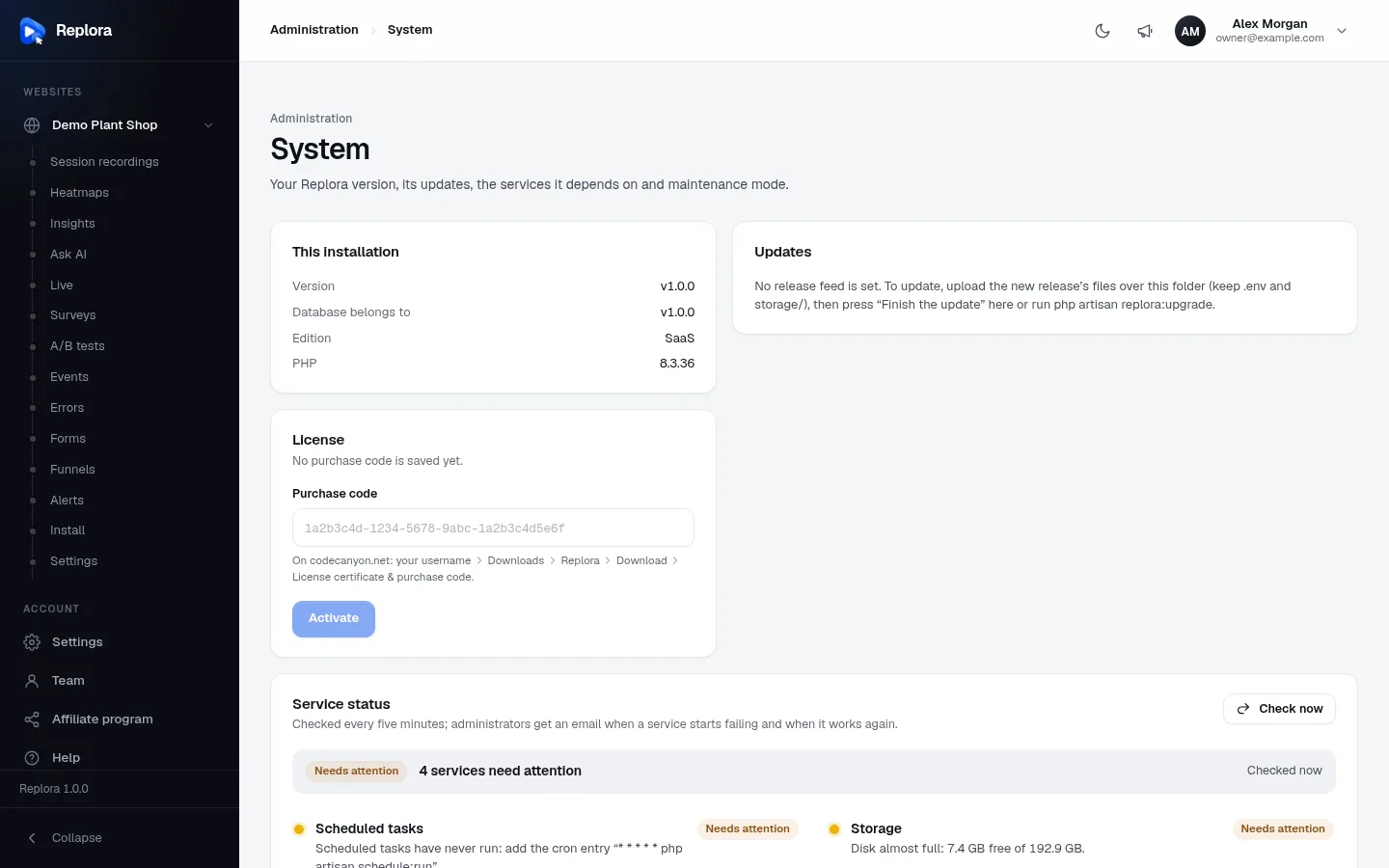
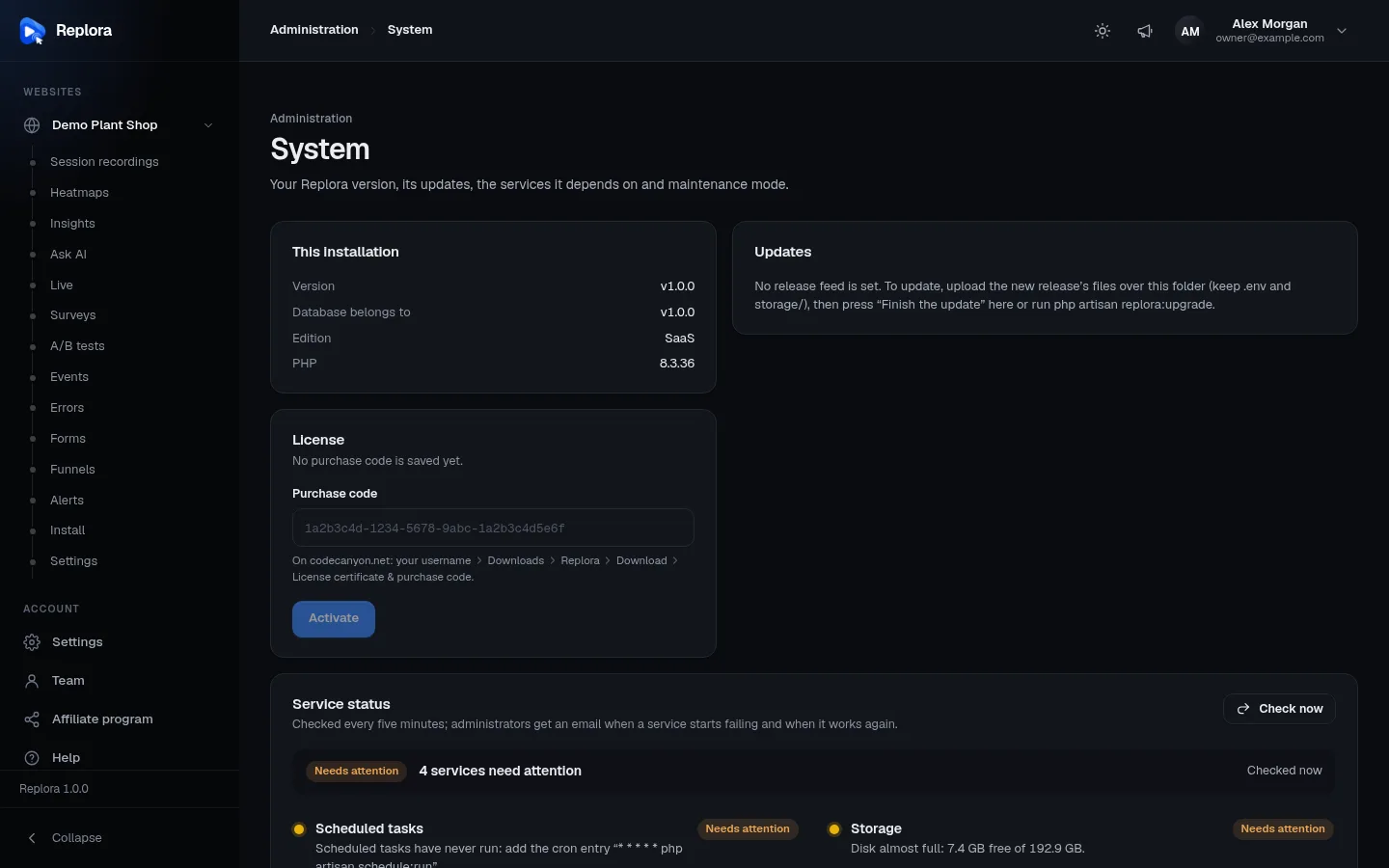
On a new installation you will typically see:
| Check | Message | Fix |
|---|---|---|
| Scheduled tasks | Scheduled tasks have never run: add the cron entry … | Add the cron line |
| Email delivery | Emails are only written to the log, not sent… | Set up email |
| License and modules | No purchase code is saved… (bundled builds) | Enter it in the License card |
| Recordings arriving | No recording has arrived yet: check that the tracking code is on your websites. | Add a website and paste the snippet |
Settings that live in .env
Most settings are changed in the dashboard (Settings › Installation, stored in the database; they win over .env). A few belong to the installation and are only in .env, in the application folder: the address, the database, the edition, the queue, recording storage, Redis, Reverb and the update feed. Every key is in Environment (.env).
After editing .env on a server that caches its configuration, run php artisan config:clear. Restart the workers so they read it too: php artisan queue:restart.
The installer can go
Once installed, the installer's pages answer 404. You may delete the modules/Installer folder; everything keeps working.